Set the products eligible for a trial
Set the products eligible for Try Before You Buy. They are decided by the following two settings.
| Setting | What it decides | How to set it |
|---|---|---|
| 1. Trial button display | The products that show the trial button on their product page | Set it with a product tag or a collection |
| 2. Shopify purchase options | The products that can be ordered with Try Before You Buy | Recustomer adds all products automatically. Usually no action is needed |
1. Trial button display
Choose which products show the trial button on their Shopify product page, and which do not.
Note
- If you write code directly in your storefront: this display control is available when you added the trial button with Adding it as an app block. If you used Adding it by writing code directly in your storefront, implement the display control in your code as well
- Check that this matches the products covered by your return policy: exclude products you have set as "not returnable or exchangeable" in your return policy (outlet products and so on) from the trial button as well. If such a product is bought as a trial and the shopper then requests a return, the request cannot be approved because the product is "not eligible", and you have to handle the return outside Recustomer
On the Shopify side, add a product tag or a product collection to the products you want to show (or hide) the trial button for
In the Recustomer admin dashboard, go to Settings > Purchase options > Try Before You Buy > Trial button
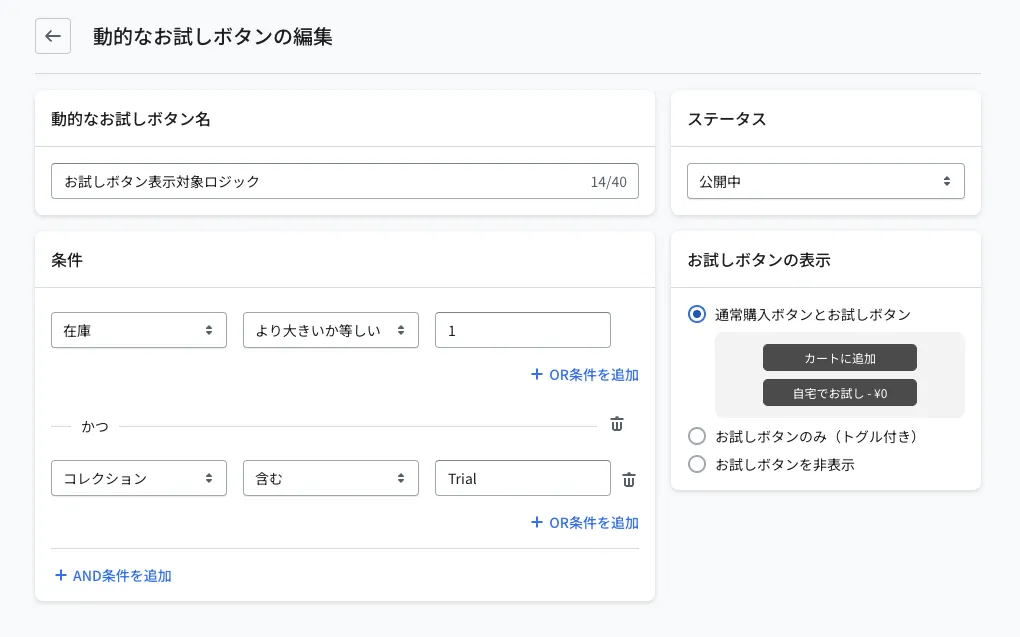
Click Trial button display logic

Under Conditions, click Add AND condition, select Collection or Product tag, and enter the collection name or product tag name you set in step 1
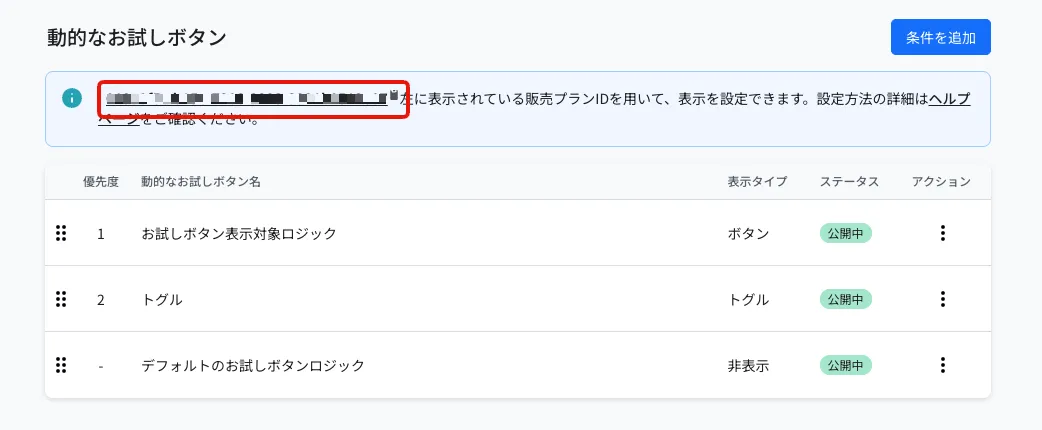
Copy the ID shown at the top of the dynamic trial button list screen
Enter the ID you copied into Display control script ID in the trial block settings in the theme editor
2. Shopify purchase options
Try Before You Buy is added to products as a Shopify purchase option. Your store has one Try Before You Buy purchase option, and all products use the same conditions (the trial policy).
- When you start using Try Before You Buy, Recustomer adds all products in your store to the purchase option
- Products you create after that are added automatically about every 12 hours
- Products you remove from the purchase option are not added back automatically
- If you reinstall the app and resume Try Before You Buy, products you had removed may be included again (see If you reinstall the app)
Check the purchase option
When you open a product's detail page in your Shopify admin, the Purchase options card shows the Try Before You Buy purchase option (recustomer_tbyb).
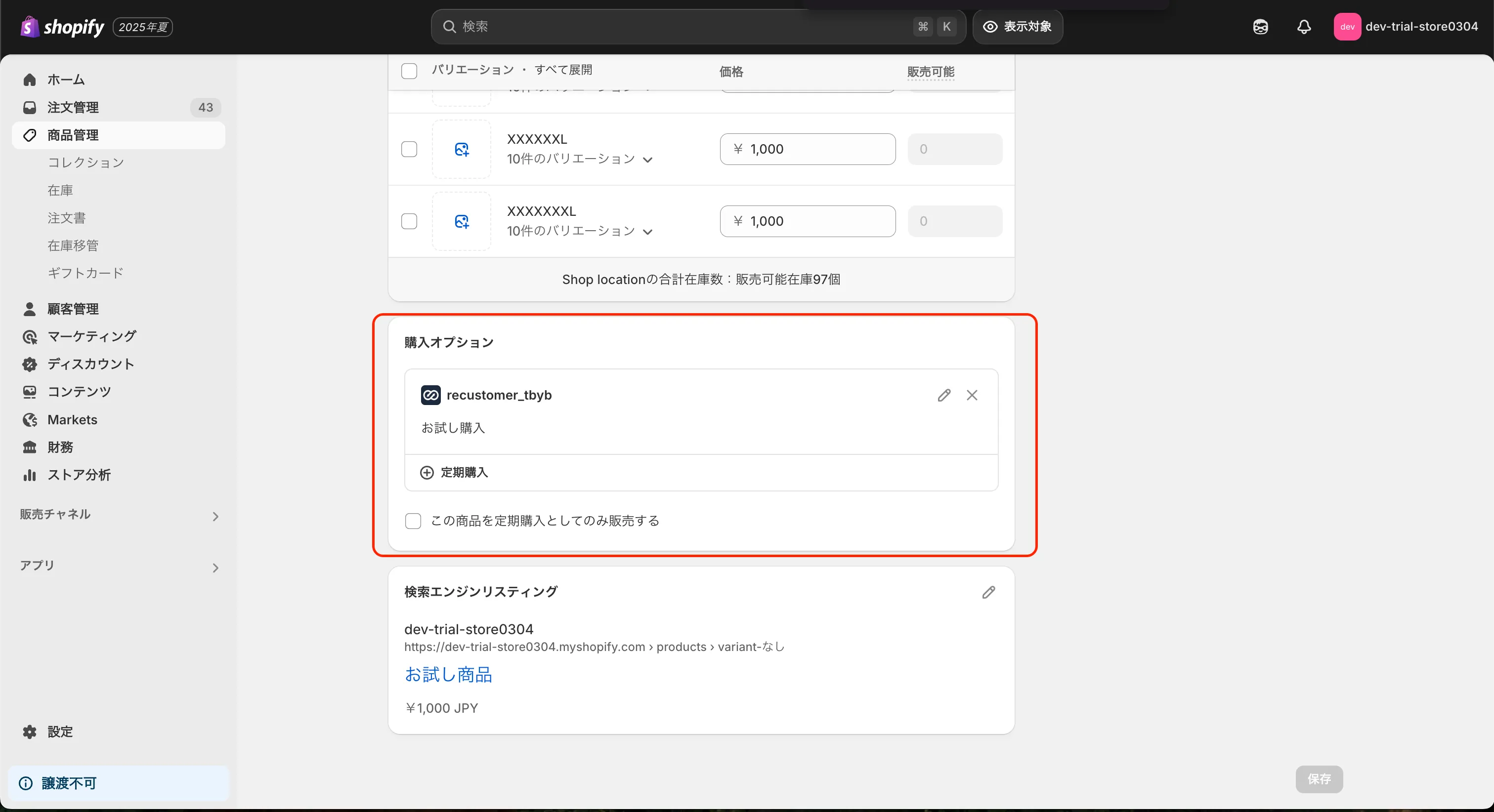
Click the pencil icon to open a Recustomer screen where you can check the New orders status and the Upfront payment of Try Before You Buy. Check and change the trial period and payment timing in the trial policy.
Remove a product from the purchase option
- In your Shopify admin, open the product's detail page
- In the Purchase options card, click the × of the Try Before You Buy purchase option
Products you remove can no longer be ordered with Try Before You Buy.
Add a product to the purchase option
Do this when you want a product you removed to be eligible for Try Before You Buy again.
- In your Shopify admin, open the product's detail page
- In the Purchase options card, click Add to existing purchase option and select the Try Before You Buy purchase option (recustomer_tbyb)
※Your store has only one Try Before You Buy purchase option, so you do not need to create a new one from the Purchase options card