Additional setup for trial prepayments
If you charge a trial prepayment, you need an additional Shopify Flow.
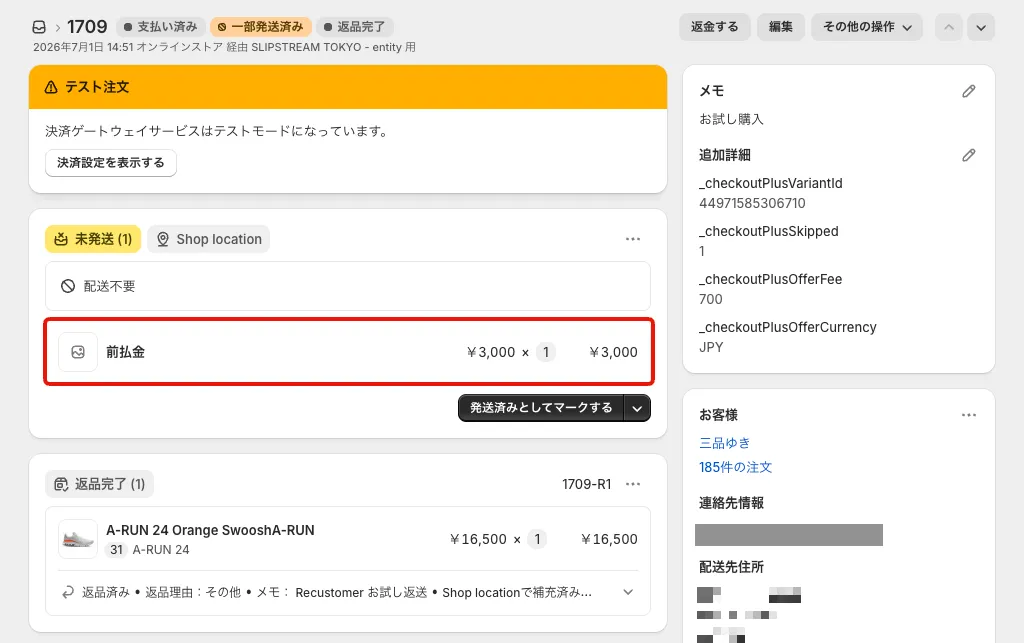
When a trial item is sent back, Shopify creates a return and treats the prepayment as refundable too. This Flow therefore adds the prepayment to the order as a custom item, so that it is counted as an amount that has been paid and does not need to be refunded.
1. Creating the Flow (importing the file)
Instead of building this Flow by hand, you can create it by importing a Flow file.
In the Shopify Flow workflow list, choose Import and load the
.flowfile you downloadedClick the edit button on the imported Flow
Open the Condition and replace the Selling Plan ID with your own ID
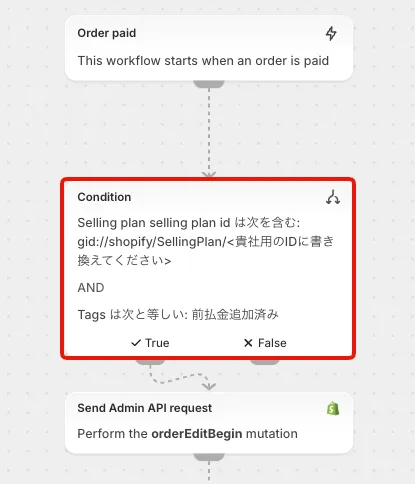
※If you do not know your Selling Plan ID, contact your account manager
Open Send Admin API request (1) and change the prepayment amount (
amount) and currency (currencyCode) to the values you set in Trial policy settingsAlways check the amount, currency, and quantity
The Flow file ships with default values (3000 / JPY). Change them to your own prepayment amount and currency.
This Flow also adds the prepayment
quantitytimes for each returned line. If you set a fixed amount in your trial policy, fixquantityto1in Send Admin API request (1) so that it is added only once per order. If you use a percentage, a fixed amount cannot express the correct prepayment, so please consult your account manager.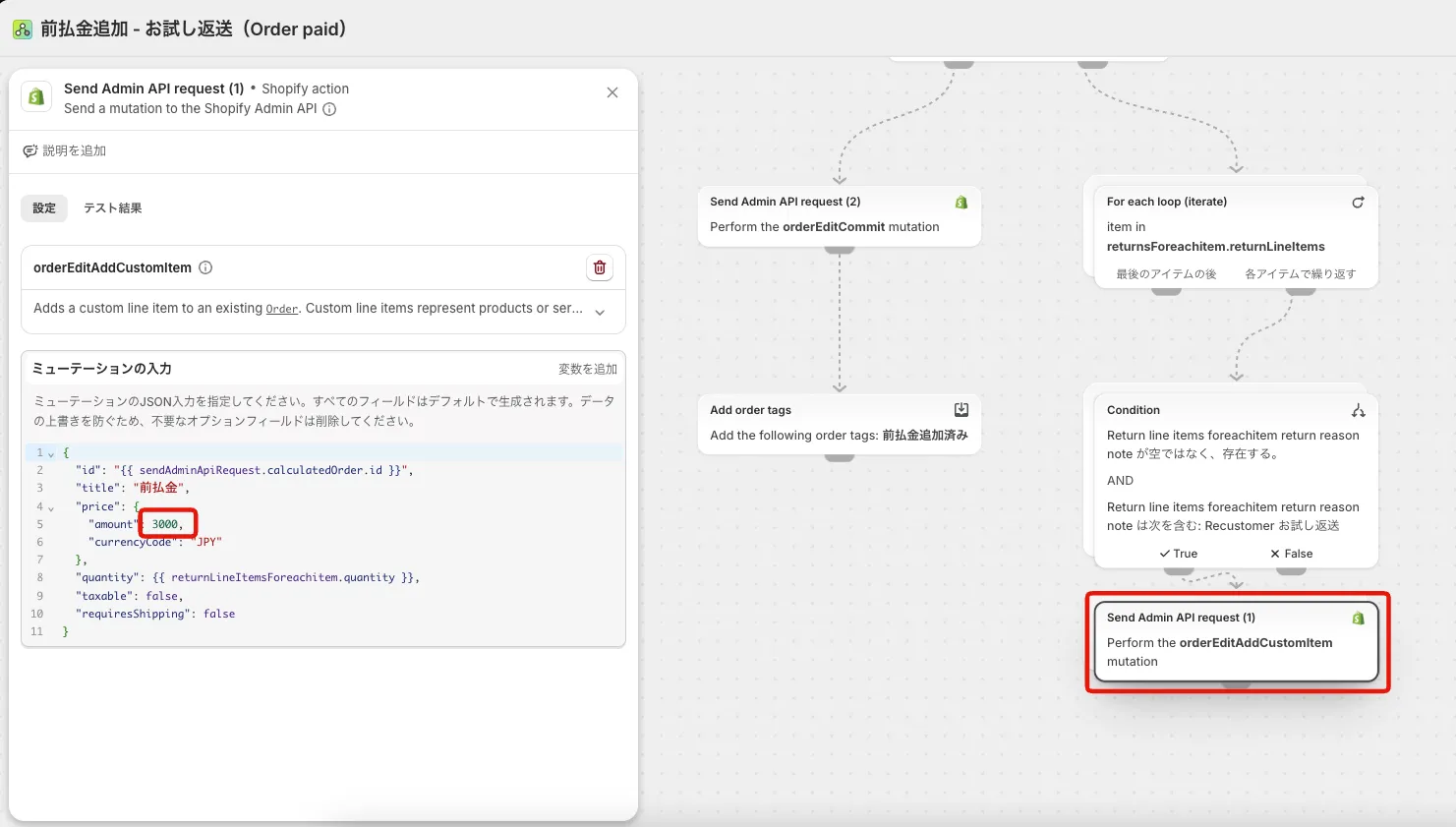
2. Checking that the Flow works
Place a test trial order
Submit a return request and choose "Return" as the preferred resolution
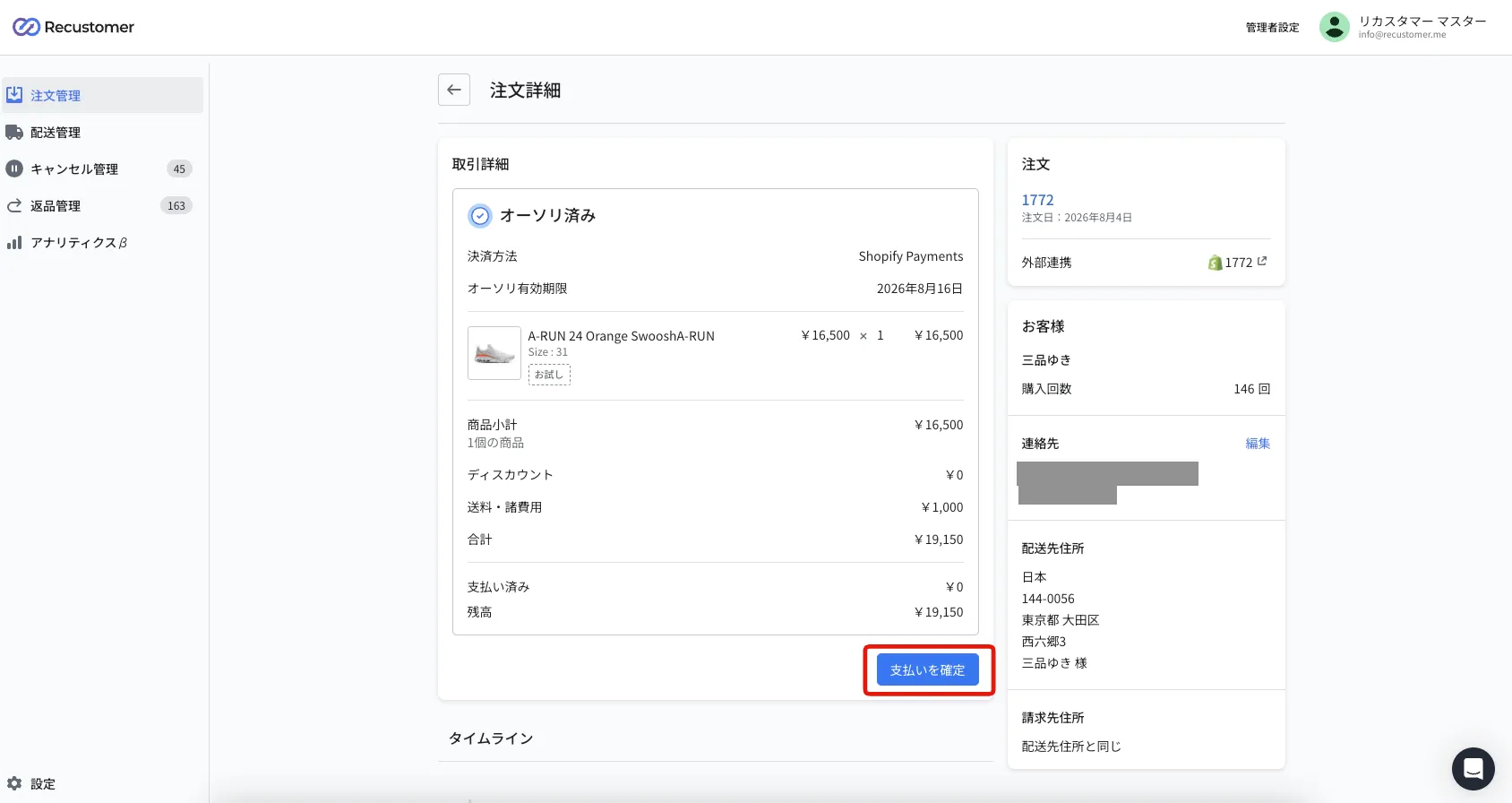
Open the order in order management and click Capture payment
Check that Shopify Flow runs and adds a "前払金" (prepayment) custom item to the original order
Before the Flow runs: the prepayment is treated as refundable and the order shows that a refund is due to the customer
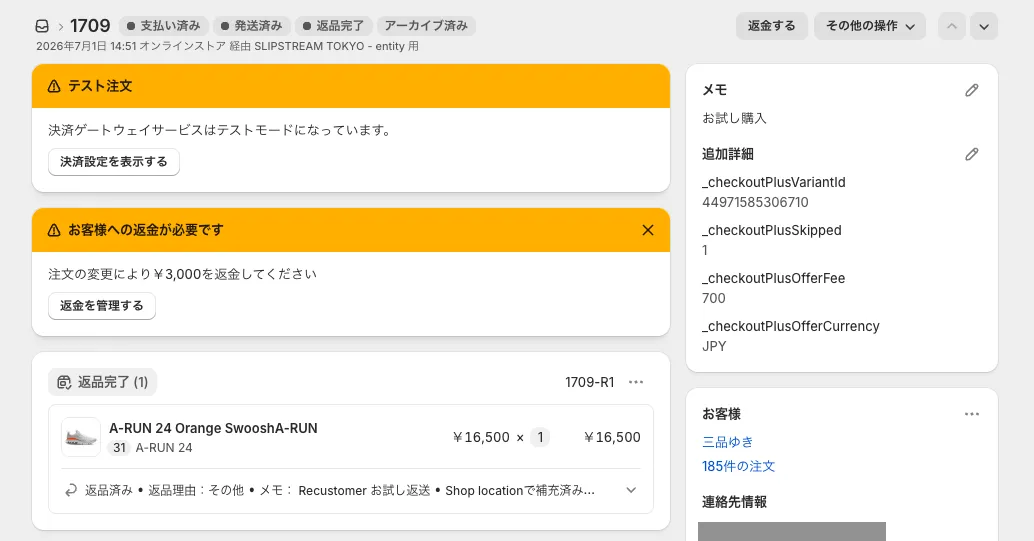
After the Flow runs: a "前払金" (prepayment) custom item is added to the order and the refund notice disappears