Add the Try Before You Buy button
Add the Try Before You Buy button to your Shopify product pages.
1. Adding it as an app block
Follow the video below to add the trial button app block in the theme editor.
※Depending on how your theme is built, it may not be possible to add the trial button as an app block. If that is the case, contact your account manager.
If the button does not appear
In your Shopify admin, check that Purchase options has been added to the product's detail page
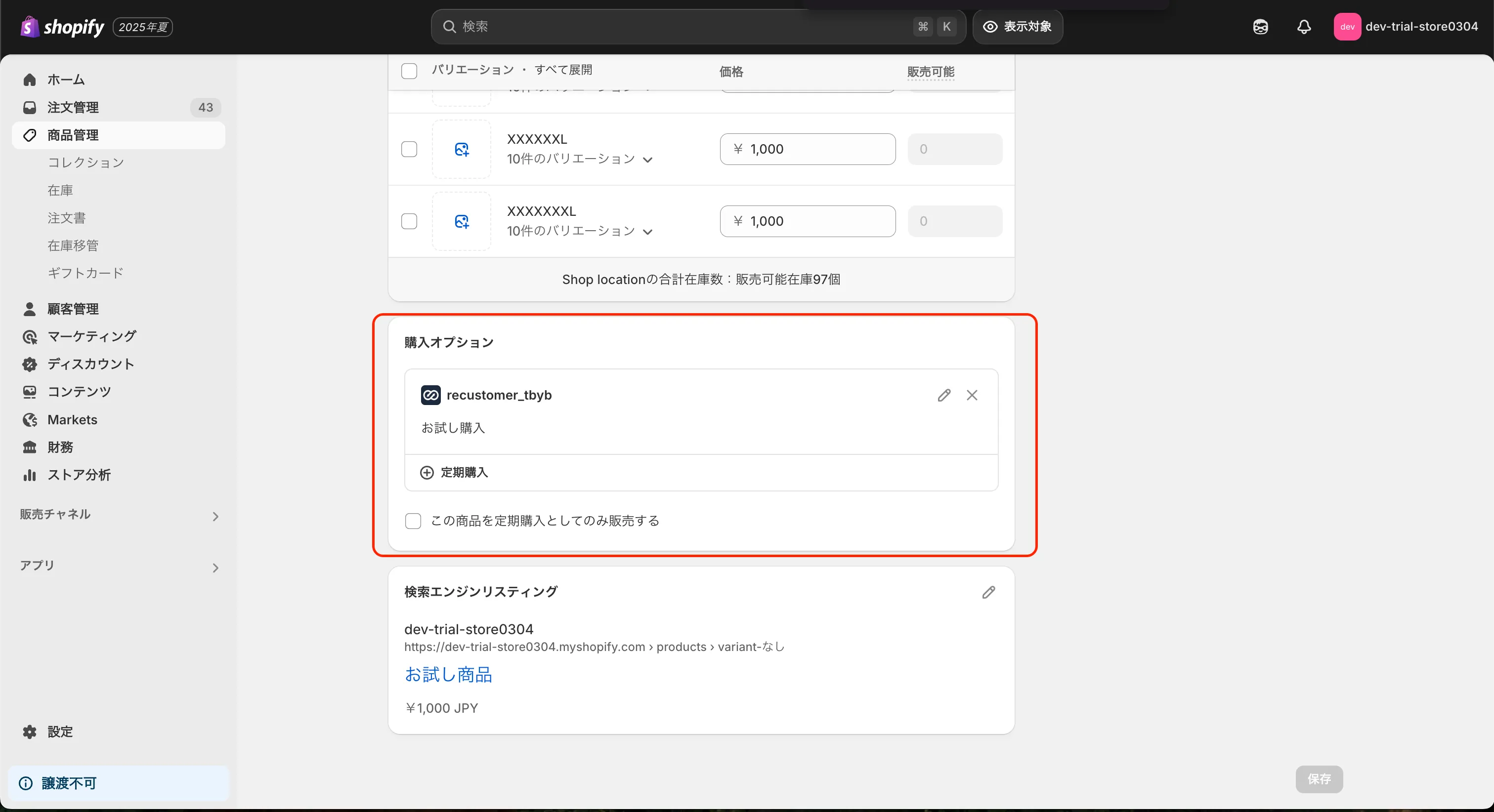
※Recustomer adds all products in your store to the purchase option when you start using Try Before You Buy, and also adds products you create after that about every 12 hours. Products you remove from the purchase option are not added back (see 2-6 Set the products eligible for a trial). If a product has not been added 12 hours after you created it, contact us
Check that the form and the "Add to cart" button on the product detail page can be found
Open the trial block settings in the theme editor and check the current values of Form selector and Add to cart button selector under Selectors (existing theme integration)
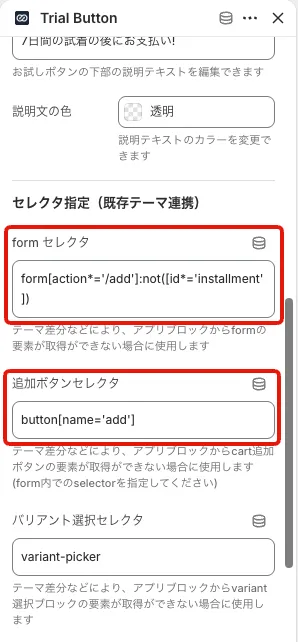
In your Shopify admin, preview the theme (your online store opens)
On a product detail page of your online store, right-click and choose Inspect (the developer tools open)
In the Console tab of the developer tools, run the following
form = document.querySelector("the value of the form selector you checked in step 1")
addCartButton = form.querySelector("the value of the add to cart button selector you checked in step 1")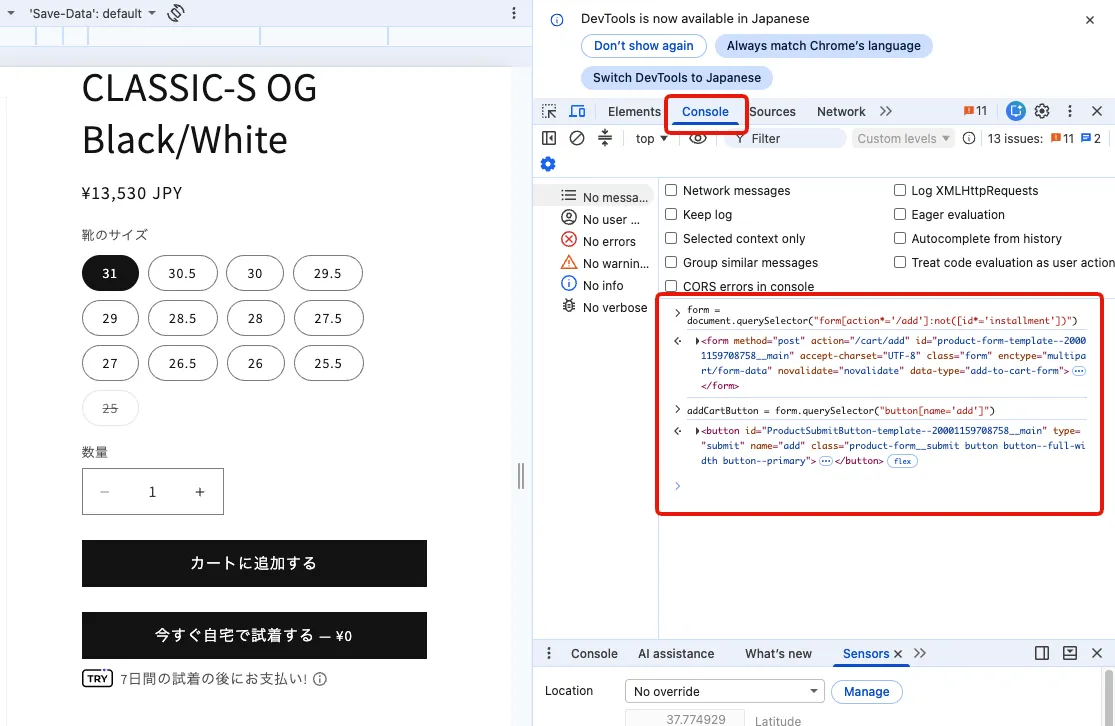
If the result is
null(no element is returned), the selectors do not match your theme. Correct Form selector and Add to cart button selector in the trial block settings so that they match your actual theme, then check again
Note
If the button still does not appear, contact us. When you do, please include your collaborator request code (you can find it under Settings > Users and permissions in your Shopify admin).
2. Adding it by writing code directly in your storefront
How it works
To add an item to the cart as a trial, you retrieve the Selling Plan ID associated with the product and send it as a selling_plan parameter on the add-to-cart (/cart/add) form (this is Shopify's standard purchase options mechanism). If your theme uses an AJAX cart (/cart/add.js), include selling_plan in the request parameters. Recustomer associates the selling plan with the product automatically.
How to implement it
The following is a sample implementation. Please implement the finer display conditions to suit your own requirements.
Retrieve the Selling Plan ID associated with the product
Add the Liquid code below to your product page template (the file that renders the product form). It retrieves the ID of the current plan into the
selling_plan_idvariable when the product is rendered (you use this variable in the code in step 2).- The purchase options group is identified by
selling_plan_group.app_id. The app_id for Try Before You Buy isrecustomer_tbyb - A group may still contain older selling plans created in the past. Older plans have
-deprecated-and a UUID appended to their name (for example,お試し購入-deprecated-123e4567-e89b-12d3-a456-426614174000;お試し購入is the plan name Recustomer creates, meaning Try Before You Buy). Ordering with an older plan ID would charge the shopper under unintended conditions, so the code below automatically excludes plans marked with-deprecated- - The second half of the code decides whether to show the trial button based on a product tag or a collection, and stores the result in
show_trial_button. It is also false whenselling_plan_idis null (for example, when no trial plan is associated with the product). Only render the trial button (the form containing the input from step 2) whenshow_trial_buttonis true
{%- assign selling_plan_id = null -%} {%- comment -%} Identify the purchase options group by app_id and pick a plan that is not deprecated {%- endcomment -%} {%- for group in product.selling_plan_groups -%} {%- if group.app_id == "recustomer_tbyb" -%} {%- assign active_plan_count = 0 -%} {%- assign active_plan_id = null -%} {%- for plan in group.selling_plans -%} {%- comment -%} A deprecated plan is named "original display name + "-deprecated-" + UUID". The conditions are that the 12 characters starting 48 characters from the end are "-deprecated-", and that the last 36 characters have hyphens in the UUID positions (8-4-4-4-12). A "contains" partial match is not used, because a display name that happens to contain "-deprecated-" would then make the current plan look deprecated. {%- endcomment -%} {%- assign deprecated_marker = plan.name | slice: -48, 12 -%} {%- assign uuid_part = plan.name | slice: -36, 36 -%} {%- assign hyphen_1 = uuid_part | slice: 8, 1 -%} {%- assign hyphen_2 = uuid_part | slice: 13, 1 -%} {%- assign hyphen_3 = uuid_part | slice: 18, 1 -%} {%- assign hyphen_4 = uuid_part | slice: 23, 1 -%} {%- assign is_deprecated = false -%} {%- if deprecated_marker == "-deprecated-" and hyphen_1 == "-" and hyphen_2 == "-" and hyphen_3 == "-" and hyphen_4 == "-" -%} {%- assign is_deprecated = true -%} {%- endif -%} {%- unless is_deprecated -%} {%- assign active_plan_count = active_plan_count | plus: 1 -%} {%- assign active_plan_id = plan.id -%} {%- endunless -%} {%- endfor -%} {%- comment -%} If exactly one non-deprecated plan cannot be determined, selling_plan_id is left as null. Deprecated plans were created under the previous conditions, so picking one by mistake would charge the shopper under unintended conditions. {%- endcomment -%} {%- if active_plan_count == 1 -%} {%- assign selling_plan_id = active_plan_id -%} {%- endif -%} {%- endif -%} {%- if selling_plan_id != null -%} {%- break -%} {%- endif -%} {%- endfor -%} {%- comment -%} Display control for the trial button. Change the tag name (Trial) and the collection handle (trial) to match what you decided in 2-10. Set the products eligible for a trial. {%- endcomment -%} {%- assign show_trial_button = false -%} {%- if selling_plan_id != null -%} {%- comment -%} A. Controlling it by product tag (for example, show it on products tagged "Trial") {%- endcomment -%} {%- if product.tags contains "Trial" -%} {%- assign show_trial_button = true -%} {%- endif -%} {%- comment -%} B. Controlling it by collection (for example, show it on products in the collection whose handle is "trial"). Use either A or B, and delete the one you do not use. If you tag the products that are NOT eligible instead, invert the condition (for example, unless product.tags contains "NoTrial"). {%- endcomment -%} {%- assign collection_handles = product.collections | map: "handle" -%} {%- if collection_handles contains "trial" -%} {%- assign show_trial_button = true -%} {%- endif -%} {%- endif -%} {%- if show_trial_button -%} {%- comment -%} Render the trial button (the form containing the input from step 2) here {%- endcomment -%} {%- endif -%}- The purchase options group is identified by
Add an input inside the form that holds the
selling_plan_idfrom step 1 as its value<input type="hidden" name="selling_plan" value="{{ selling_plan_id }}">※If you add this input to your existing "Add to cart" form as is, every regular purchase becomes a trial purchase. Either provide a separate form (button) for trials, or add the input only when the trial button is clicked
With step 2 in place, adding to the cart adds the item with the purchase option applied
Note
If you have any questions about the implementation, contact your account manager.