Operation test
Once everything is configured, place a test order and walk through the whole flow, from the trial order to the completed payment.
Checks before you start testing
If either of the following is wrong, the trial flow cannot start correctly and the shopper may be charged at an unintended time. Always check these before placing a test order.
- In your Shopify admin, Settings > Payments > Payment capture method is set to Automatically at checkout
- No Shopify Flow includes a Capture payment action
If either does not apply, contact us.
Test steps
In Shopify, open a preview of the theme where you added the trial button
Check that the trial button appears only on the product pages of products eligible for a trial
Tip
Check that the trial button does not appear on products that are not eligible for a trial
Complete a purchase through the trial button. Check that the amount due on the checkout page is ¥0
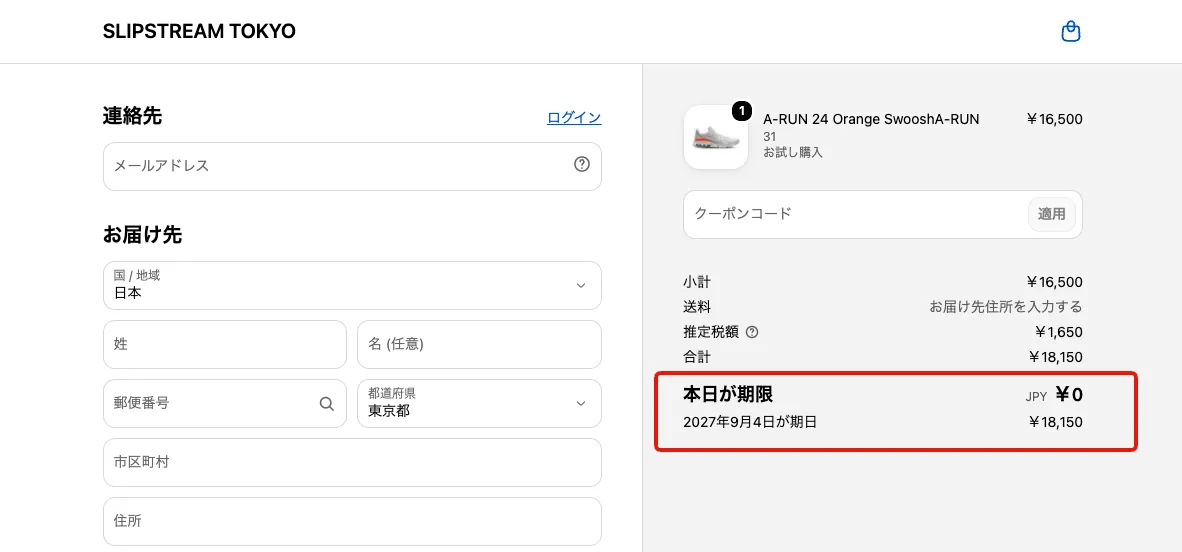
※If you have configured a prepayment, the prepayment amount is shown
※You can change the wording on the checkout page by following Editing the text on the checkout page
In your Shopify admin, mark the order from step 3 as fulfilled
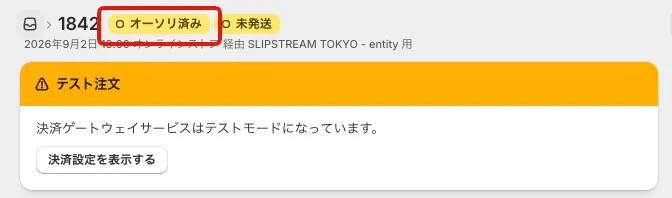
A few minutes later, check that the payment status of the trial order in Shopify is authorized
To test the case where no return is requested, skip to step 11. To test the case where a return is requested, open the shopper-facing return request page in your browser, enter the order number and so on, and search for the test order you created in step 3
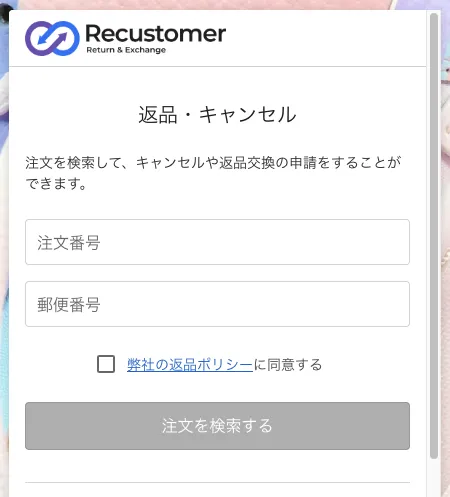
※You can open the return request page from the return request URL in the Try Before You Buy guidance email. You can also find the URL under Settings > Shopper portal > Domain > return and cancellation request page URL
On the resolution screen, check that Return or Exchange is shown
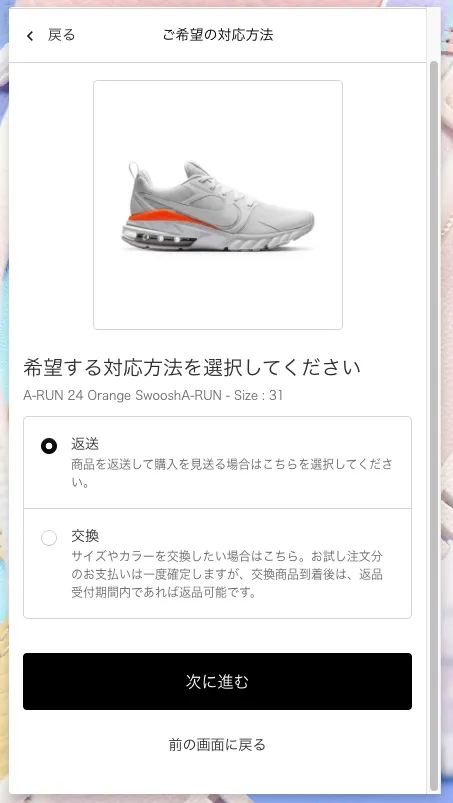
※Check that what you configured in "1. Return methods" of Add trial settings to your return policy is reflected here
Complete the return request
Check that the return request has been created in the return management screen
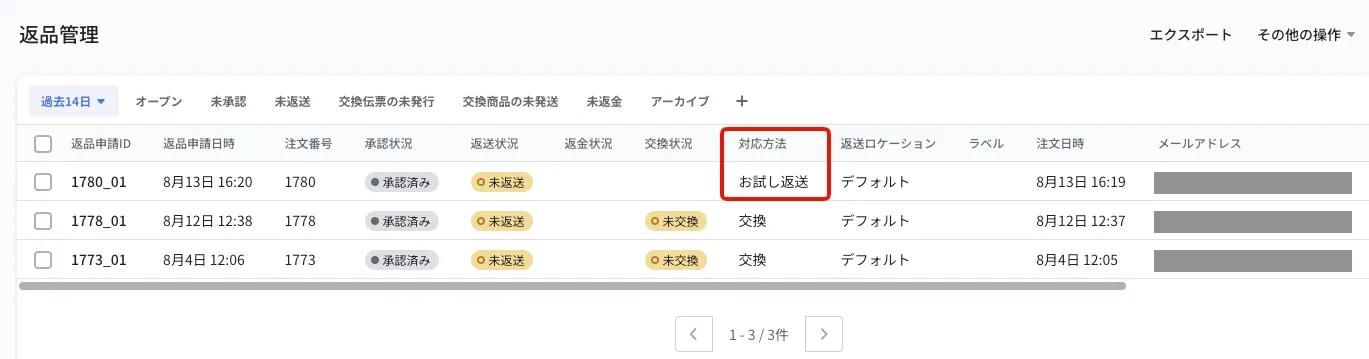
How to tell a Try Before You Buy request apart
Requests from a Try Before You Buy order show the resolution Trial return (for a return) or Trial exchange (for an exchange). Requests from a regular order show "Refund" or "Exchange".
Open the return request and change it to Received from Process the return
Open the order in order management and click Capture payment
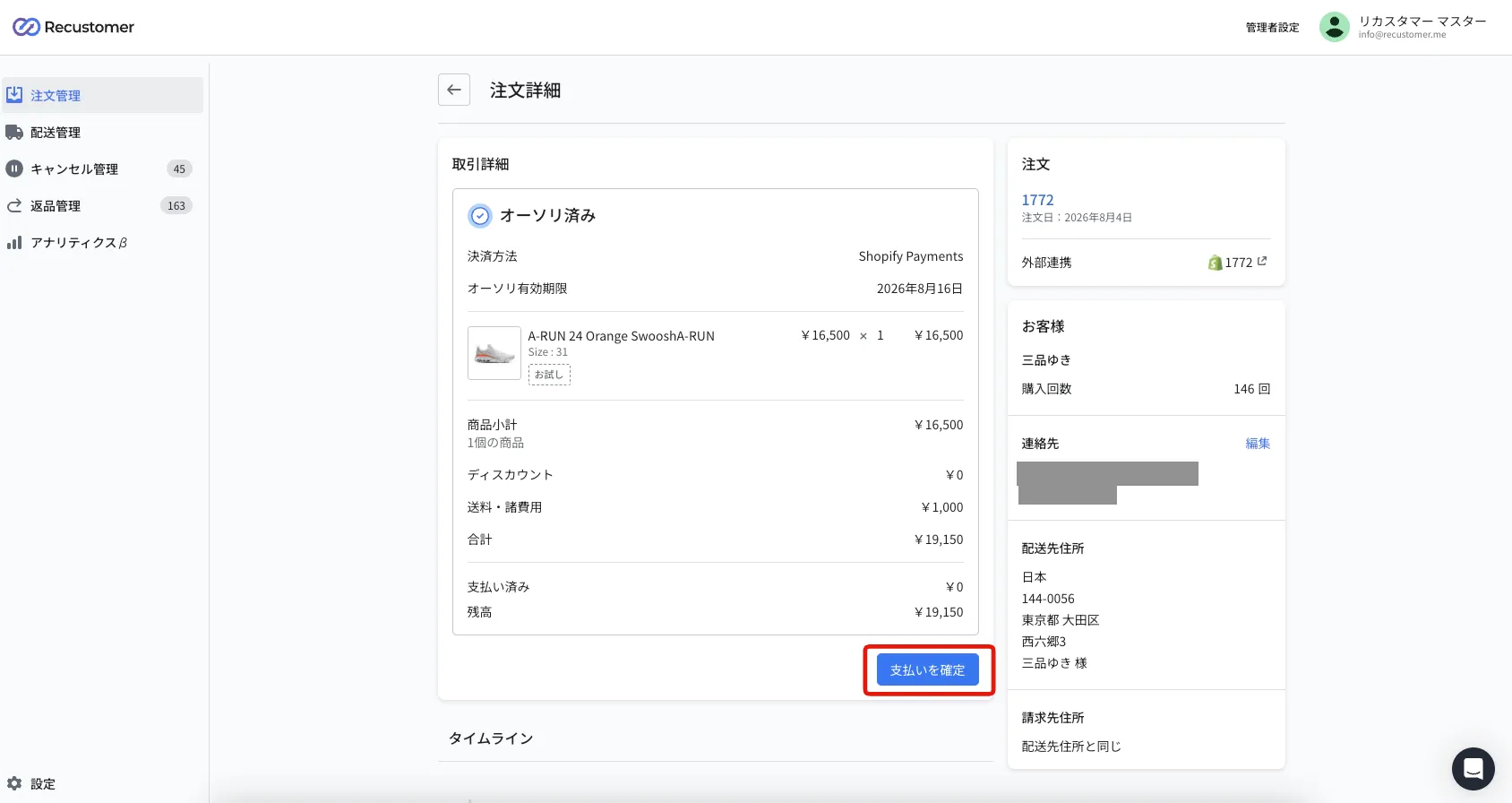
※This is the equivalent of the automatic payment that happens when the trial deadline passes. In live operation, payment is taken automatically after the trial period ends, at the timing set in Capture settings
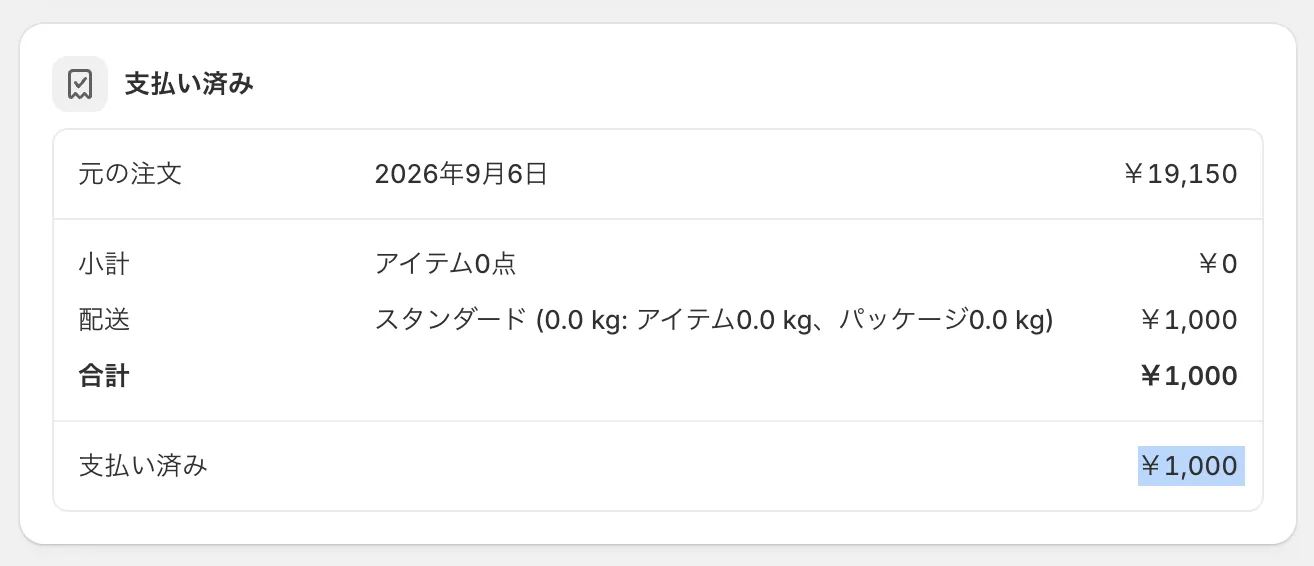
In your Shopify admin, check that payment has been captured for the amount less the returned items
If nothing was returned: the full amount is charged
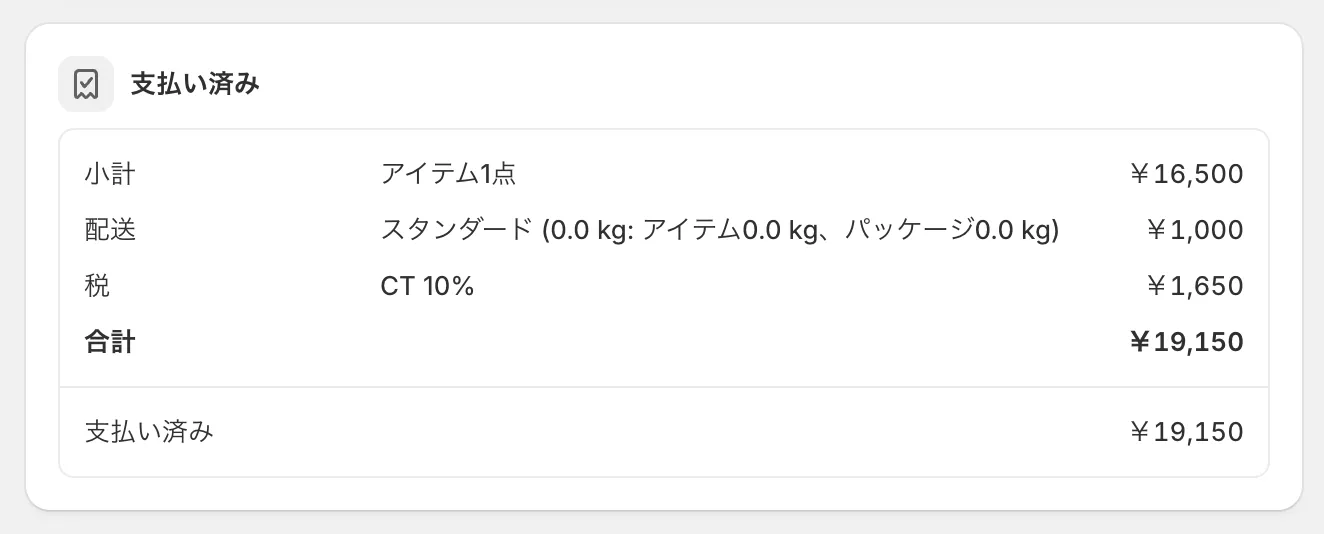
If something was returned: the amount less the returned items is charged (if every item is returned, only shipping and similar charges remain)