Enable Try Before You Buy
Start using Try Before You Buy for your store from the Recustomer admin dashboard.
If you use subscription, pre-order, or similar apps
Try Before You Buy is provided through Shopify purchase options (selling plans). If you use an app that also relies on purchase options, such as a subscription or pre-order app, it may interfere with Try Before You Buy. Contact support before you start using it.
1. Start using Try Before You Buy
In the Recustomer admin dashboard, go to Admin settings > Your plans > Per-transaction billing
Click Shopify で課金を承認 (Approve charges in Shopify), then click Shopify の承認画面へ進む (Go to the Shopify approval screen) on the confirmation screen
※This charge approval is shared by Try Before You Buy and Checkout+. If you have already approved it, go to step 4
On the Shopify approval screen, click Approve
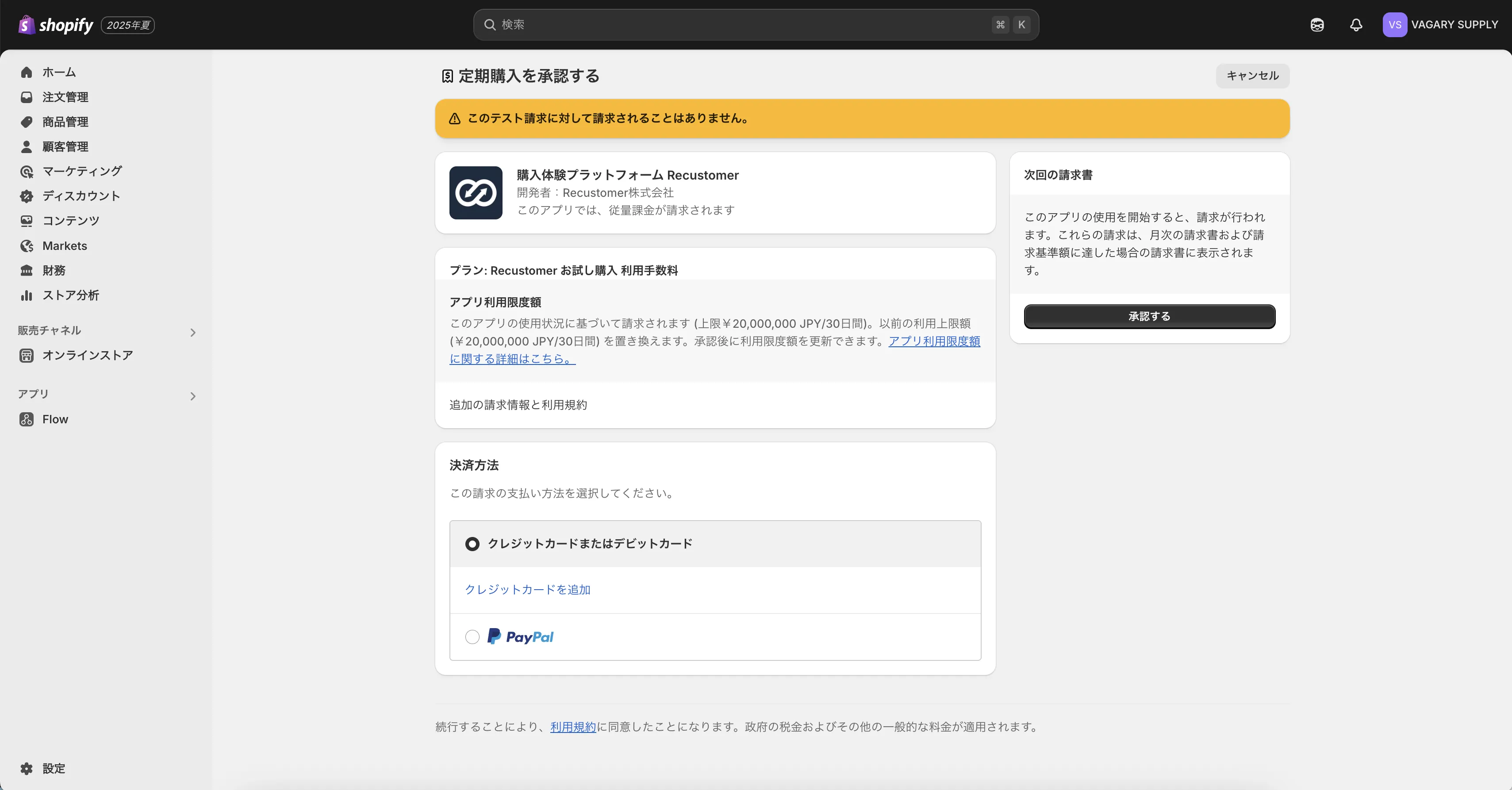
※After you approve, you return to the Recustomer admin dashboard. Open Per-transaction billing again
※If you come back without completing the approval, the approval becomes "承認待ち" (Pending approval). Continue with Shopify で承認を再開 (Resume approval in Shopify)
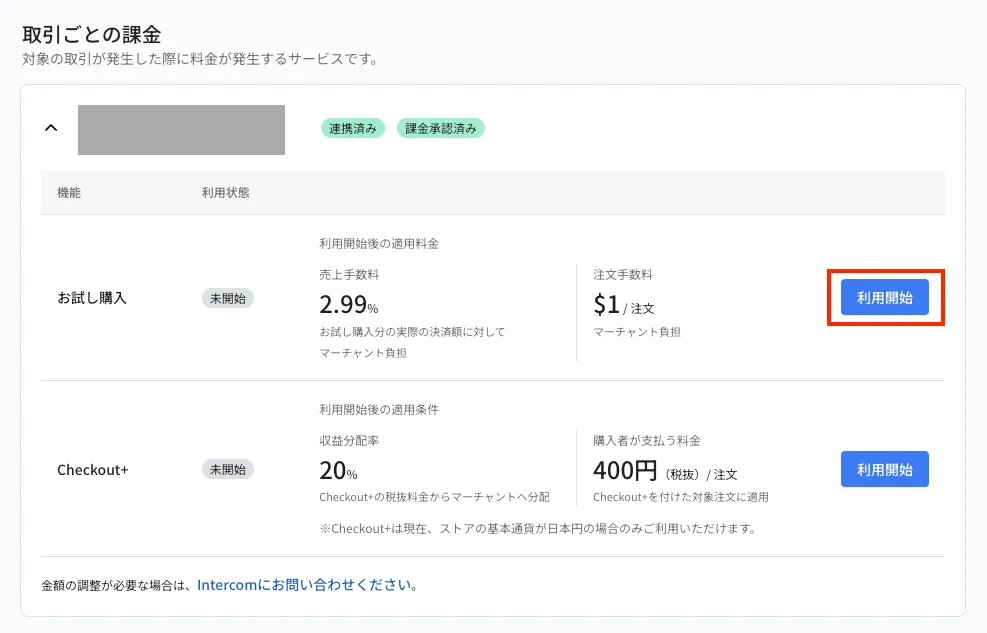
In the お試し購入 (Try Before You Buy) row, click 利用開始 (Start). On the confirmation screen, check the fees that apply after you start, then click 利用開始 (Start)
Charges begin when you start
If you want to use it in test mode without being charged, contact support before you start.
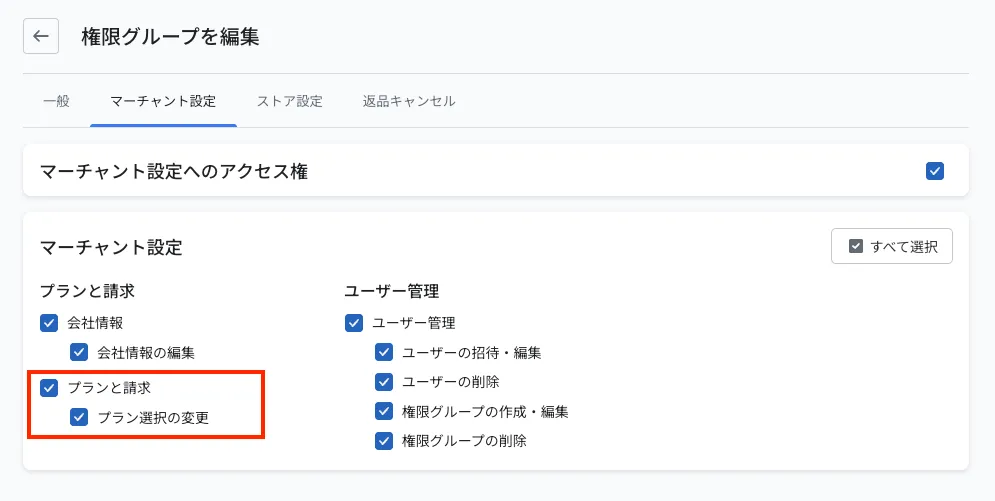
※If you cannot click the buttons, check that プラン選択の変更 (Change plan selection) is allowed in your permission group
You are done when the status of お試し購入 (Try Before You Buy) becomes "受付中" (Accepting)
When you start, Recustomer creates the Try Before You Buy purchase option in Shopify and adds all products in your store to it (see 2-6 Set the products eligible for a trial).
※If you want to discuss pricing or contract terms, contact your account manager
2. If you reinstall the app
When you uninstall the Recustomer app in Shopify, Try Before You Buy stops accepting new orders and the charge approval ends. Reinstalling the app does not resume it automatically.
- Open Per-transaction billing and follow the guidance on the screen to set up order import and approve the charges in Shopify again
- In the お試し購入 (Try Before You Buy) row, click 新規受付を再開 (Resume new orders)
Some time after you uninstall the app, Shopify deletes the Try Before You Buy purchase option. If you resume after it has been deleted, Recustomer recreates the purchase option and adds all products in your store. Products you had removed from the purchase option are included again, so remove them again if needed (see 2-6 Set the products eligible for a trial).