Add trial settings to your return policy
If you use Recustomer Returns and Exchanges, adjust the following return policy settings so that returns and exchanges of trial items go through the regular return request flow.
| # | Setting | Required | What it does |
|---|---|---|---|
| 1 | Return methods | Required | Add "trial return" and "trial exchange" to the dynamic resolutions |
| 2 | Return deadline | Optional | If the trial deadline is later than the return deadline, align the return deadline with the trial deadline |
| 3 | Approval settings | Optional | Set how trial requests are approved (automatically, for example) |
| 4 | Interview questions | Optional | Set the interview questions shown when a trial item is submitted |
1. Return methods
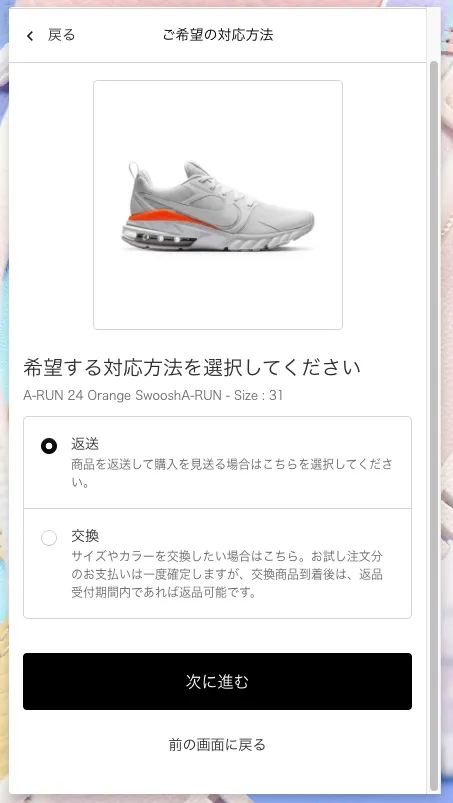
With this setting in place, shoppers submitting a trial item on the return request page see "Return" and "Exchange" as options on the resolution screen.
Go to Settings > Returns and exchanges > Return policy > Resolutions
Click Create a dynamic resolution
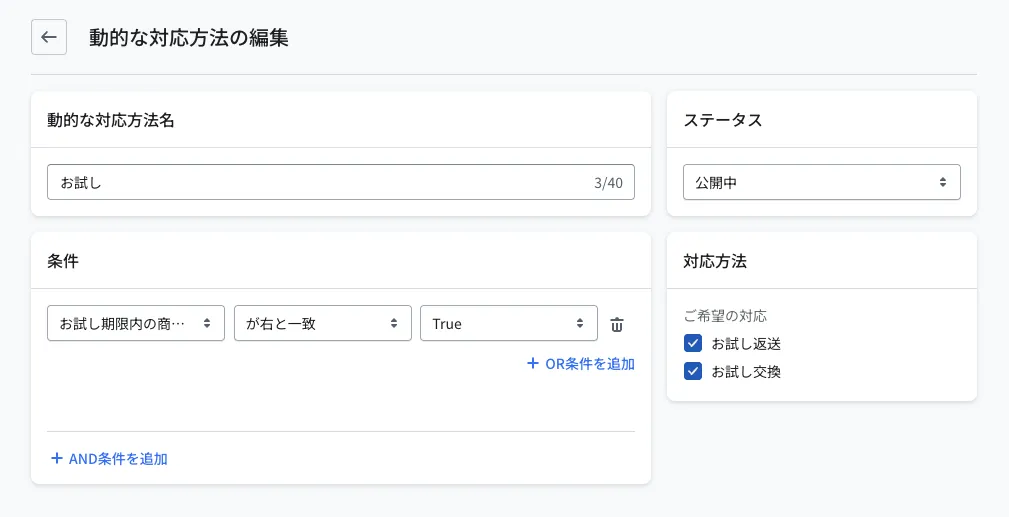
Set conditions like the following
- Status: set it to Published
- Condition: "Item within the trial deadline" "matches" "True"
- Preferred resolution: select "Trial return" and/or "Trial exchange", whichever you want to use
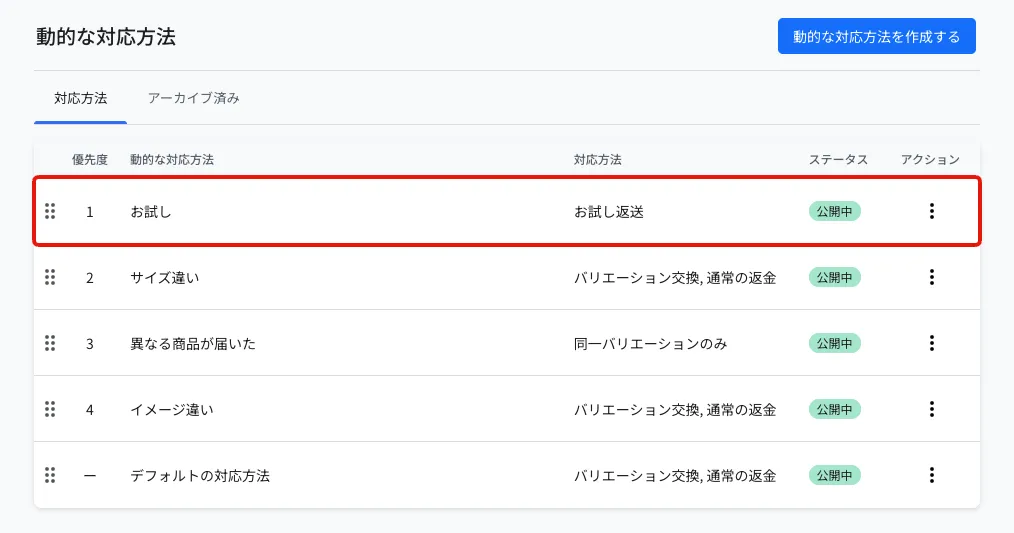
Drag and drop the rule you created to the top of the list so that its priority is 1
2. Return deadline
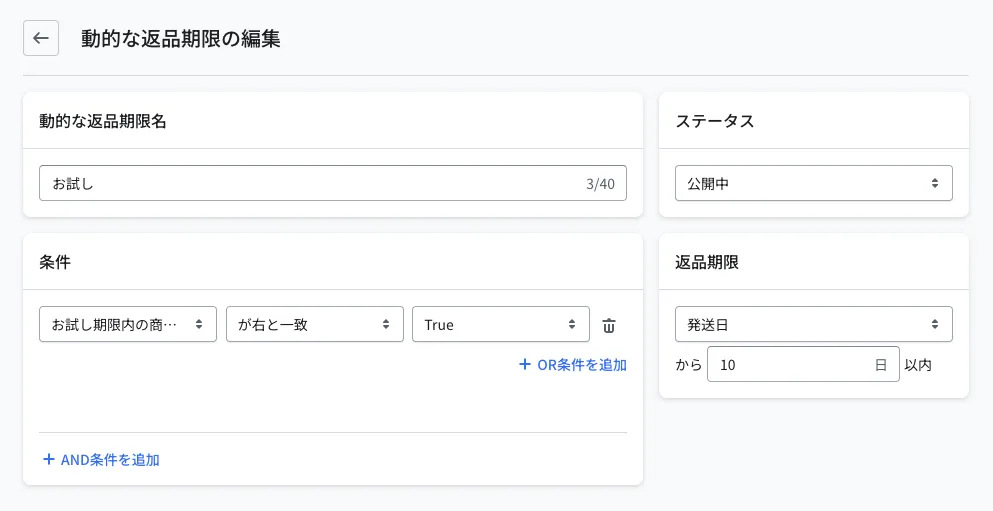
If the trial deadline is later than the return deadline, add a setting that aligns the return deadline with the trial deadline for trial items.
Go to Settings > Returns and exchanges > Return policy > Return deadlines
Click Create a dynamic return deadline
Set conditions like the following
- Status: set it to Published
- Condition: "Item within the trial deadline" "matches" "True"
- Return deadline: set the same value as the trial period in Trial policy settings
3. Approval settings
If you need to, configure settings such as approving trial requests automatically.
Go to Settings > Returns and exchanges > Return policy > Return approvals
Click Create a dynamic return approval
Set conditions like the following
- Status: set it to Published
- Condition: "Item within the trial deadline" "matches" "True"
- Approval: choose the option that fits how your store operates, such as "Approve automatically"
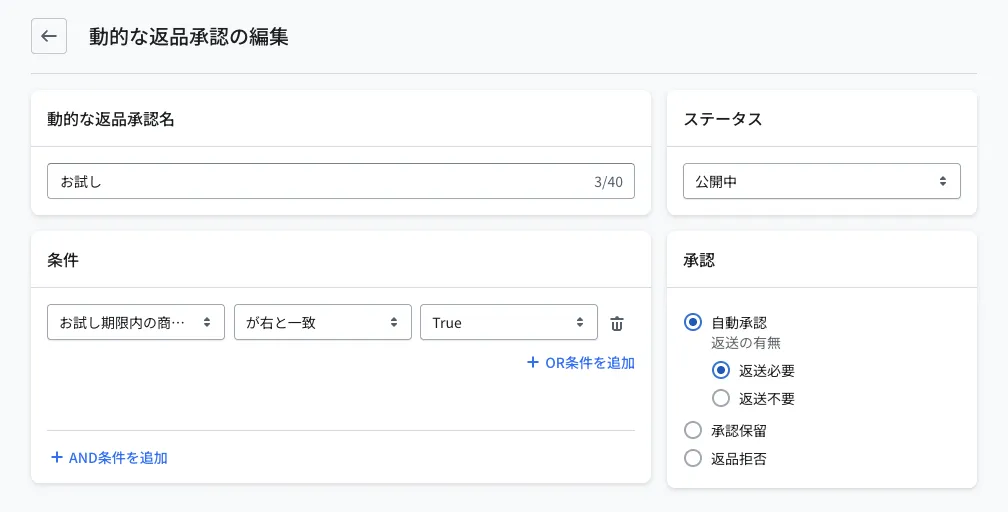
※By combining the condition with an interview question (the return reason), you can also set rules per return reason, such as "approve manually if it is a trial and the item is faulty" and "approve automatically if it is a trial and the reason is the shopper's own, such as the item not matching expectations"
4. Interview questions
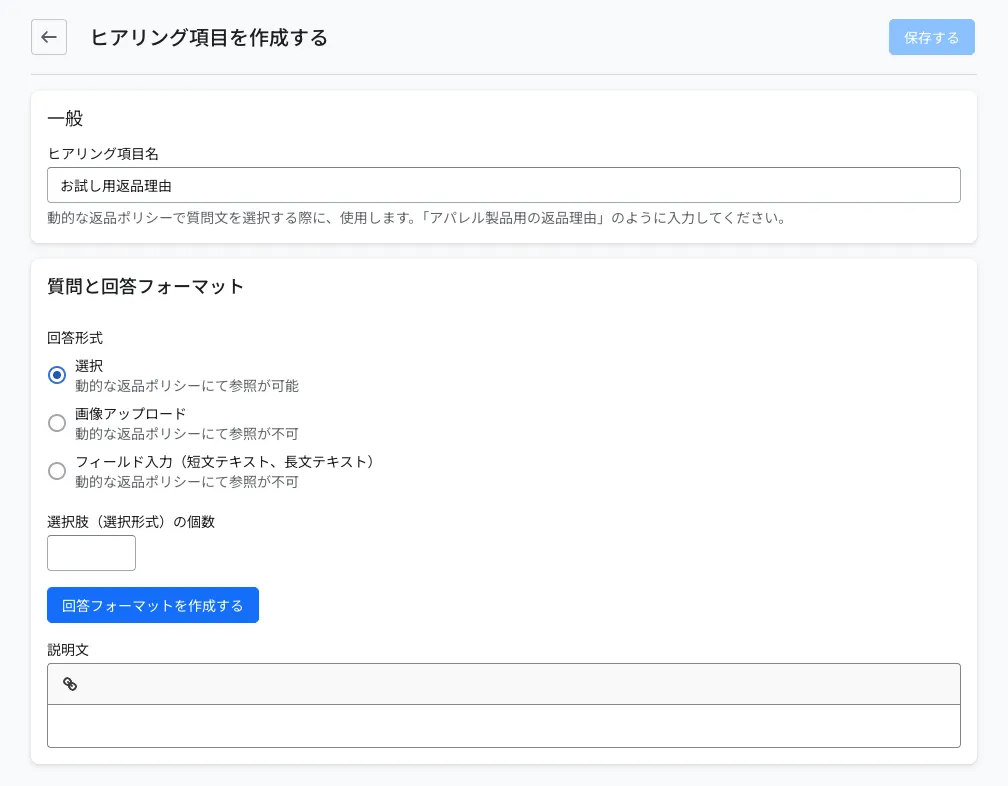
Set the interview questions shown when a trial item is submitted for a return or exchange.
Go to Settings > Returns and exchanges > Interview questions
Click Create an interview question
Create the interview questions you want to show only when a trial item is submitted
Go to Settings > Returns and exchanges > Return policy > Interview questions
Click Create a dynamic interview question
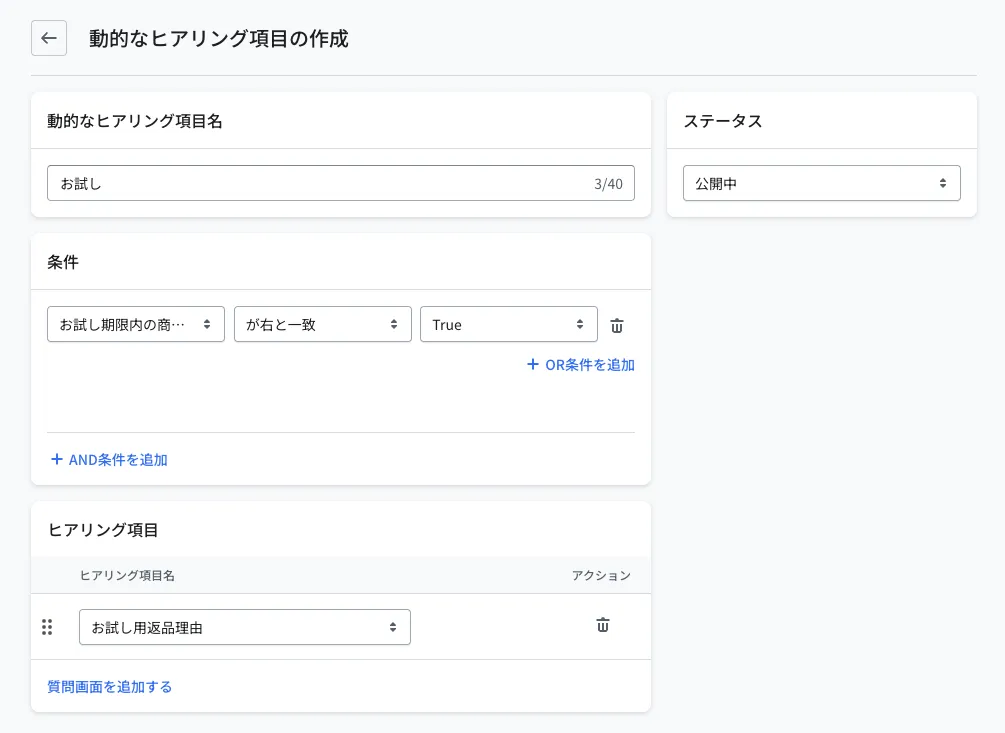
Set conditions like the following
- Status: set it to Published
- Condition: "Item within the trial deadline" "matches" "True"
- Interview questions: select the question you created in step 3, plus any others you want to show, in the order you want them shown