STEP 2-8
Notification email settings
Configure the notification emails that are sent to shoppers automatically.
Editing the templates
Go to Settings > Customer notifications > Templates > Trial
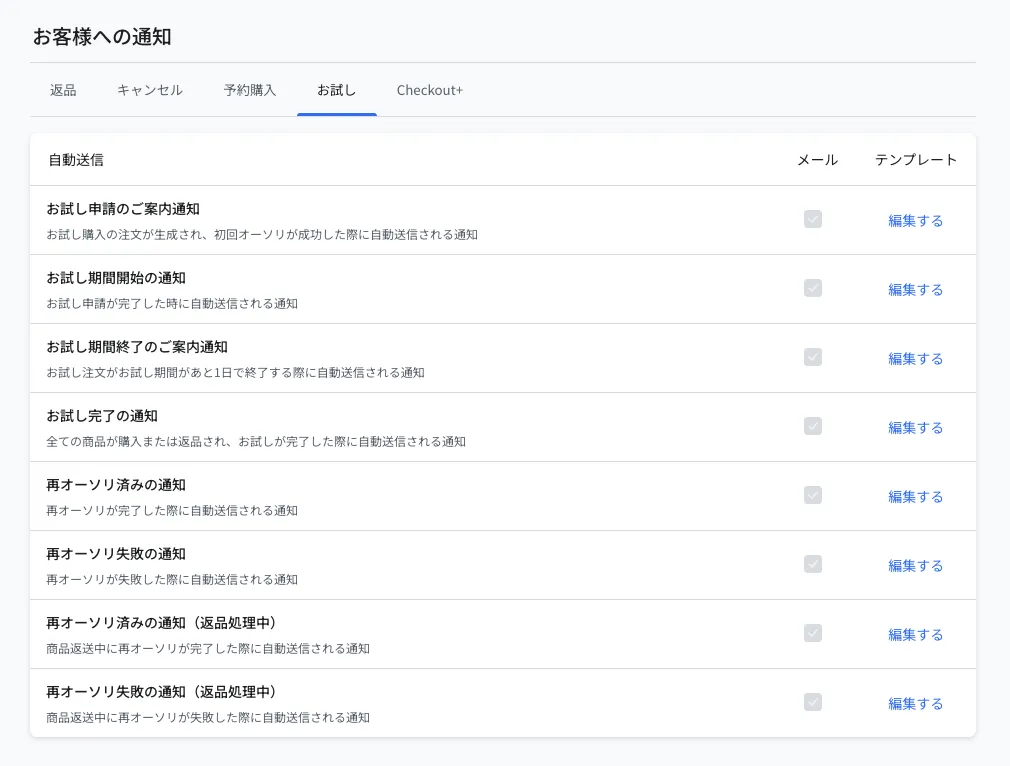
※All of the email checkboxes are selected and cannot be cleared
Click Edit on a notification to preview and edit its content
※Every email comes with default wording and can be used as is. Customize it freely if you want to change the wording
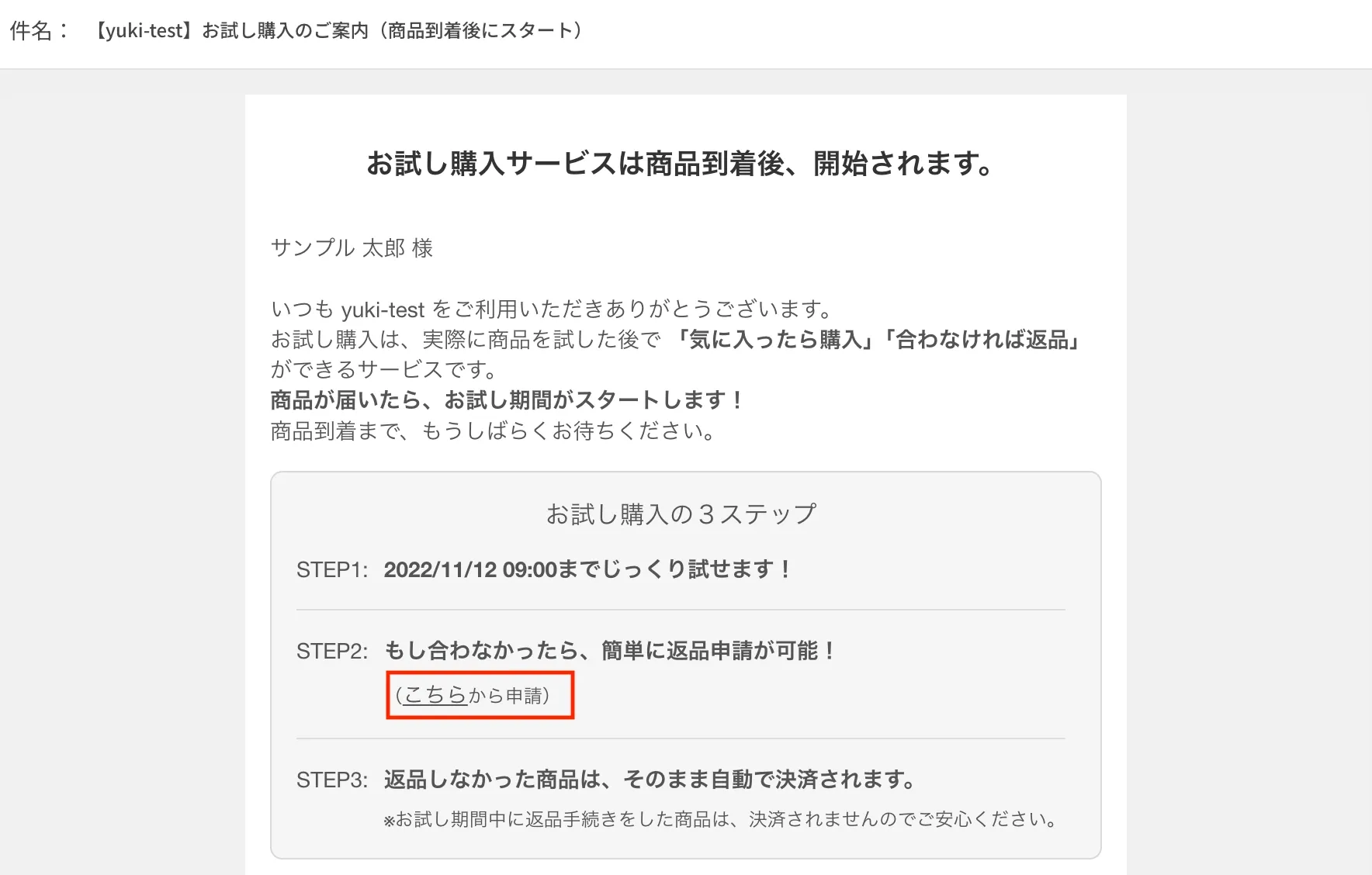
If you do not use Recustomer Returns and Exchanges, you need to make this edit
In the email body, the link in "(request it here)" points to the Recustomer return request URL. That URL is only available with a Returns and Exchanges contract, so change it to the URL of the return request form you currently use.
© Recustomer, Inc.