STEP 2-3
LOGILESS integration
Go to Settings > External service integrations > Integrations > LOGILESS
Enter the client ID, client secret, and merchant ID
Field Value to enter Client ID Please contact us Client secret Please contact us Merchant ID You can find this in the URL bar of your LOGILESS admin.
Example: if the URL is "https://app2.logiless.com/merchant/1154/dashboard", the merchant ID is "1154".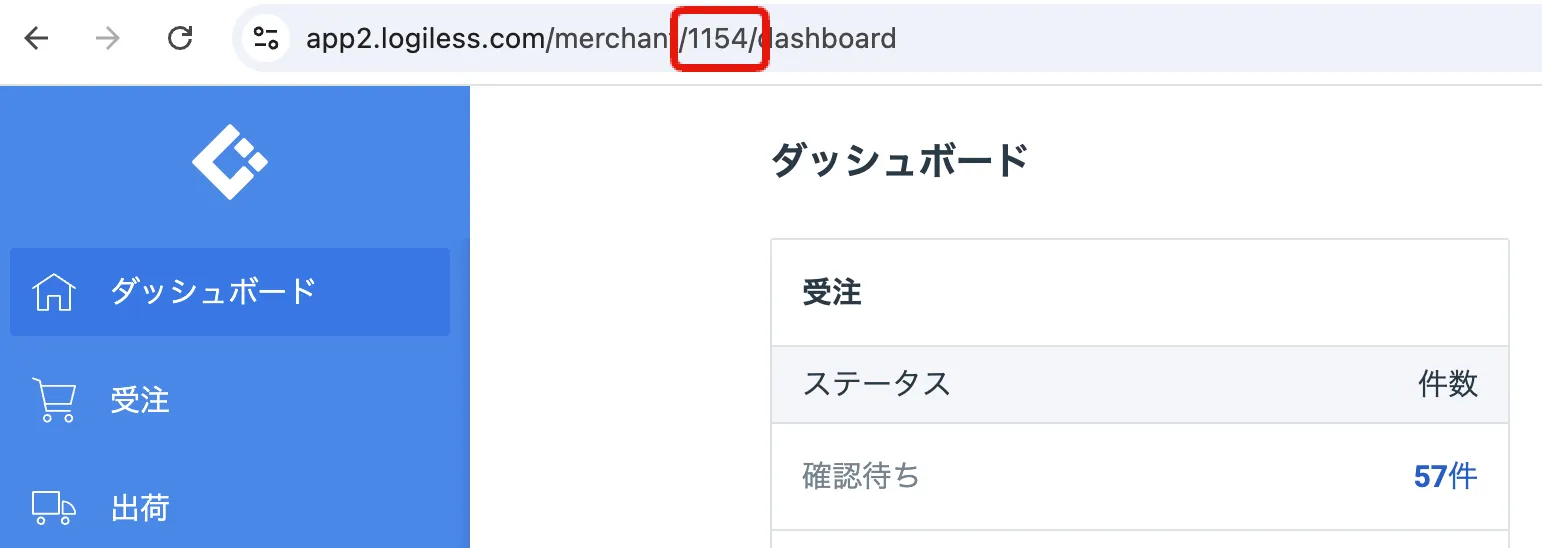
Click Authenticate
The LOGILESS sign-in screen opens. Sign in.
Important
If the account you sign in with here is later deleted on the LOGILESS side, Recustomer's authentication will also fail. Avoid accounts that may be deleted (for example when someone leaves the company) and sign in with an account that will remain.
Click Approve
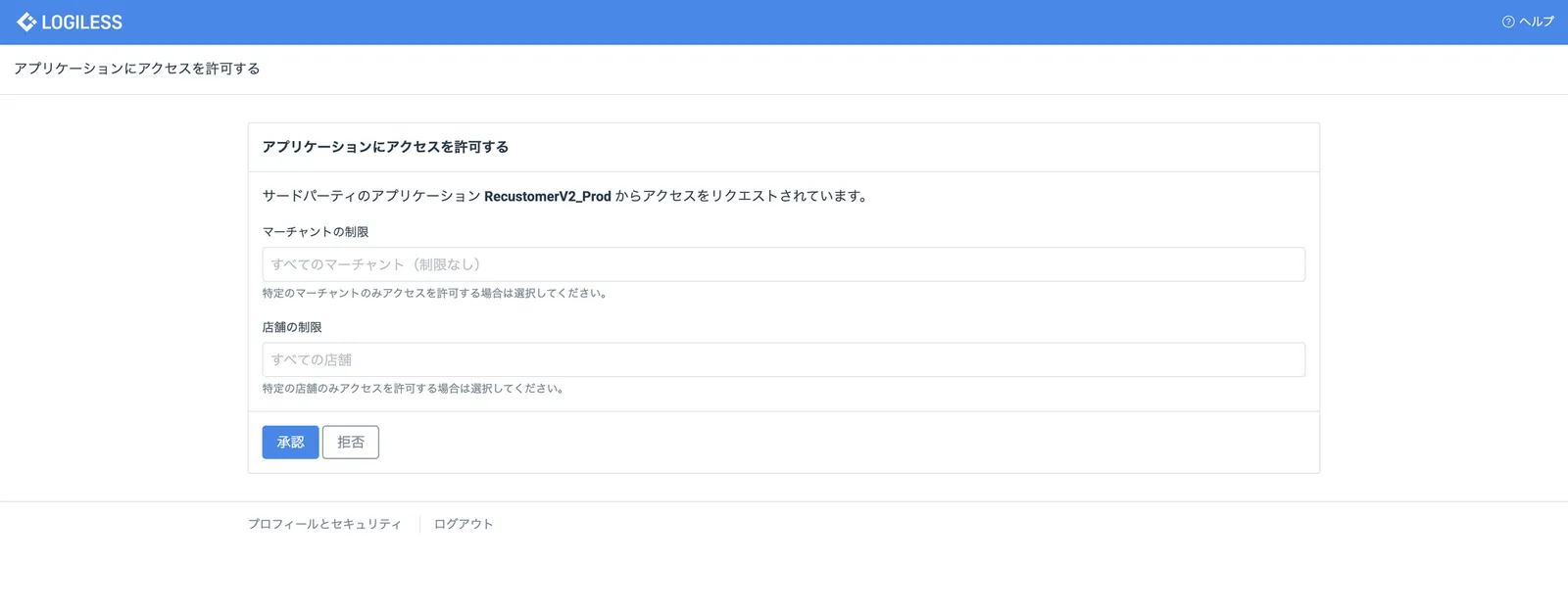
※You can leave both "Merchant restrictions" and "Shop restrictions" empty (all merchants / all shops).
The setup is complete when the status changes to Authenticated
A LOGILESS shops field appears. Select every shop you want to connect to Recustomer.
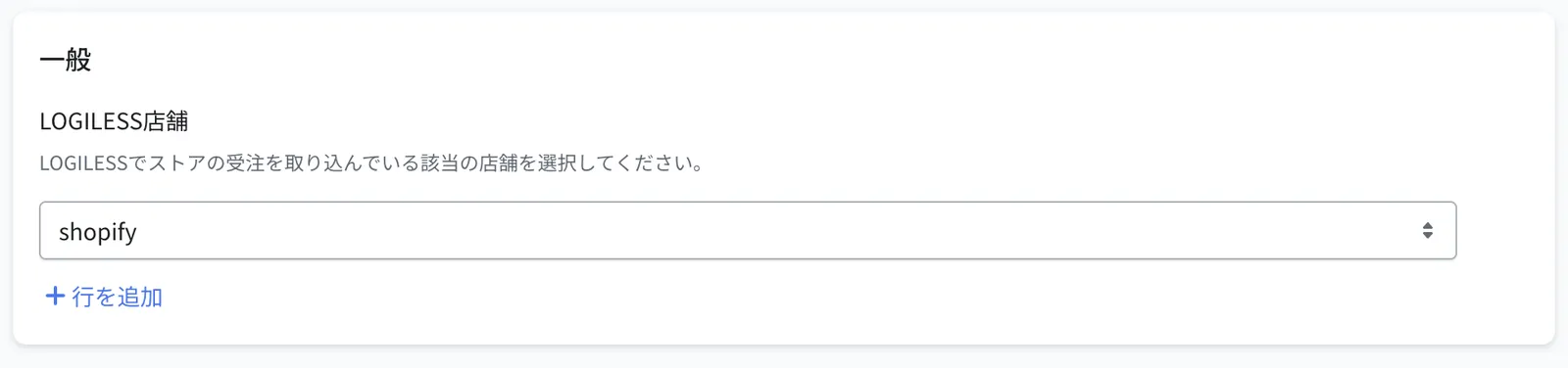
Click Save at the top right
© Recustomer, Inc.