STEP 2-7
Refund method settings
Set how refunds are issued when a cancellation succeeds. Register every payment method you use. For each registered payment method, you can choose between an automatic refund and a bank transfer.
※For bank transfers, Recustomer only collects the shopper's bank account details. You need to make the actual transfer yourself.
Steps
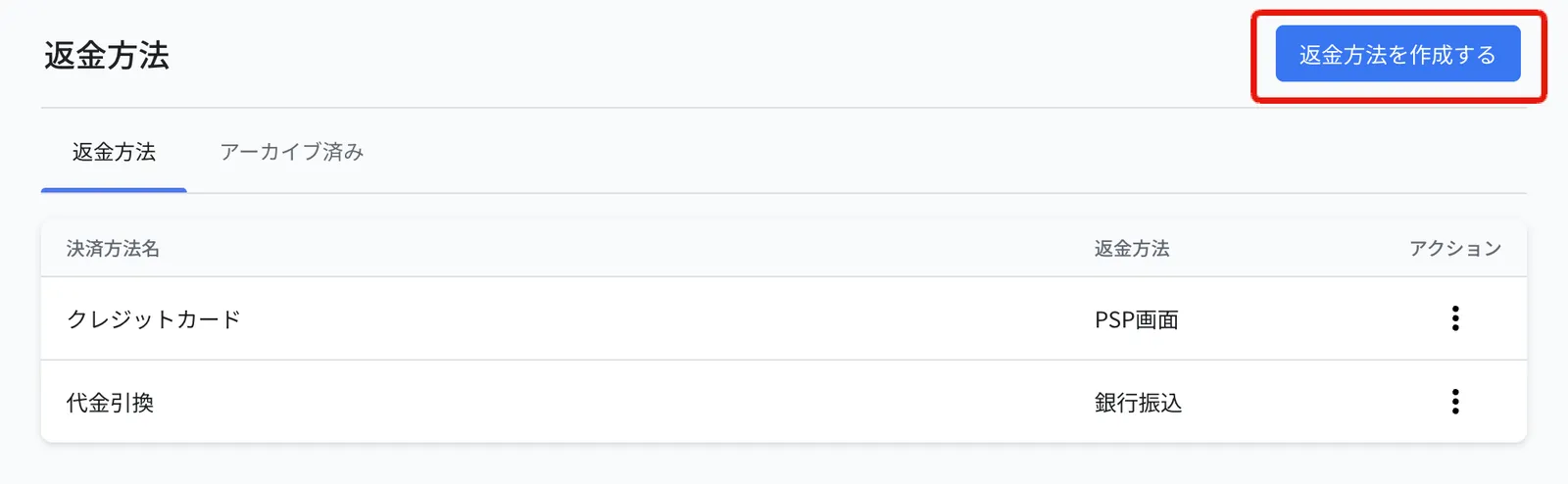
Go to Settings > Returns and refunds > Refunds > Refund methods
Click Create refund method
Choose a payment method name, a payment method key, and a refund method, then click Add
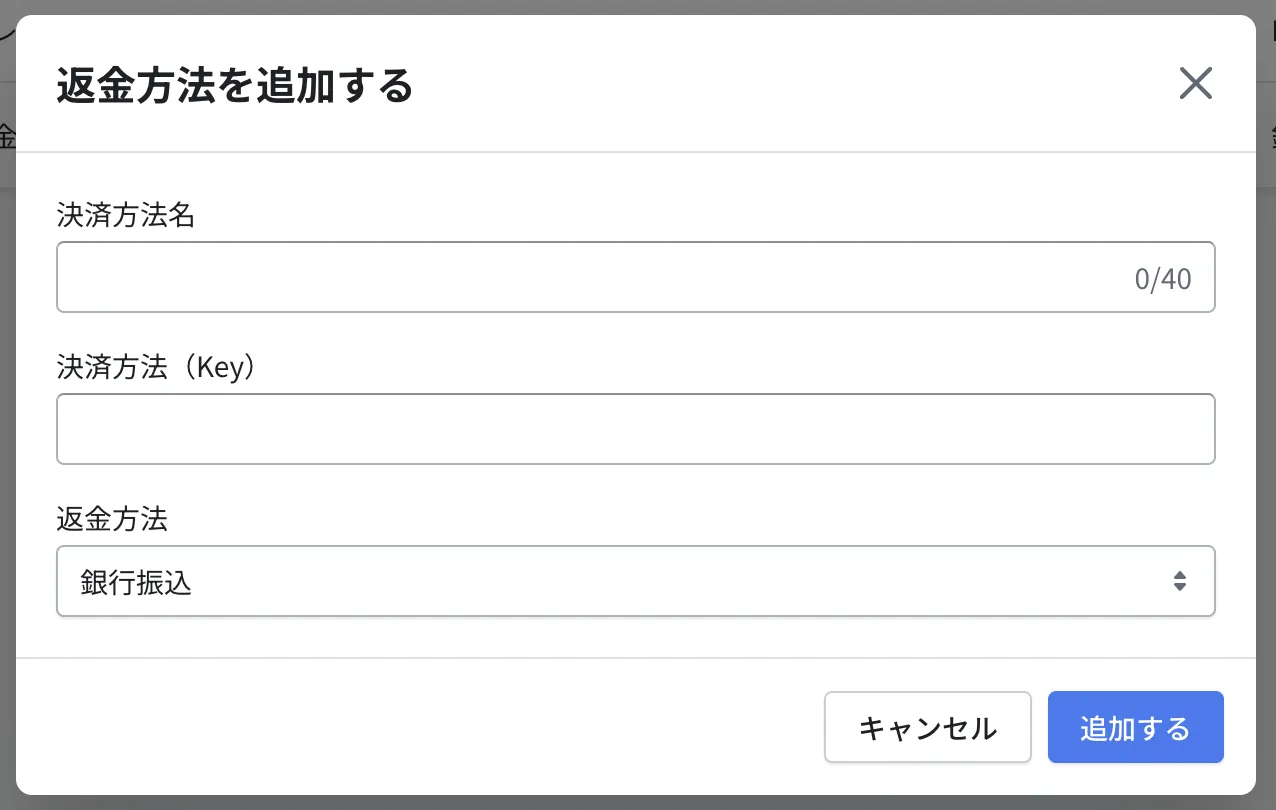
Field What to set Example Payment method name The name shown in the Recustomer admin dashboard (not shown to shoppers) Shopify Payments Payment method (Key) The payment method identifier contained in the order data. The value differs depending on the integration you use.
See How to find the payment method keyShopify Payments Refund method Choose how the refund is processed:
PSP screen: The shopper sees "Refund to the original payment method" and is not asked for bank account details. ※You need to process the refund separately in your payment provider's dashboard or cart admin.
Shopify: The shopper sees "Refund to the original payment method" and is not asked for bank account details. A refund request is sent to Shopify automatically, so no manual work is needed in Shopify.
ecforce: The shopper sees "Refund to the original payment method" and is not asked for bank account details. A refund request is sent to ecforce automatically, so no manual work is needed in ecforce.
Bank transfer: The shopper sees "Refund to a bank account" and is asked to enter the bank account to refund to.Shopify
※The "Credit card" and "Cash on delivery" entries that exist by default can be archived, or overwritten with a different payment method.
© Recustomer, Inc.