Notification email settings
You can configure the following for the notification emails sent to shoppers during a return or exchange.
1. Editing the templates
Go to Settings > Notifications to shoppers > Templates > Returns
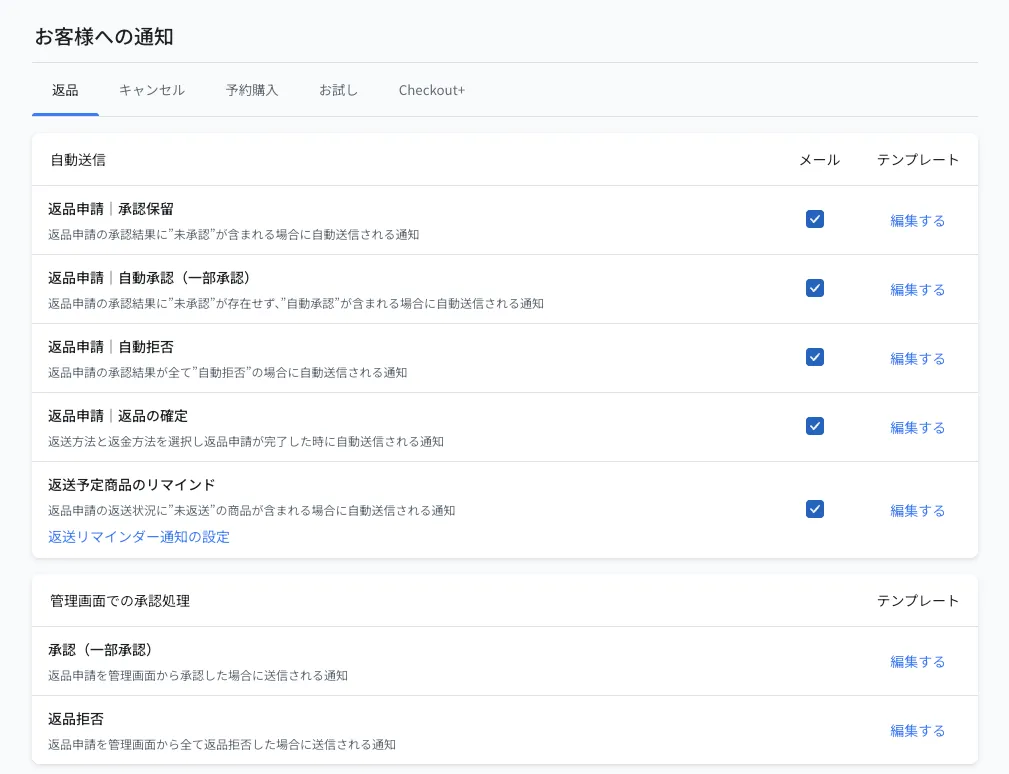
Click Edit on a notification to preview and edit the email
※Every email comes with default wording and can be used as it is. Customise it freely if you want to change it
※See Email template variables for the variables you can use in notification emails
2. Setting the sender email address
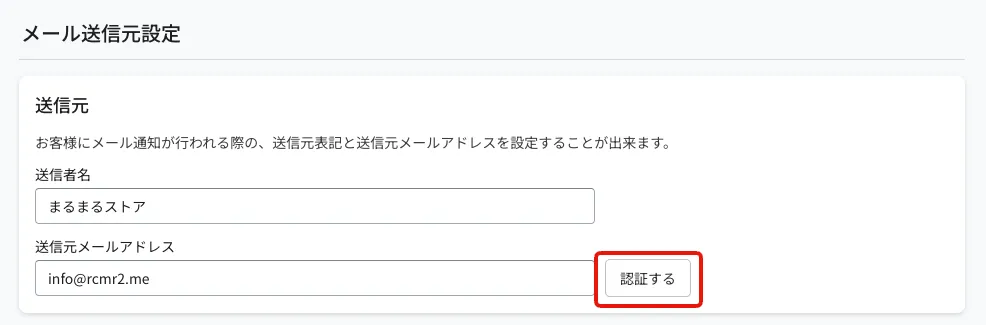
Set the sender (from) address of the notification emails. With a sender address set, you can see the replies when shoppers reply to the emails Recustomer sends.
Go to Settings > Notifications to shoppers > Email sender > Cancellation, returns and trials
Set the sender name
Enter the new sender email address and click Verify
The "Verify your domain" dialog appears. Add the records it shows to the DNS of your domain
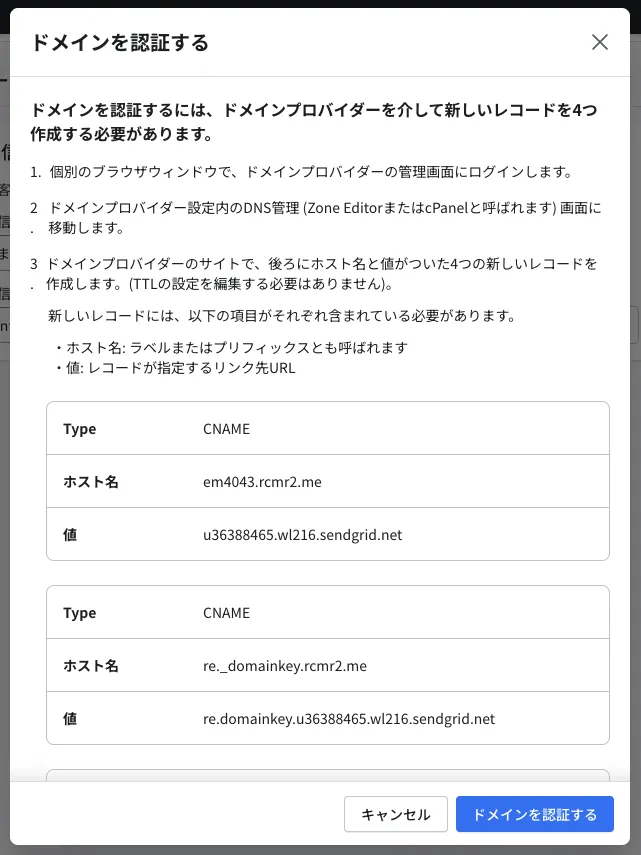
Once the DNS records are in place, open the dialog from step 4 again and click Verify domain
How to change records with the main domain providers
3. The return reminder schedule
Set when reminder emails are sent to shoppers whose requests are approved but not yet sent back. You can register several timings, each a number of days before the return deadline (2-4 Return method settings).
- Go to Settings > Notifications to shoppers > Notification reminders
- Click Add notification reminder, set when it is sent and save
※The wording of the reminder email is edited in the "Reminder for items to be returned" template