Return method settings
Register the address approved returns are sent to, the return methods shown to shoppers, who pays the return shipping, and the return deadline.
1. Registering a return location (return address)
This is the address shoppers send items back to. You can register several, such as warehouses and shops, and use different ones depending on the return reason or the product. The address you register is shown as the return address on the request page and in the request confirmation email.
- Go to Settings > Returns and refunds > Returns > Return locations
- Click Add return location
- Enter the location name, postal code, address, phone number and so on, then save
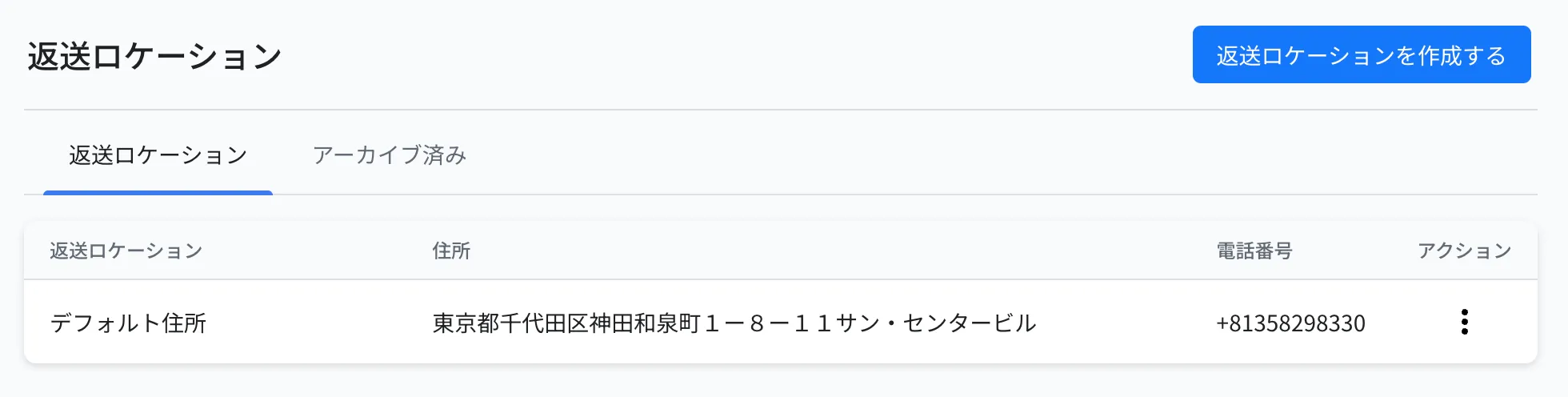
What you enter is shown to shoppers
The postal code, address, recipient name and phone number are shown as they are on the shopper's request page and in notification emails. The phone number is not masked, so register a number you are happy for shoppers to call.
2. Setting up return methods
Create the options shoppers can choose on the return method screen. "Return with any carrier" and "Return with a Sagawa Express pickup" are provided by default and can be edited.
Registering a method here does not show it on the request page. The methods ticked in either the default return method or a dynamic return method in Return policy > Return methods are the ones shown under "Please choose how you would like to send the item back".
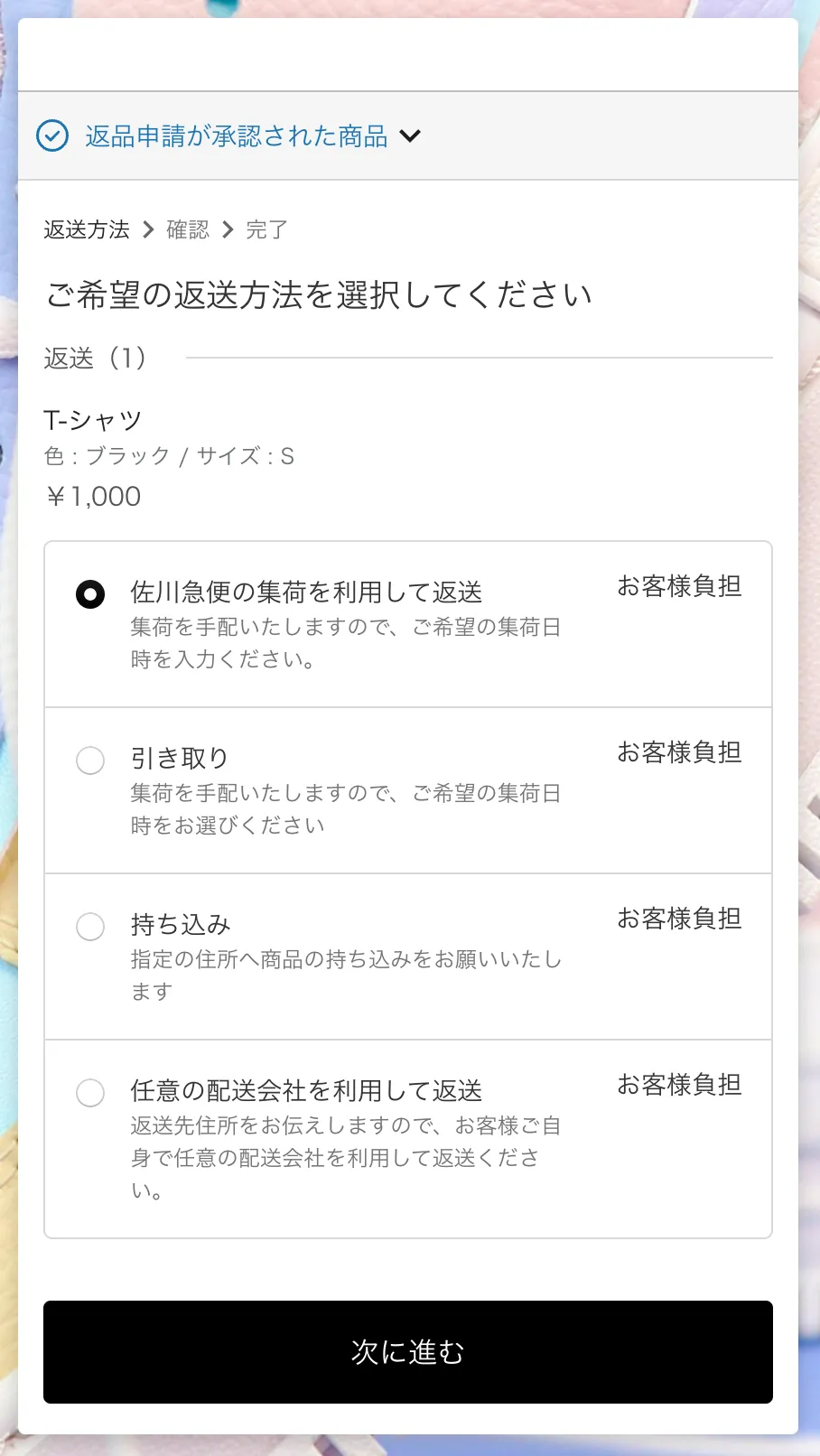
- Go to Settings > Returns and refunds > Returns > Return methods
- Choose Edit from the actions of the method you want to use, configure it and save
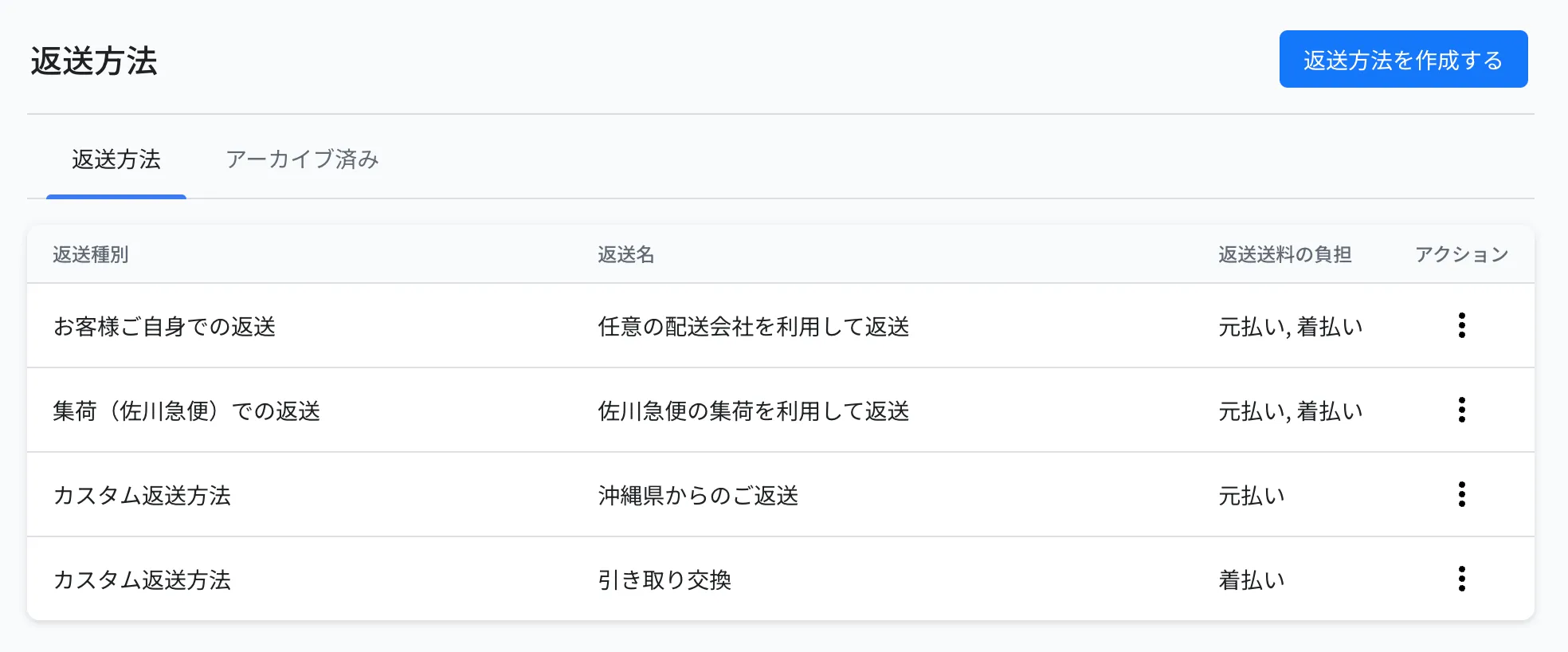
| Return method | Description |
|---|---|
| Return with any carrier | Provided by default. The shopper sends the item back with any carrier. The return address and a message are shown as text, and you can edit the message freely. If you put {{ dynamic_sendback_location }} in the message, the return address for that request is inserted automatically |
| Return with a Sagawa Express pickup | Provided by default. The shopper only enters the pickup address and a preferred time, and the pickup is arranged. The driver brings a slip printed with the return address, so the shopper does not need to prepare one |
| Return with a Yamato Transport pickup | The pickup is requested automatically once the shopper chooses a preferred date and time. The return shipping can only be paid by the store (collect on delivery); it cannot be charged to the shopper (a Yamato Transport delivery API (paid) contract and an API key are required) |
| Drop-off return at FamilyMart or Yamato | The shopper can drop the item off at a FamilyMart or a Yamato Transport branch. They print a slip at a Fami Port or multi-copy machine using the QR code issued when the request is completed. This can be used without a Yamato Transport delivery API contract, but it requires setup on our side. Please contact your account manager if you would like to use it |
| Custom return methods | Add your own options, such as "exchange on collection", "drop off at a shop" or "we arrange the pickup" |
Creating a custom return method
Go to Settings > Returns and refunds > Returns > Return methods and click Create return method at the top right
Enter the name and description of the custom return method (both are shown as they are on the request page)
Under Who pays the return shipping, tick the options this method uses (prepaid = the shopper pays / collect on delivery = the store pays)

※Only the options you tick here can be chosen in Return policy > Return methods
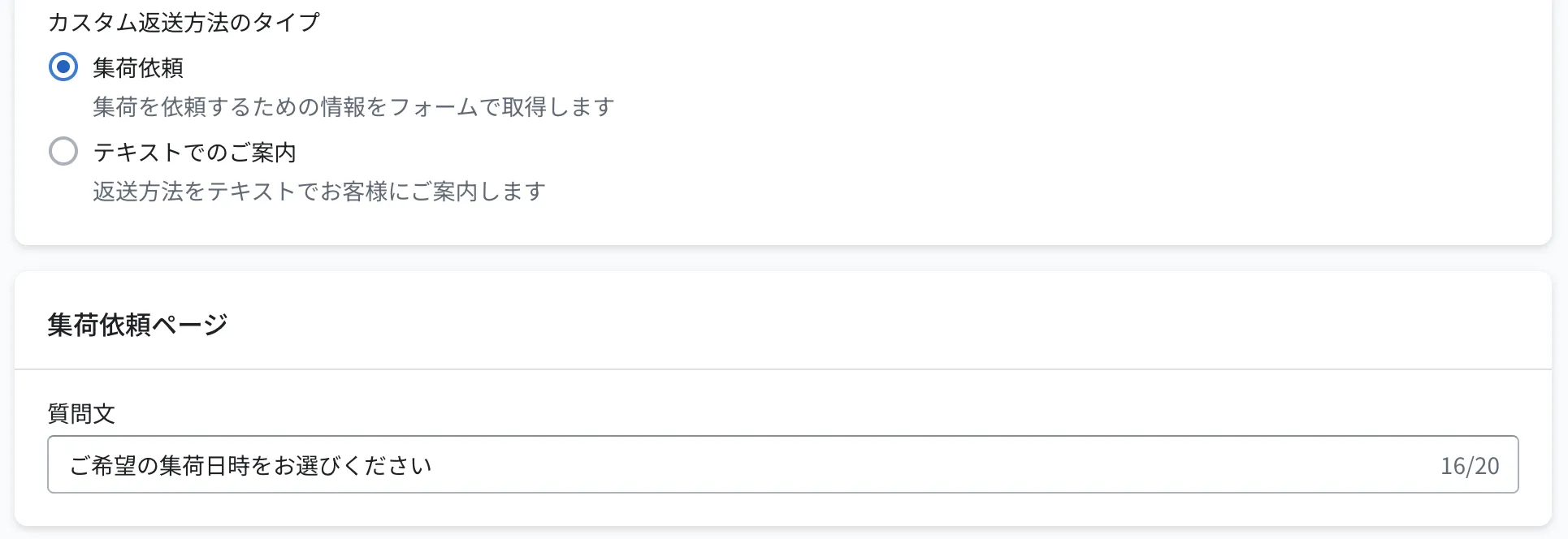
Choose the type of custom return method
Click Create or Save
| Type | What to set |
|---|---|
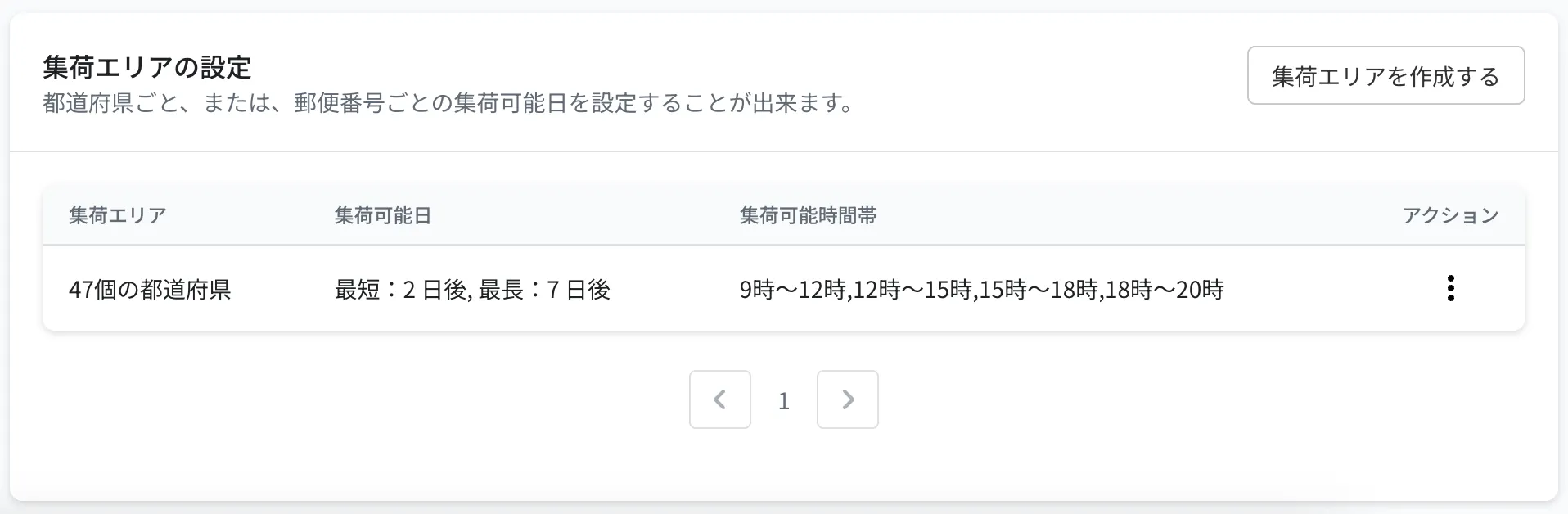
| Pickup request | Enter the question text and click Create once, then set the pickup areas and available pickup days from Create pickup area |
| Text guidance | Enter a description. The text you enter is shown as it is on the request page |
※To show the return methods and return locations you created to shoppers, you also need to configure Return policy > Return methods. That is where you set which combinations appear on a request and how they differ per condition
3. Setting the return deadline
Set how many days after approval the item must be sent back. The deadline is shown on the shopper's screen and is used for the reminder email before the deadline and for the notification once it has passed.
- Go to Settings > Returns and refunds > Returns > Return deadline
- Set the number of days from the approval date and save
※The notification for a passed return deadline is sent when you mark the request as "Past the return deadline" in the admin dashboard. It is not sent automatically
※The timing of reminder emails is set at Settings > Notifications to shoppers > Notification reminders (2-6 Notification email settings)