Return policy settings
In the return policy, you translate the return rules you use today into Recustomer settings.
Rules such as the return deadline and who pays the shipping can be the same for every request, or different per condition. When you add a dynamic setting with conditions such as the product, the return reason or the customer tag, that rule is used only for requests that match the condition. Requests that do not match use the default setting.
A return policy consists of the following six settings.
- Interview questions
- Return deadline
- Resolution methods
- Return approval
- Return methods
- Refund calculation
- How to create a dynamic setting (common)
1. Interview questions
Set which of the questions you created in 2-2 Interview question settings are shown on the request page, in what order, and under what conditions.
Go to Settings > Returns and exchanges > Return policy > Interview questions
Click the default interview questions (named "Default questions and answers for return requests" at first)
Choose the questions you want to show from the dropdowns. You can reorder them by dragging and dropping
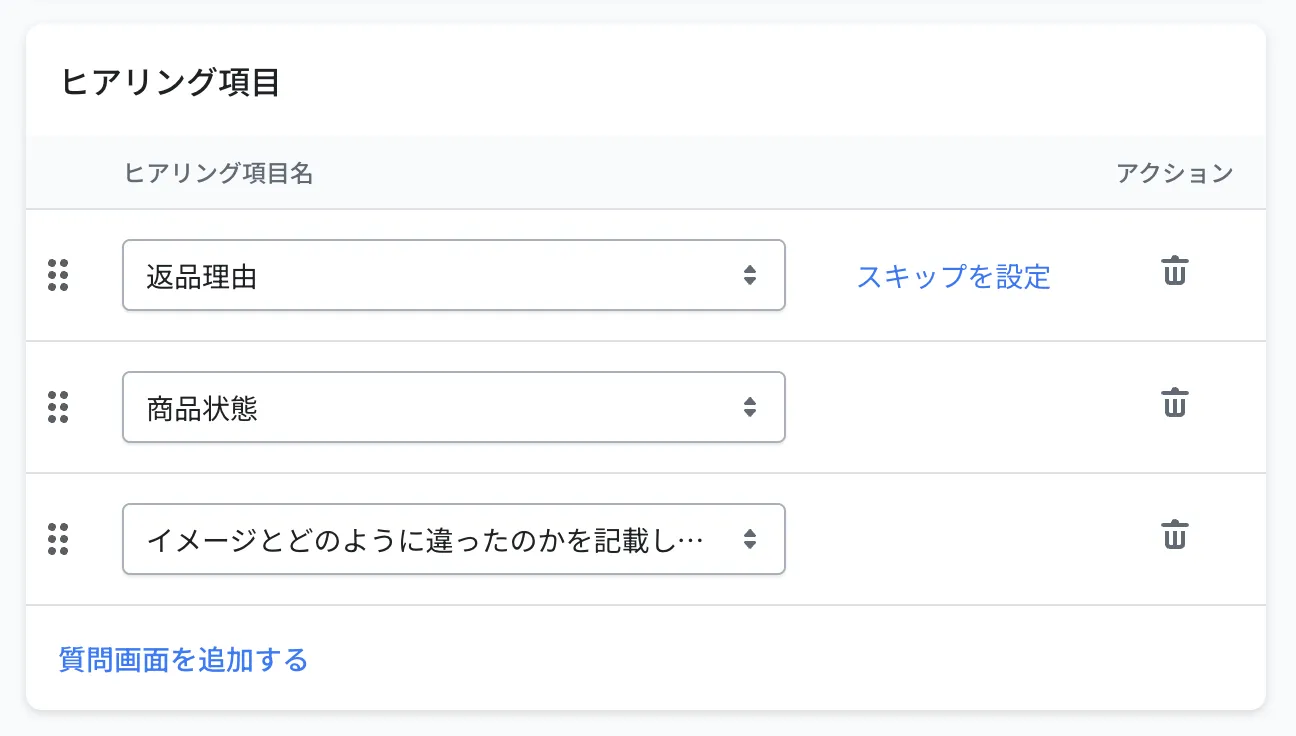
Click Save at the top right
Examples
To show different questions only for certain products or orders, add a conditional rule with Create dynamic interview questions.
| What you want to do | Condition | Questions to show (in order) |
|---|---|---|
| Ask the full set of questions as usual | (default setting) | Return reason → Details → Photo |
| Check whether a large item such as furniture can be shipped back | Product tag is "Large item" | Return reason → Details → Do you still have the packaging? |
| Ask shoes customers exactly why the size did not fit | Collection is "Shoes" | Return reason → Where the size did not fit → Photo |
Conditions are specified in the same way as in 7. How to create a dynamic setting (common).
Skipping the remaining questions based on an answer
For choice questions, you can send shoppers straight to the resolution method, skipping all the remaining questions, when they pick a particular option. This saves shoppers from answering questions you do not need to ask.
On the edit screen for the interview questions, click Set skip on the question
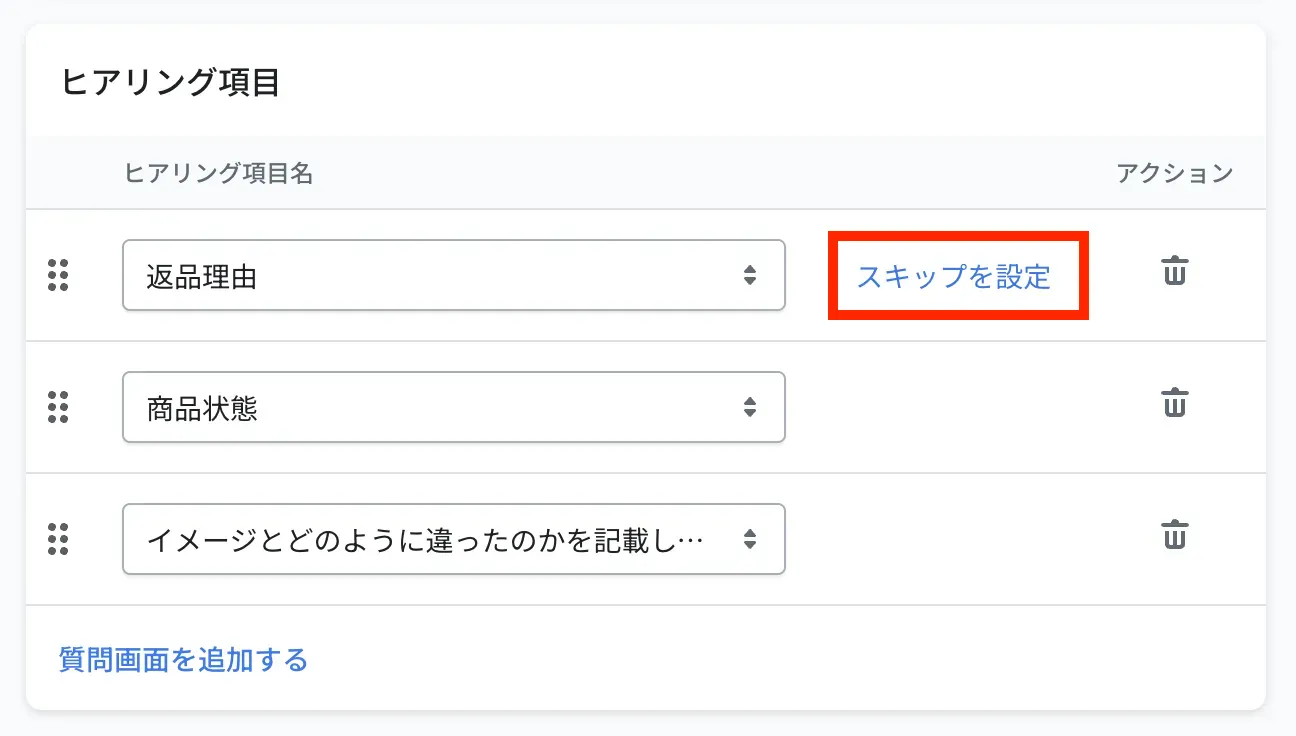
Turn skip on or off for each answer option and save
For example, if you set skip on the option "No" of the first question "Was there anything wrong with the item?":
- Shoppers who pick "Yes" go on to the following questions (where the defect is, photo)
- Shoppers who pick "No" do not see the following questions and go straight to the resolution method
※Skip does not mean "skip the next question only". It skips all the remaining questions
※Set skip is shown only for choice questions. It is not available for field input or image upload questions
※It cannot be set on the creation screen. Save the interview questions first, then set it on the edit screen
2. Return deadline
The deadline for accepting returns and exchanges. For orders past the deadline, the request page shows that the deadline has passed and no request can be made.
- Go to Settings > Returns and exchanges > Return policy > Return deadline
- Choose Edit from the actions of the default return deadline
- Set the start date (shipping date, delivery date or order date) and how many days you accept requests for, then save
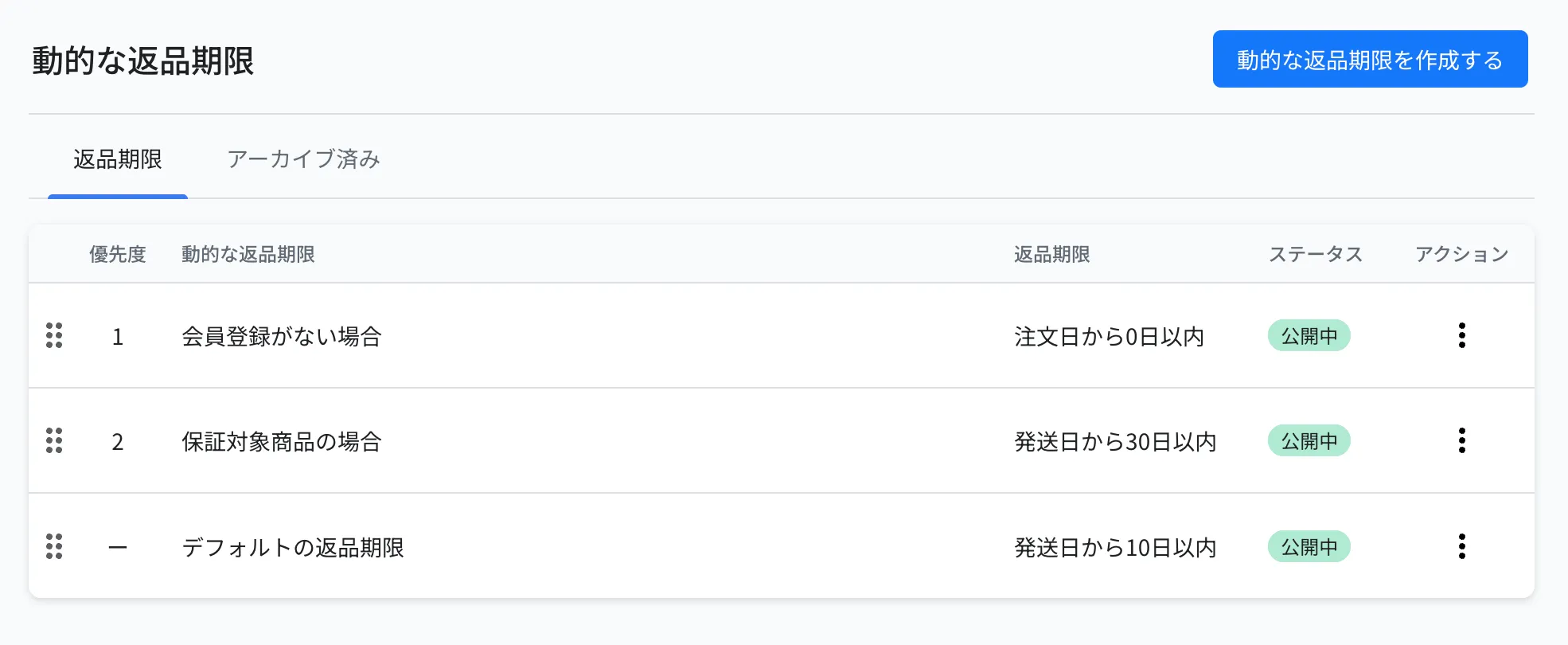
※Counting from the delivery date is only available with a Recustomer Tracking (paid) contract
※The text shown on the request page when the deadline has passed can be edited at Settings > Shopper portal > Customise > Language editor, under "Items past the return deadline" and "Items past the return deadline caption" (2-1 Return request page settings)
Examples
| What you want to do | Condition | Return deadline |
|---|---|---|
| Accept normal items within 7 days of delivery | (default setting) | 7 days from the delivery date |
| Accept items with a warranty for longer | Product tag is "Warranty" | 30 days from the delivery date |
3. Resolution methods
Set the resolutions (refund or exchange) that shoppers can choose when they submit a request. What you set here becomes the options under "Please choose how you would like us to resolve this" on the request page.
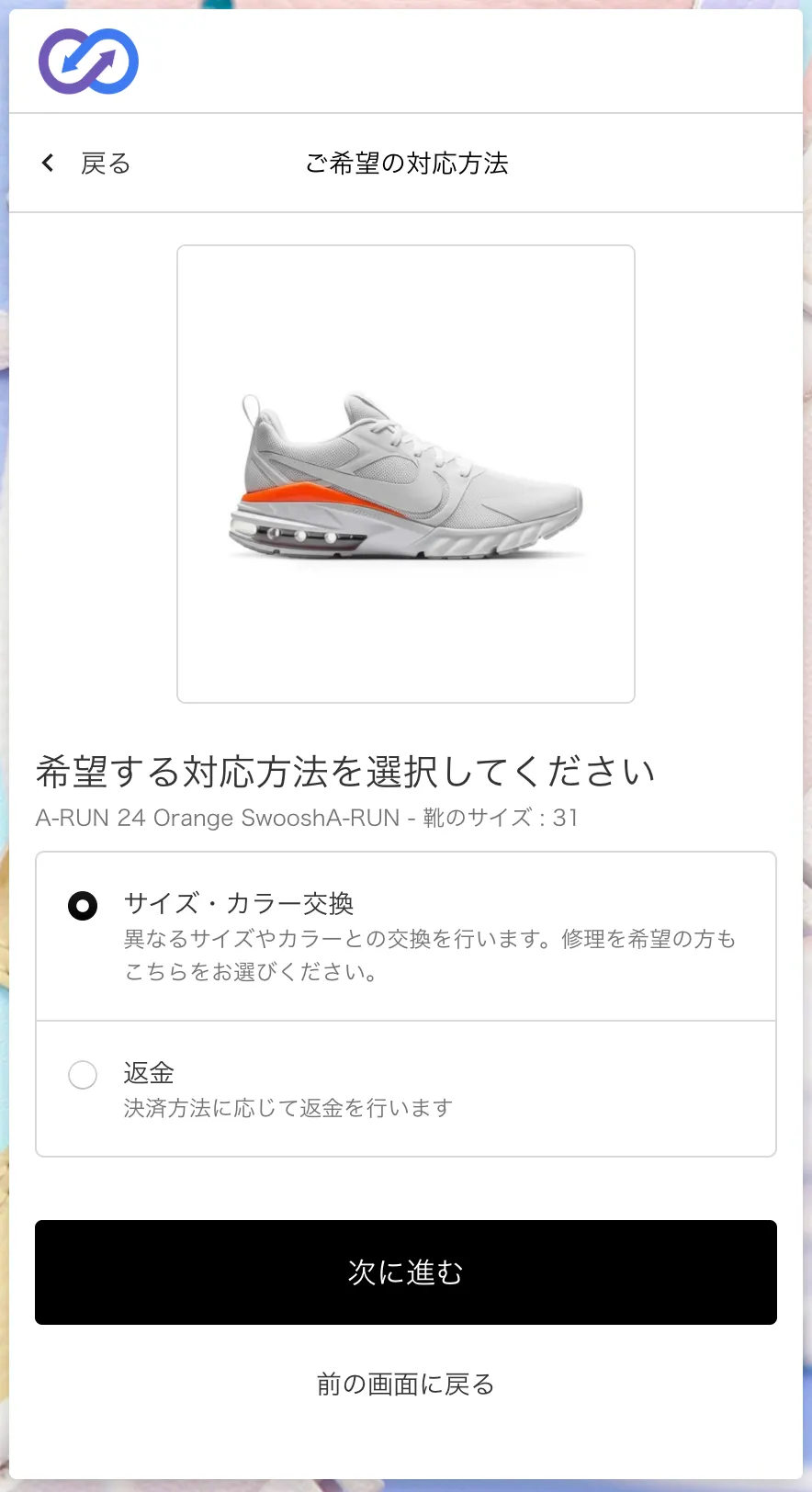
- Go to Settings > Returns and exchanges > Return policy > Resolution methods
- Choose Edit from the actions of the default resolution methods
- Tick the resolutions you want to show to shoppers and save
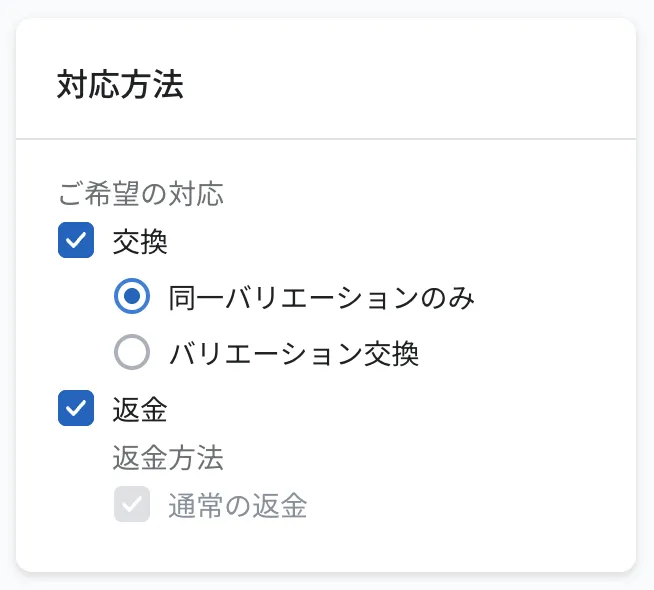
| Resolution method | Description |
|---|---|
| Refund | The shopper sends the item back and you refund it |
| Exchange for the same variant | An exchange for the same product in the same size and colour. Used for replacing defective items |
| Variant exchange (¥0 slip) | An exchange for a different size or colour. The replacement is issued as a ¥0 exchange slip (a new order), which reserves the stock and is used for shipping. Only items at the same price as the original can be chosen |
| Variant exchange (with price difference) | Items at a different price can also be chosen. The difference is charged to the shopper for a more expensive item, or refunded for a cheaper one. No exchange slip is created; the exchange is completed on the original order This requires setup on our side. Please contact your account manager |
For both kinds of variant exchange, the stock of the replacement is read from the connected system, and out-of-stock options cannot be selected.
Examples
| What you want to do | Condition | Resolutions to show |
|---|---|---|
| Offer only a refund when the return is the shopper's choice | (default setting) | Refund only |
| Let shoppers choose an exchange for defective items | Return reason is "The item is defective" | Refund + exchange for the same variant |
| Accept size exchanges for apparel | Collection is "Apparel" | Refund + variant exchange (¥0 slip) |
If you want to use variant exchange (with price difference)
Exchanges with a price difference are available for stores that use the Shopify integration and have return status synchronisation enabled. Please contact your account manager if you would like to use it.
※A variant exchange with a price difference cannot be undone once approved. Check the contents before approving
4. Return approval
Set whether a request is automatically approved, held for manual approval, or rejected.
- Go to Settings > Returns and exchanges > Return policy > Return approval
- Choose Edit from the actions of the default return approval
- Choose the approval method and save
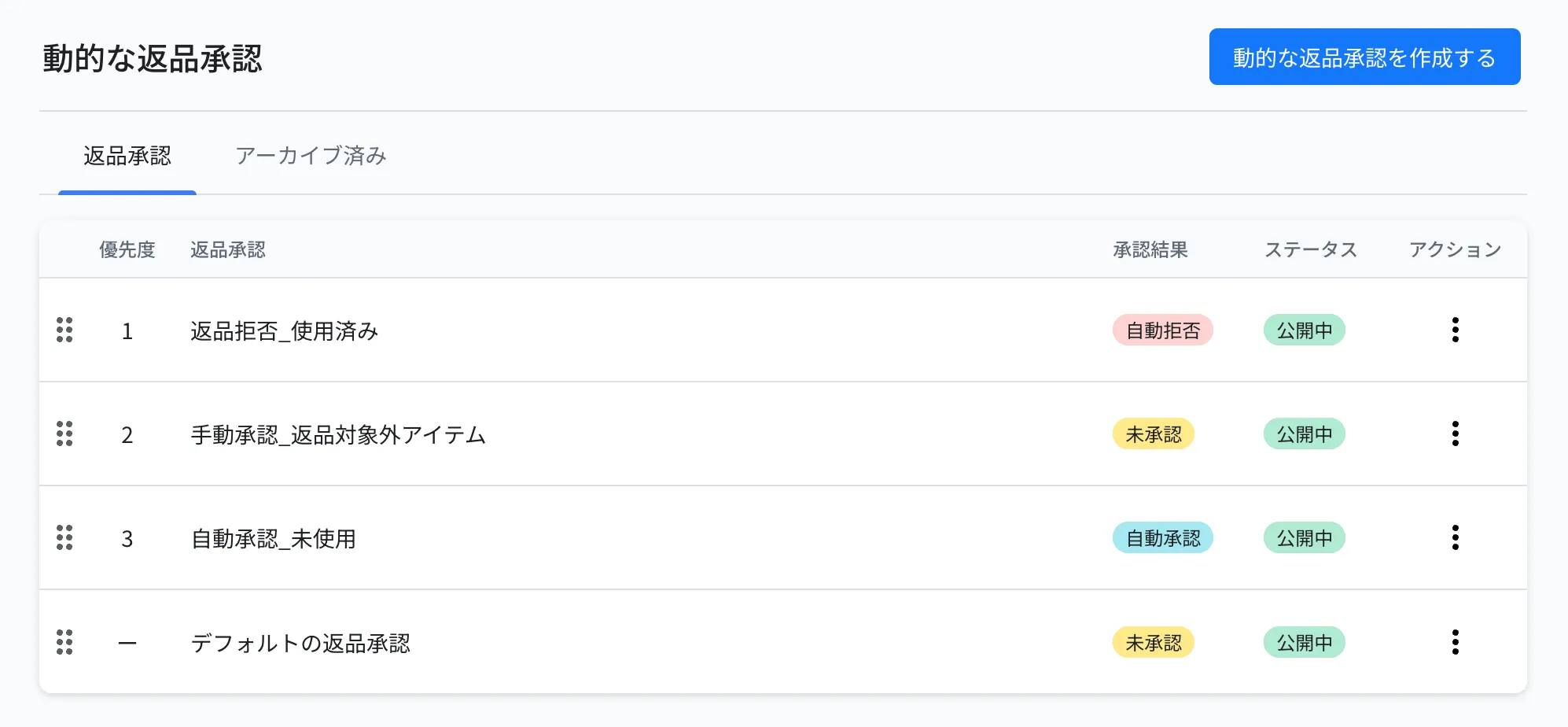
| Approval method | Description |
|---|---|
| Automatic approval | The request is approved immediately and the shopper goes straight on to choosing a return method. If no return is needed, you can tell shoppers that they do not have to send the item back |
| Hold for approval | The request is added to Return management in the admin dashboard as "Not approved", and you approve or reject it manually after checking it. Once approved, the shopper receives an approval email and can go on to choose a return method |
| Reject | The shopper is told that the item cannot be returned. When you choose Reject, a field for the rejection reason appears, and the reason you enter is shown on the shopper's request page |
Examples
| What you want to do | Condition | Approval method |
|---|---|---|
| Let normal requests through without extra work | (default setting) | Automatic approval |
| Look at the photos before deciding on defective items | Return reason is "The item is defective" | Hold for approval |
| Do not accept used items | The answer to "Have you used the item?" is "Yes" | Reject (reason: we do not accept returns of used items) |
| Do not accept hygiene products | Product tag is "Hygiene" | Reject |
| Check when the same order is requested repeatedly | The number of return requests for the order is 2 or more | Hold for approval |
What the shopper sees for each approval method
| Approval method | Right after the request | After that |
|---|---|---|
| Automatic approval | The screen for choosing the return method and refund method is shown | The shopper chooses a return method and a refund method, confirms the request and sends the item back |
| Hold for approval | A screen saying "Please wait until your return is approved" is shown | Once you approve it in the admin dashboard, the shopper receives the "Your return request has been approved" email and continues from the link in it to choose a return method and refund method |
| Reject | The rejection reason is shown together with a message that the process has ended | The request stays in the admin dashboard with the status "Rejected" |
※In the request list and detail screens, the approval result is shown as "Not approved", "Manually approved", "Automatically approved" or "Automatically rejected". A request held for approval becomes "Manually approved" once you approve it in the admin dashboard
5. Return methods
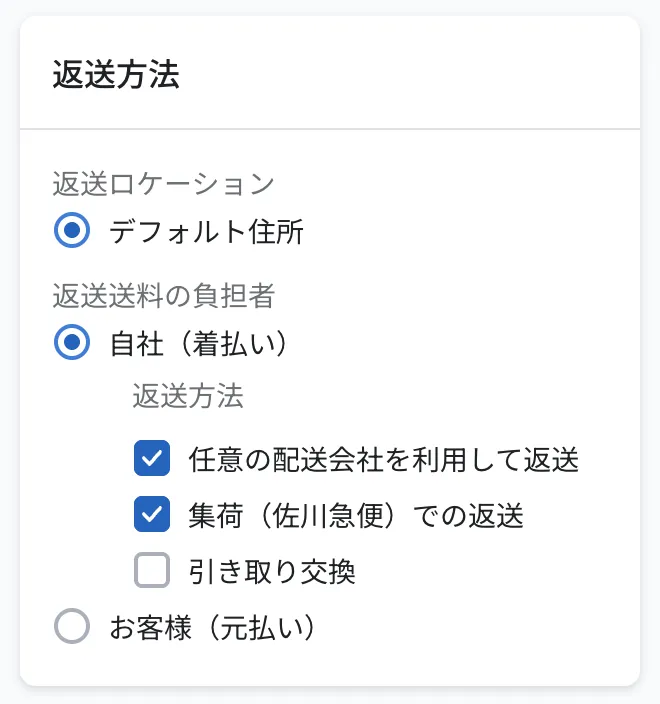
Switch the return address, who pays the return shipping and the available return methods per condition, for example "the store pays for defects and the shopper pays otherwise" or "send certain items to a different warehouse". Register the return methods and return locations in advance in 2-4 Return method settings.
Go to Settings > Returns and exchanges > Return policy > Return methods
Choose Edit from the actions of the default return method
Set the return location (where the item is sent), who pays the return shipping (the store = collect on delivery / the shopper = prepaid) and the return methods shown to shoppers, then save
Examples
| What you want to do | Condition | Return method settings |
|---|---|---|
| Ask shoppers to pay the shipping as a rule | (default setting) | Payer: the shopper (prepaid) / Return methods: Yamato drop-off, ship it yourself |
| Pay the return shipping yourself for defects | Return reason is "The item is defective" | Payer: the store (collect on delivery) / Return method: Sagawa pickup |
| Make returns free for VIP members | Customer tag is "VIP" | Payer: the store (collect on delivery) |
| Receive large items at a different warehouse | Product tag is "Large item" | Return location: warehouse A |
6. Refund calculation
Set how shipping, coupon discounts and return fees are handled when the refund amount is calculated. The calculated amount is shown on the shopper's request page (if you show the estimated refund) and in notification emails, and is used as the suggested amount when you process the refund in the admin dashboard.
- Go to Settings > Returns and exchanges > Return policy > Refund calculation
- Choose Edit from the actions of the default refund calculation
- Choose "Charge in full", "Prorate" or "Do not charge" for each item and save
For example, a shopper buys item A for ¥15,000 and item B for ¥3,000 (tax included) with ¥1,000 shipping, and returns only item B:
| Shipping setting | Refund amount |
|---|---|
| Charge in full | ¥2,000 (the full ¥1,000 shipping is deducted from ¥3,000) |
| Prorate | ¥2,800 (the shipping is prorated by item price and ¥200 for item B is deducted) |
| Do not charge | ¥3,000 |
Examples
| What you want to do | Condition | Refund calculation settings |
|---|---|---|
| Refund the item price only, not the shipping | (default setting) | Shipping: charge in full |
| Refund the shipping too for defects | Return reason is "The item is defective" | Shipping: do not charge |
| Deduct a return fee | (default setting) | Return fee: charge in full |
| Do not charge a fee for exchanges | Resolution method is "Exchange" | Return fee: do not charge |
※See 2-5 Tax and deduction settings for how to add items to the refund calculation (return fees, shipping for exchanges and so on) and for whether product prices include tax
7. How to create a dynamic setting (common)
To apply a different rule only for certain products, orders or return reasons, add a rule with Create dynamic … in each setting. The steps are the same for all six settings.
Click Create dynamic … on the list screen of the setting
Set the following
- ① Status: either "Draft" or "Published". Only published rules are applied. You can save a rule as a draft while you are still working on it
- ② Name: give the rule a name that describes it
- ③ Conditions: choose the condition item, the operator and the value. Combine several conditions with Add AND condition and Add OR condition
- ④ Settings: specify what applies when the conditions match (interview questions, return deadline, resolution methods, approval method, return methods, refund calculation)
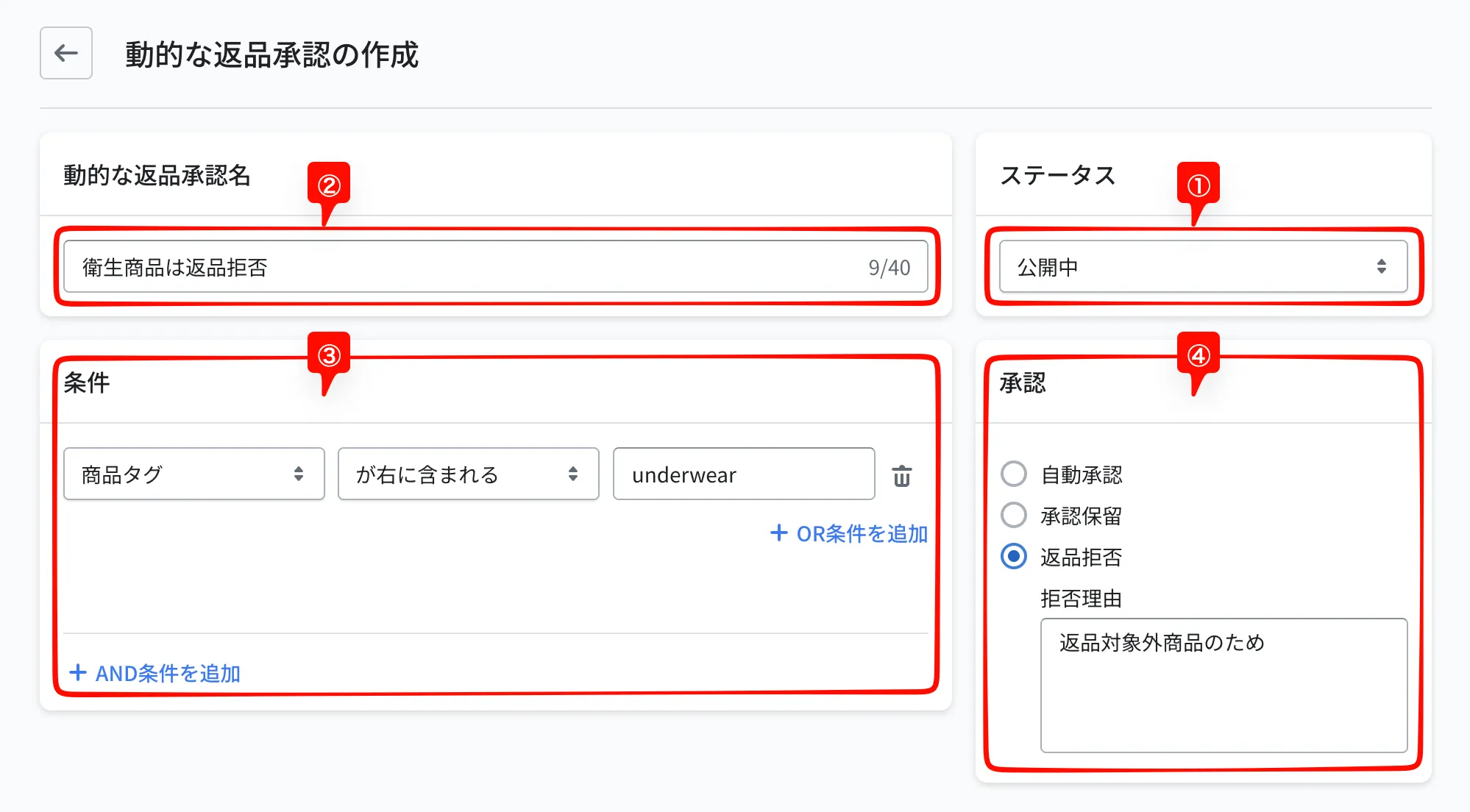
Save, then drag and drop the rules in the list to set their priority. Rules are evaluated from the top, and the first one that matches is applied
Condition items
There are Recustomer standard items, which work with any integration, and items specific to each integration. See Condition items for the full list.