Measurement pixel
Once you set up the Recustomer measurement pixel, shopping behaviour data on your storefront (the shop screens your shoppers browse) is collected automatically.
Shopify only
The measurement pixel is set up with Shopify's "Customer events" feature. If you use a cart system other than Shopify, this setting is not needed.
What is measured
| Behaviour | Description |
|---|---|
| Page views | Views of the home page, product pages, collection pages and so on |
| Cart actions | Adding and removing products from the cart, and views of the cart page |
| Checkout | Starting and completing checkout |
Personal data such as email addresses, phone numbers and addresses is excluded automatically. Only shopping behaviour data is measured.
How to set it up
Sign in to the Shopify admin
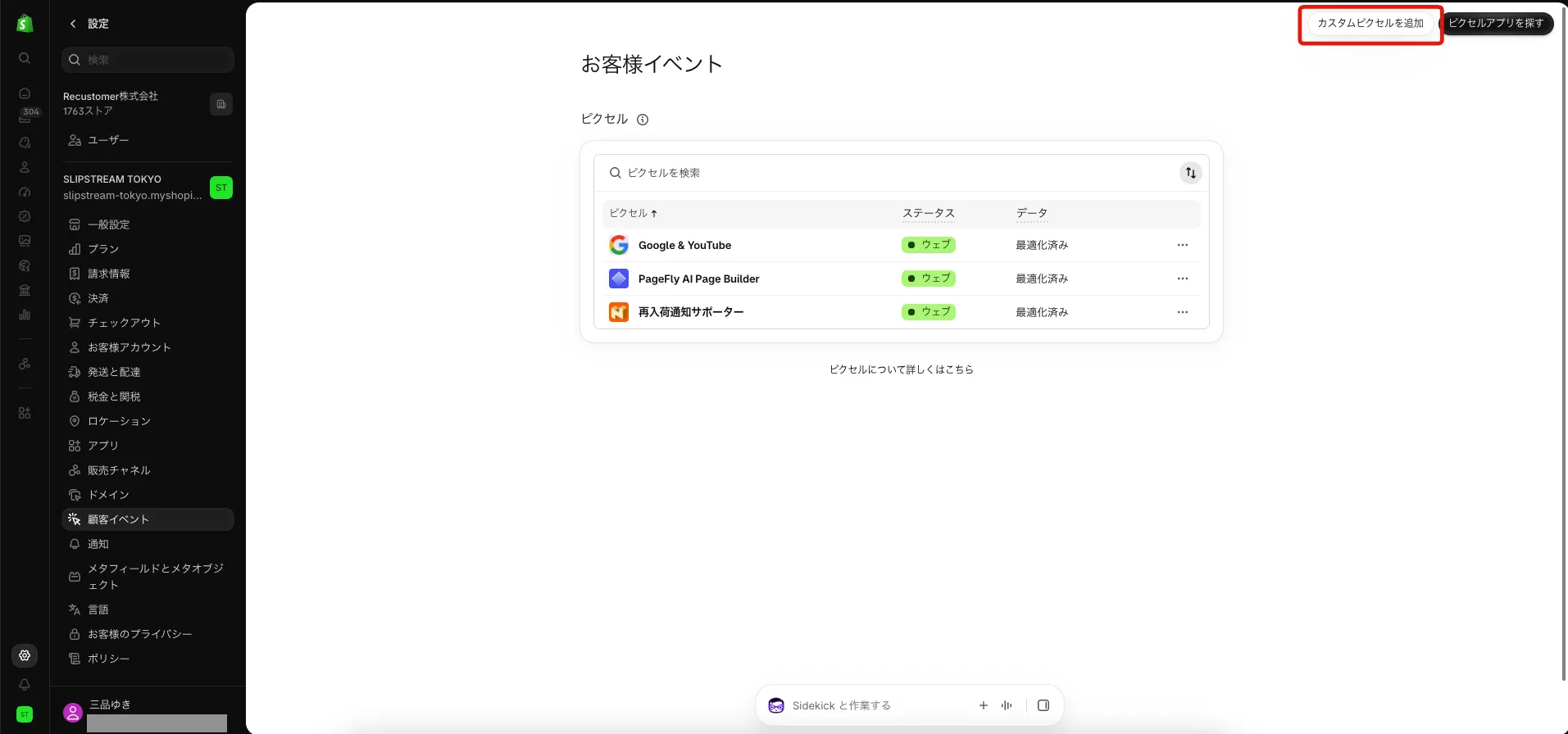
Open Settings > Customer events
Click "Add custom pixel" in the top right
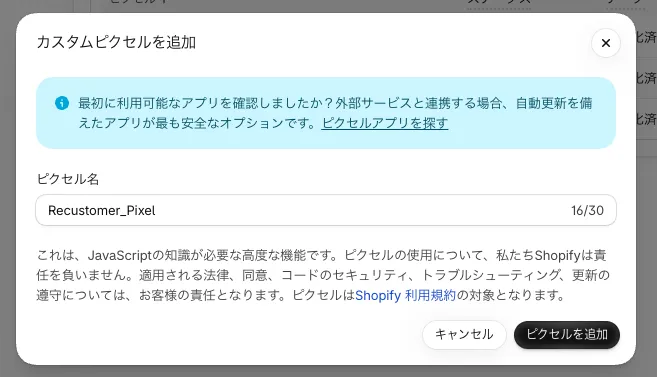
Enter any name for the pixel and click "Add pixel"
When the code editor opens, paste the following code as is
const recustomerEvents = [];
globalThis.recustomerEvents = recustomerEvents;
globalThis.recustomerInit = init;
analytics.subscribe("all_standard_events", (event) => recustomerEvents.push(event));
analytics.subscribe("all_custom_events", (event) => recustomerEvents.push(event));
const script = document.createElement("script");
script.src = "https://script.rcmr.io/pixel/main.js";
script.async = true;
document.head.append(script);
Click "Save" in the top right, then change the pixel status to "Connect". You are done once the status shows "Connected"
Notes
- The code you pasted is a "loader" that pulls in the measurement script itself. The measurement logic is updated on the Recustomer side, so you only need to paste the code once.
- If you use several Shopify stores, follow the same steps in each store's admin. The code is the same for every store; stores are identified automatically.
- To pause measurement, go to Settings > Customer events and change the status of the Recustomer pixel to "Disconnect". You do not need to delete the code.
- The measurement script is loaded asynchronously and runs inside Shopify's sandbox, so the impact on your store's loading speed is negligible.