CROSSMALL integration
Before you start
You need to allow access from the following Recustomer IP addresses on the CROSSMALL side.
52.199.155.223
54.95.233.104
57.180.95.90
1. Get the authentication key and company code from CROSSMALL
Sign in to CROSSMALL
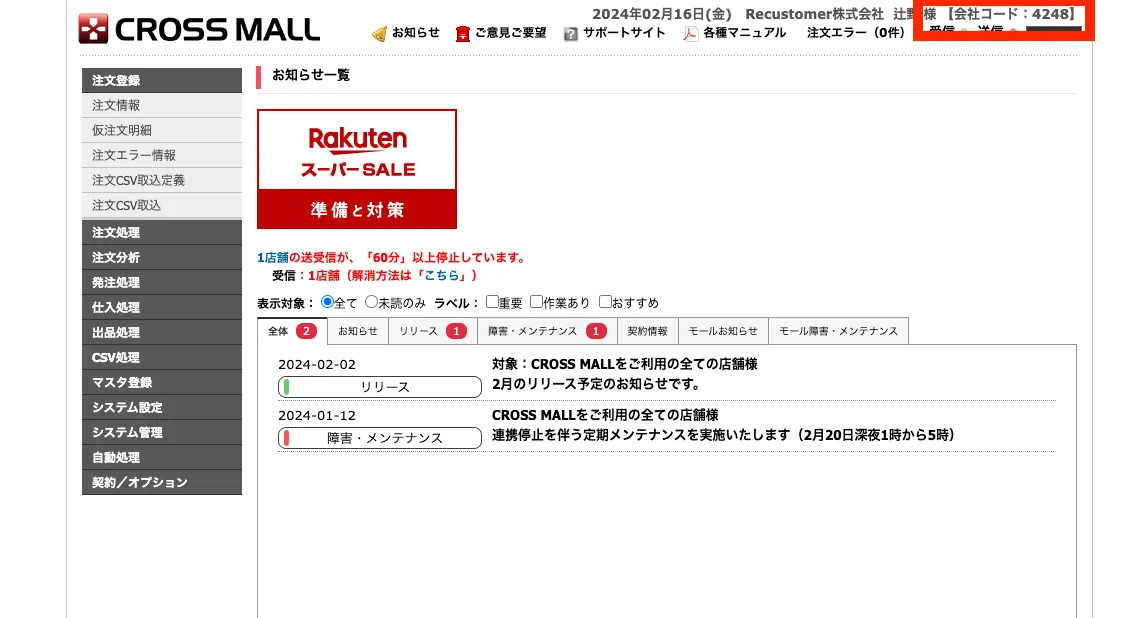
Copy the company code shown at the top right of the screen
Open System settings > Basic information
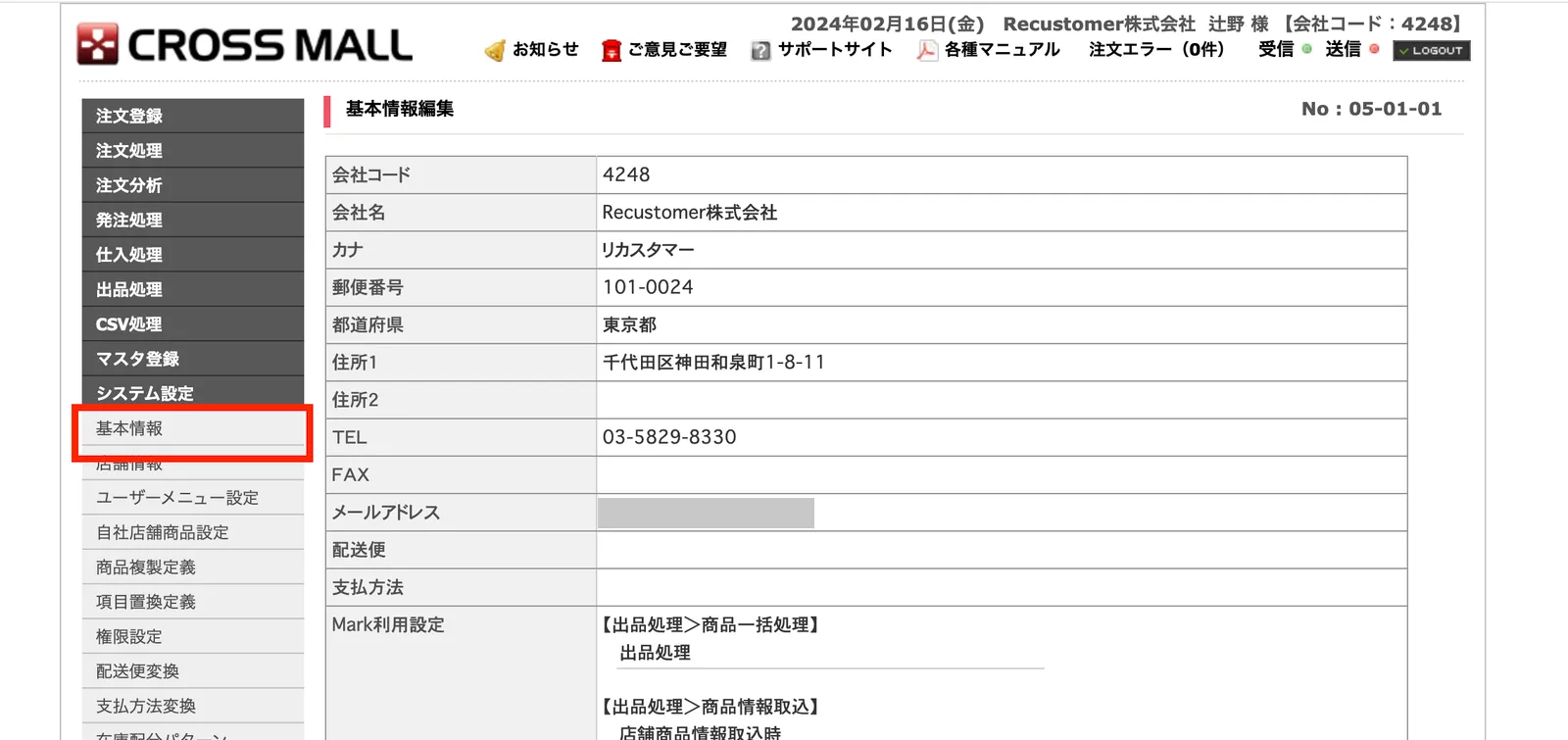
Click Edit
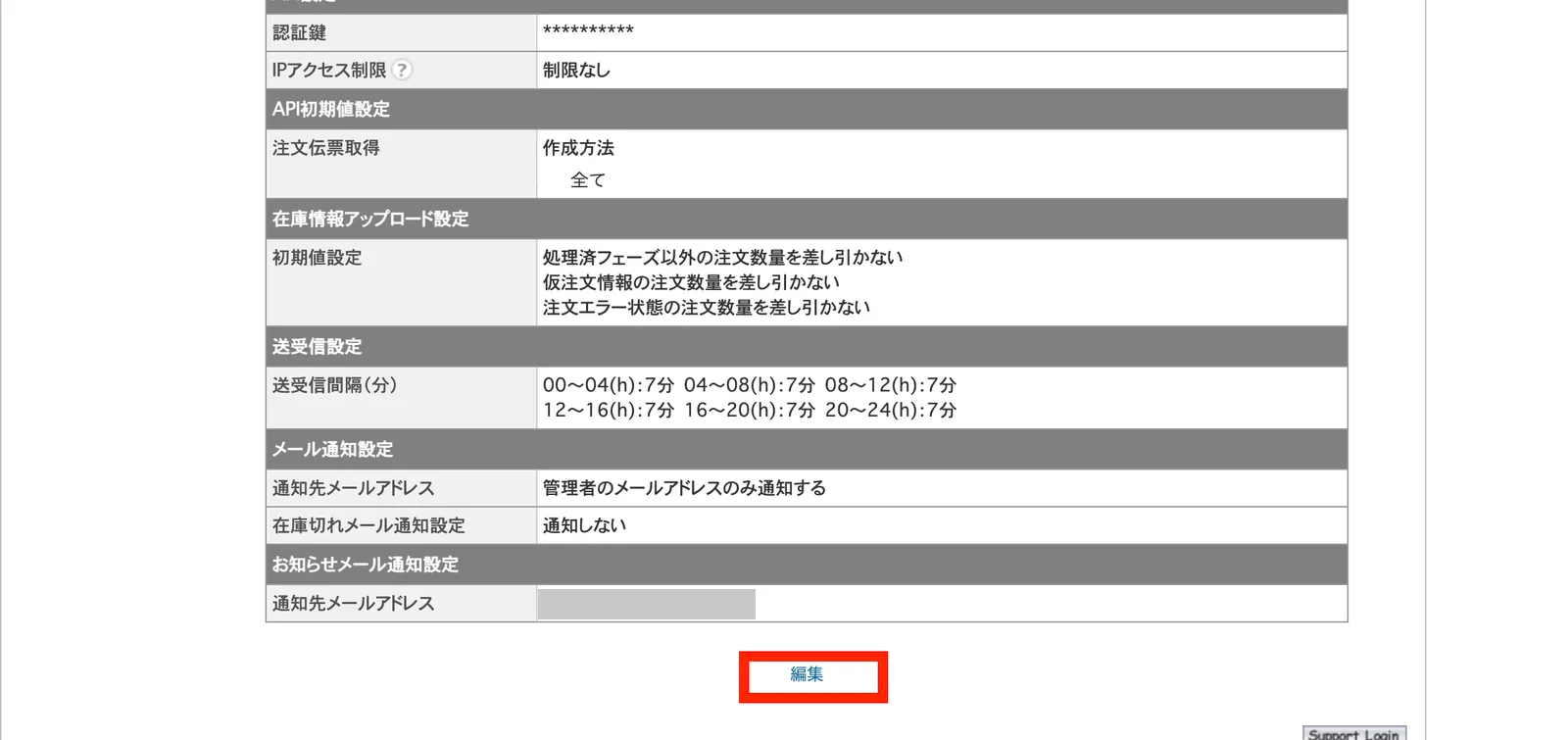
※The Edit button appears when you scroll to the bottom of the page.
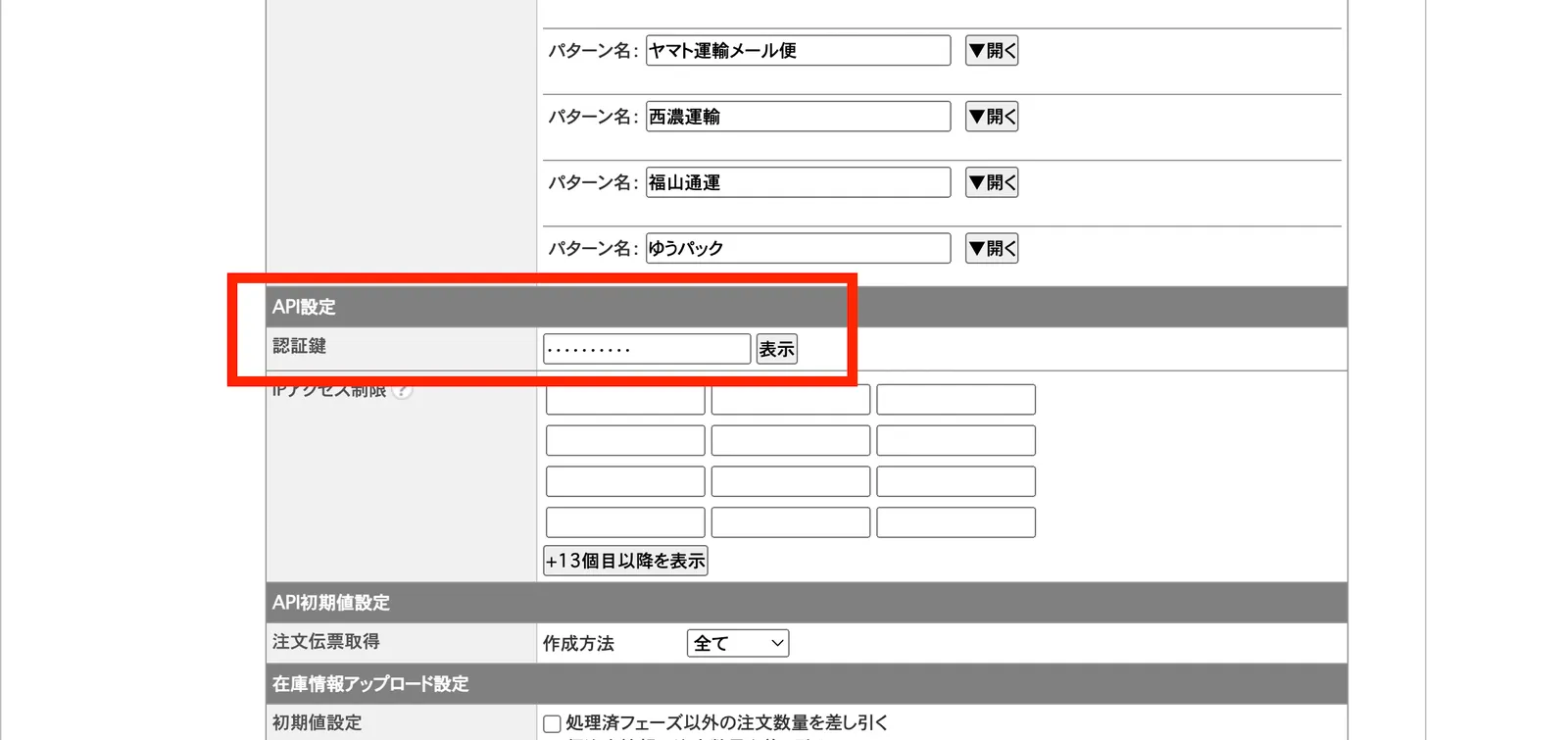
Copy the authentication key under API settings
2. Authenticate in Recustomer
In Recustomer, go to Settings > External service integrations > Integrations > CROSSMALL
Enter the authentication key and company code, then click Authenticate
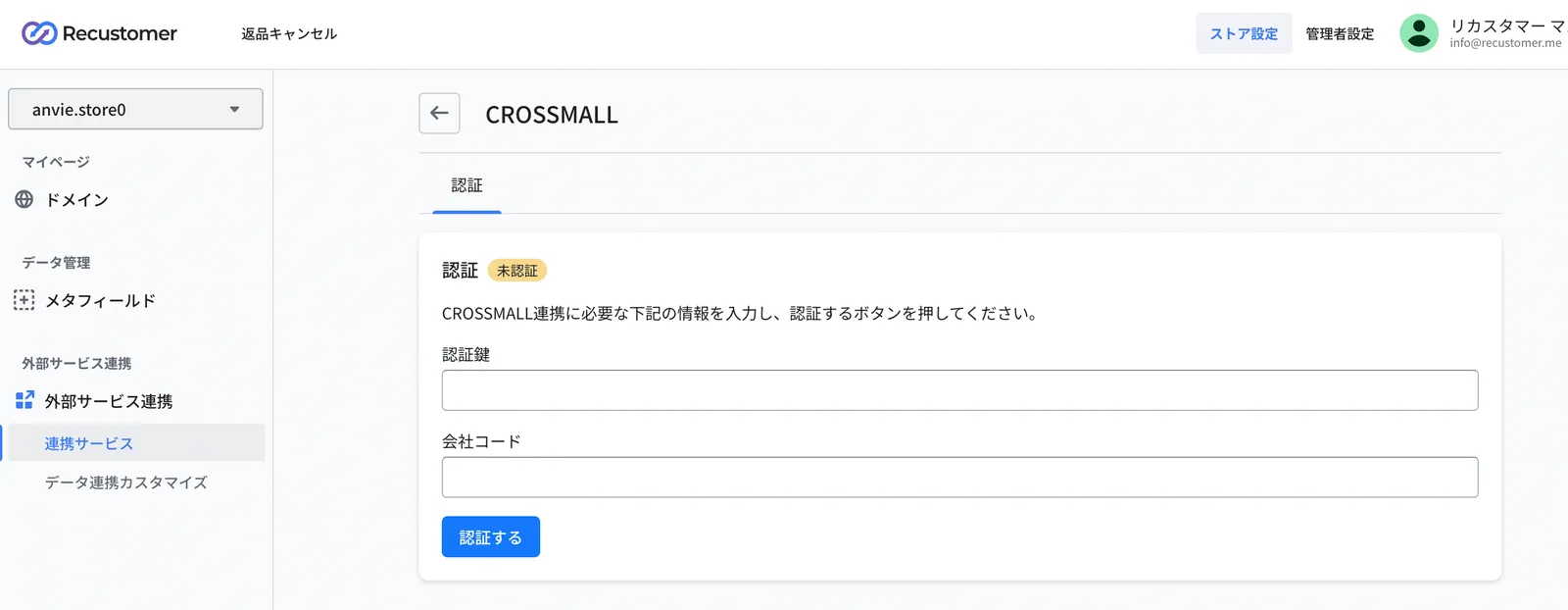
Field Value to enter Authentication key The authentication key you copied in step 5 of section 1 Company code The company code you copied in step 2 of section 1 The setup is complete when the status changes to Authenticated
3. General settings
Under General, set the information used to import orders
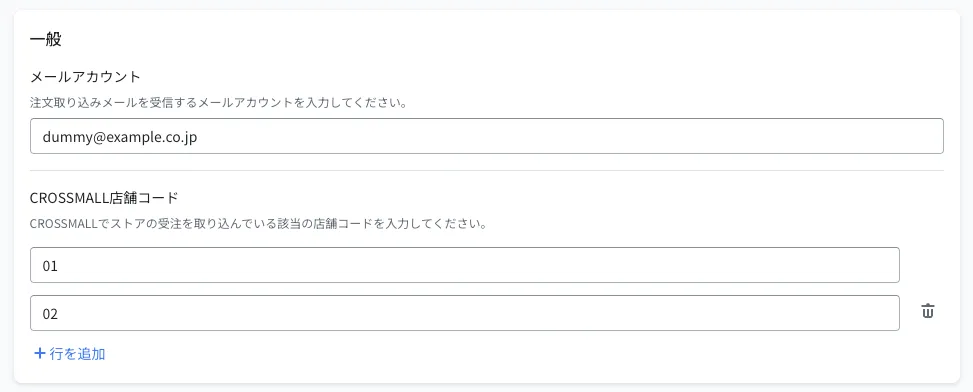
Field What to set Mail account Enter the mail account used to register exchange orders in CROSSMALL (one of those under "Master registration > Mail account") 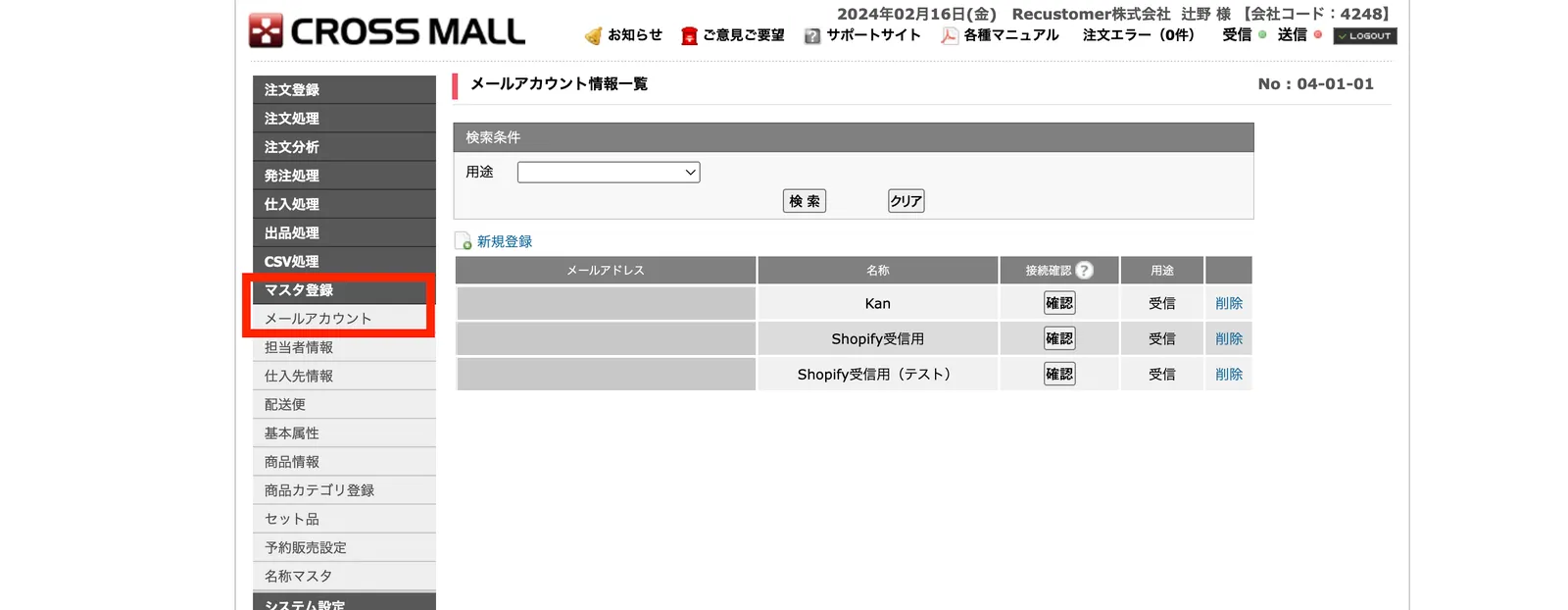
CROSSMALL shop code Register the shop code of each shop you want to accept cancellations for in Recustomer 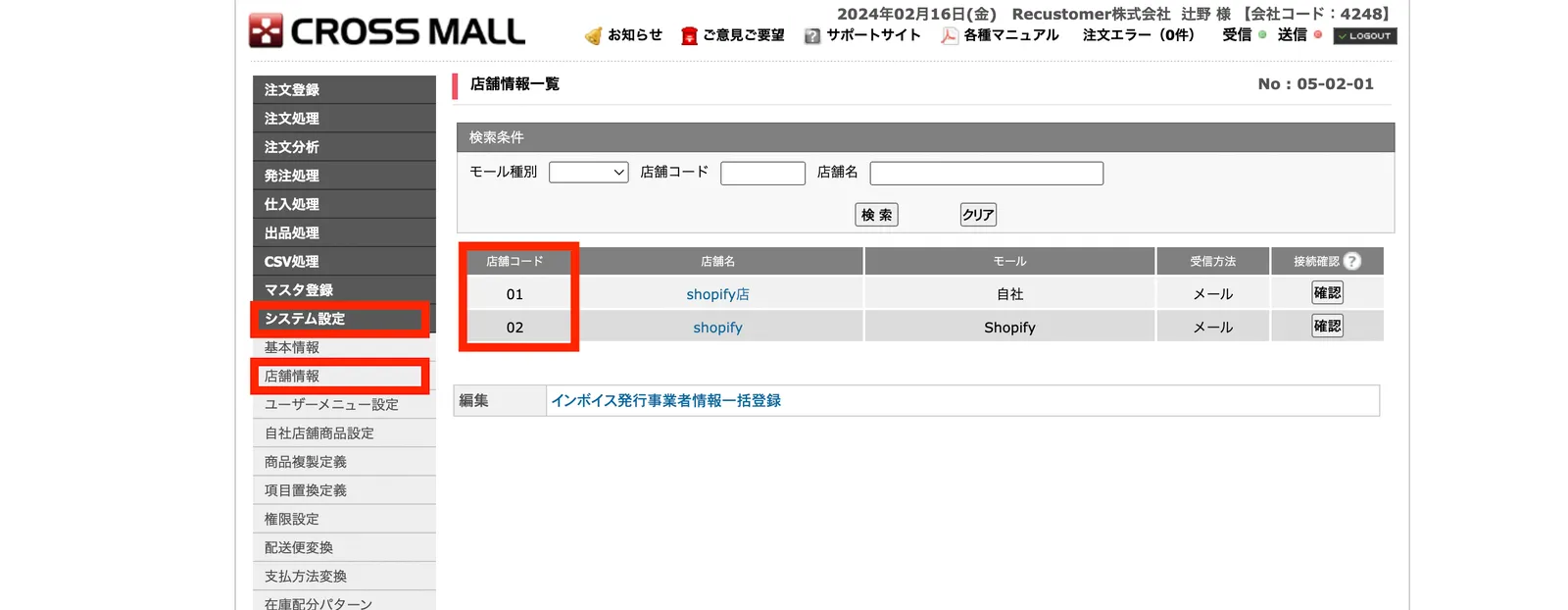
If you can't find a mail account
If you accept exchanges, prepare the following in CROSSMALL.
- Under "マスタ登録" (Master registration) > "メールアカウント" (Mail account), register a new mail account that receives exchange orders
- Under "システム設定" (System settings) > "店舗情報" (Shop information), check whether there is a shop whose receiving method (受信方法) is "メール" (Mail). If there isn't, you need to add a shop. Adding a shop may require setup by CROSSMALL support, so please contact CROSSMALL
If you don't accept exchanges, you can leave this field blank.
4. Order status mapping
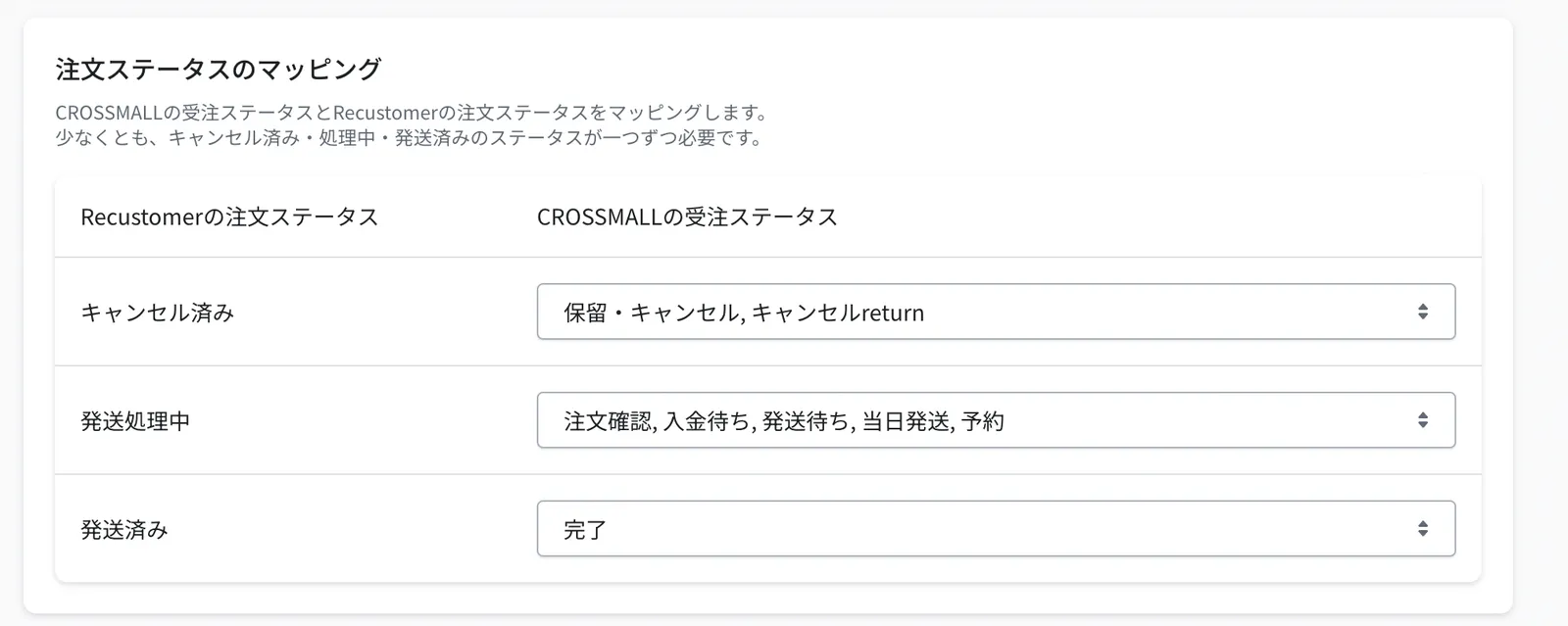
Under Order status mapping, map Recustomer's order statuses to CROSSMALL's processing phases
Important
Orders in a processing phase that is not registered here are not imported into Recustomer (shoppers will not find them when they look up an order on the request page). Make sure every processing phase is registered under one of Cancelled, Preparing for shipment, or Shipped.
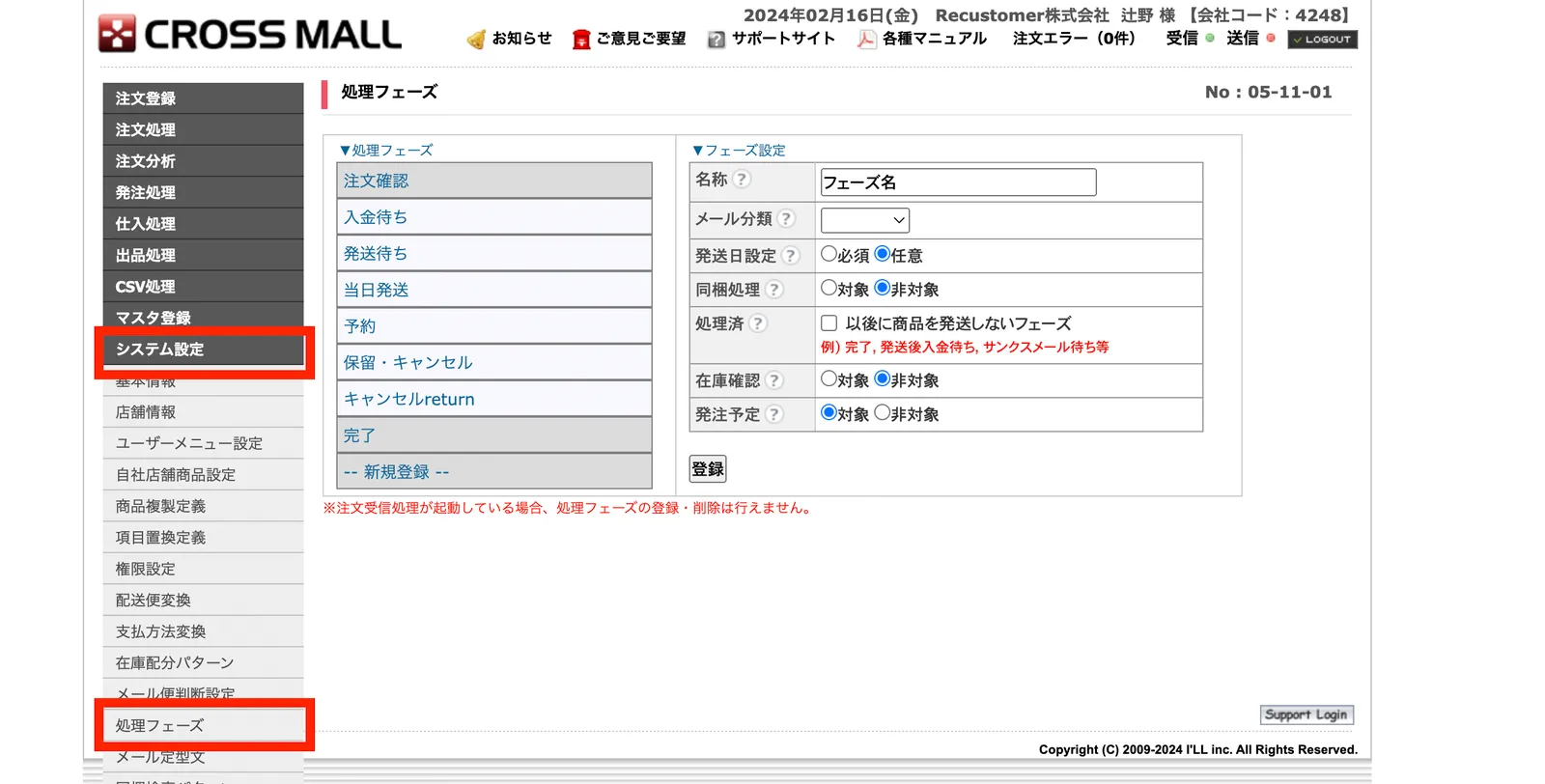
Field What to set Cancelled Check the processing phases that mean "cancelled" in CROSSMALL Preparing for shipment Check the processing phases that mean "not yet shipped" in CROSSMALL Shipped Check the processing phases that mean "already shipped" in CROSSMALL ▼How to check the processing phases in the CROSSMALL admin
5. Carrier mapping (when you use Tracking)
※This step is required only when you use Tracking. Skip it if you do not use Tracking
Under "Carrier mapping", map the carriers in Recustomer to the carriers in CROSSMALL
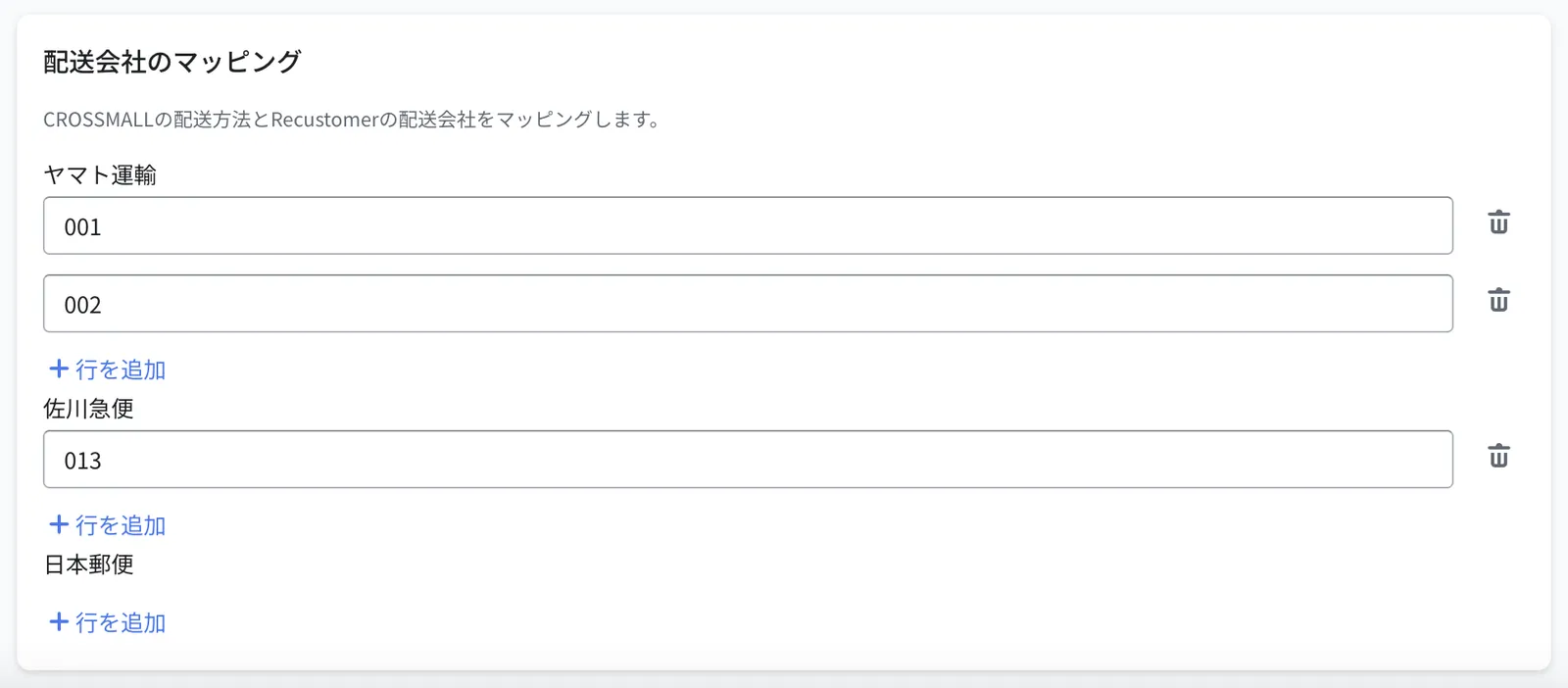
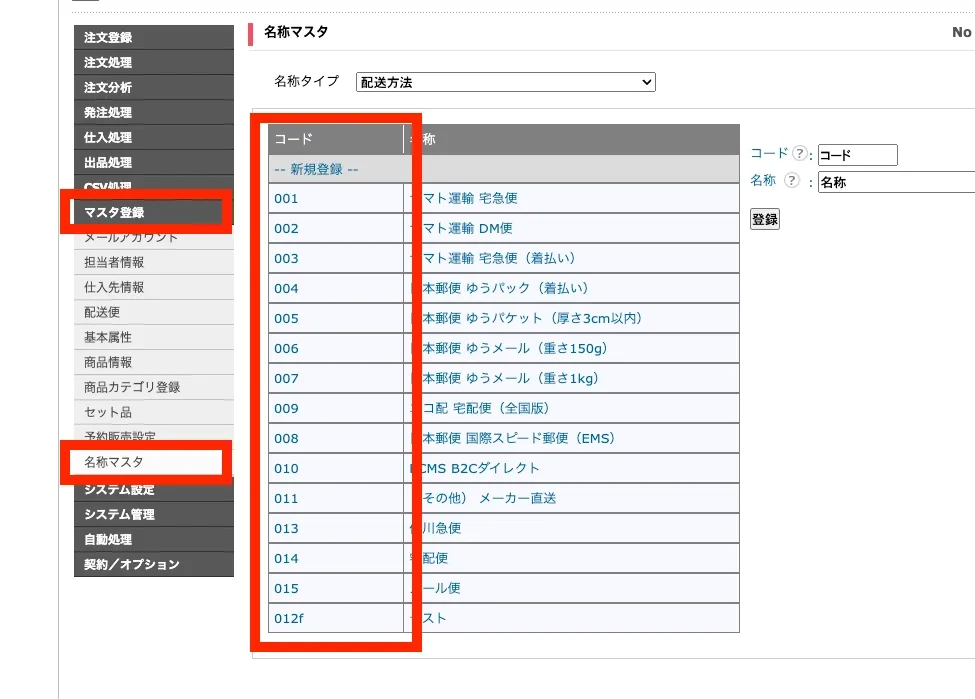
Item What to set Yamato Transport The shipping method codes that correspond to Yamato Transport in CROSSMALL Sagawa Express The shipping method codes that correspond to Sagawa Express in CROSSMALL Japan Post The shipping method codes that correspond to Japan Post in CROSSMALL ▼How to check the carrier codes in the CROSSMALL admin
6. Cancellation processing phase (when you use Cancellation)
※This step is required only when you use Cancellation. Skip it if you do not use Cancellation
Go to the Settings > External service integrations > Integrations > CROSSMALL > Integration settings tab and configure what happens on the CROSSMALL side when a cancellation occurs, under Cancellation processing phase settings
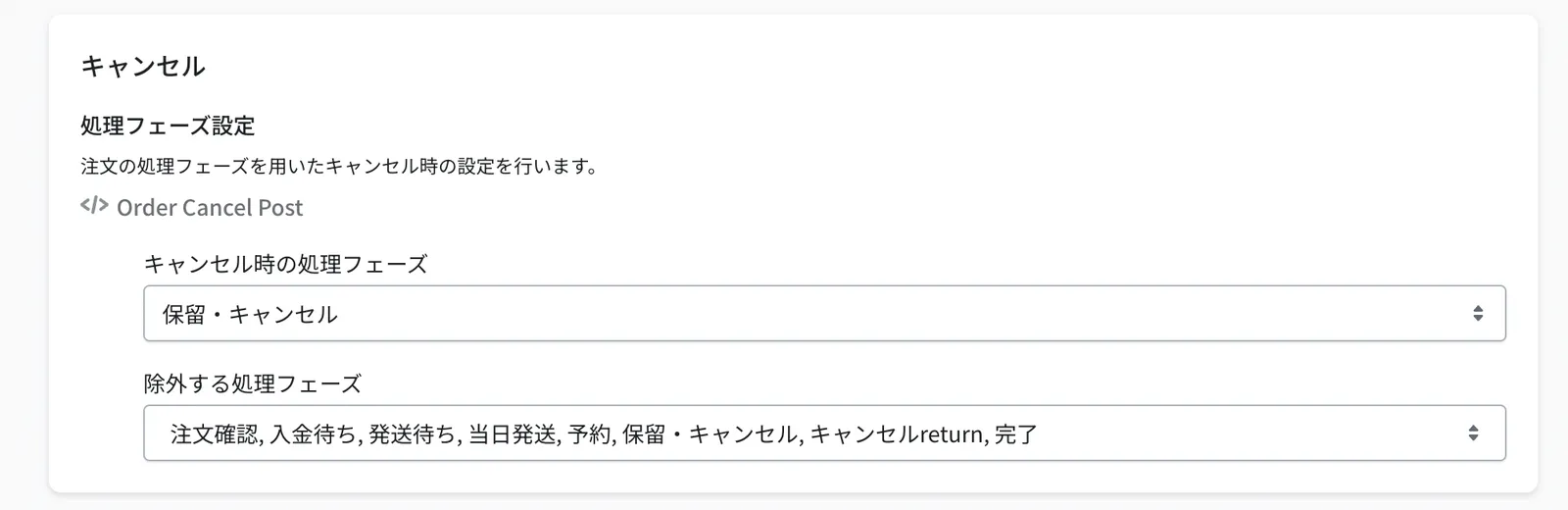
Field What to set Processing phase on cancellation The processing phase applied to the CROSSMALL order after Recustomer cancels it automatically Excluded processing phases Processing phases you do not want to accept cancellations for. If a shopper requests a cancellation and the order is in one of these phases, the cancellation is rejected.
7. Exchange settings (when you accept exchanges)
※This step is required only when you accept exchanges. Skip it if you do not accept exchanges
These settings let shoppers choose a replacement based on the stock in CROSSMALL, and issue an exchange slip that reserves the stock of the replacement. The exchange slip is issued at ¥0, so it reserves the stock without creating a charge. The slip is then shipped in the same way as a normal order.
An SKU (product code) is required on every product you accept exchanges for
Exchange slips are sent to CROSSMALL using the SKU as the key. Creating the slip fails for products without an SKU.
On the Exchange / Cancellation tab of Settings > External service integrations > Data integration settings, set Get Product Variants (where the stock is looked up) and Create Exchange Order (where the exchange slip is issued) to CROSSMALL and save (Data integration settings)
※Set the same system for the stock lookup (Get Product Variants) and the order import source (Order Importer). If they differ, the replacement items are not shown correctly
Go to the Settings > External service integrations > Integrations > CROSSMALL > Integration settings tab and configure it under Exchange
Item What to set Stock lookup Looks up the stock when a shopper chooses an exchange and only allows them to select items that are in stock. Items without stock are shown as "Out of stock" Create an order slip for the replacement item Creates an order slip through the API to reserve the stock of the replacement When the exchange slip is issued Choose "Create it automatically when the approval status becomes approved" or "Enter it manually on the exchange processing page" Order code of the exchange slip Set the prefix and suffix added to the order code of the exchange slip Shipping method Choose "Use the shipping method of the original order" or "Specify a shipping method" Payment method Choose "Use the payment method of the original order" or "Specify a payment method" Text entered in the notes field Set the text put in the notes field of the exchange slip ※For items without stock, the exchange option is greyed out on the shopper's request page and only a refund can be chosen