Data integration settings
Once each integration is set up, configure the data integration settings.
1. Set where orders are imported from
Go to Settings > External service integrations > Data integration settings
In Order Importer, select "select your integration"
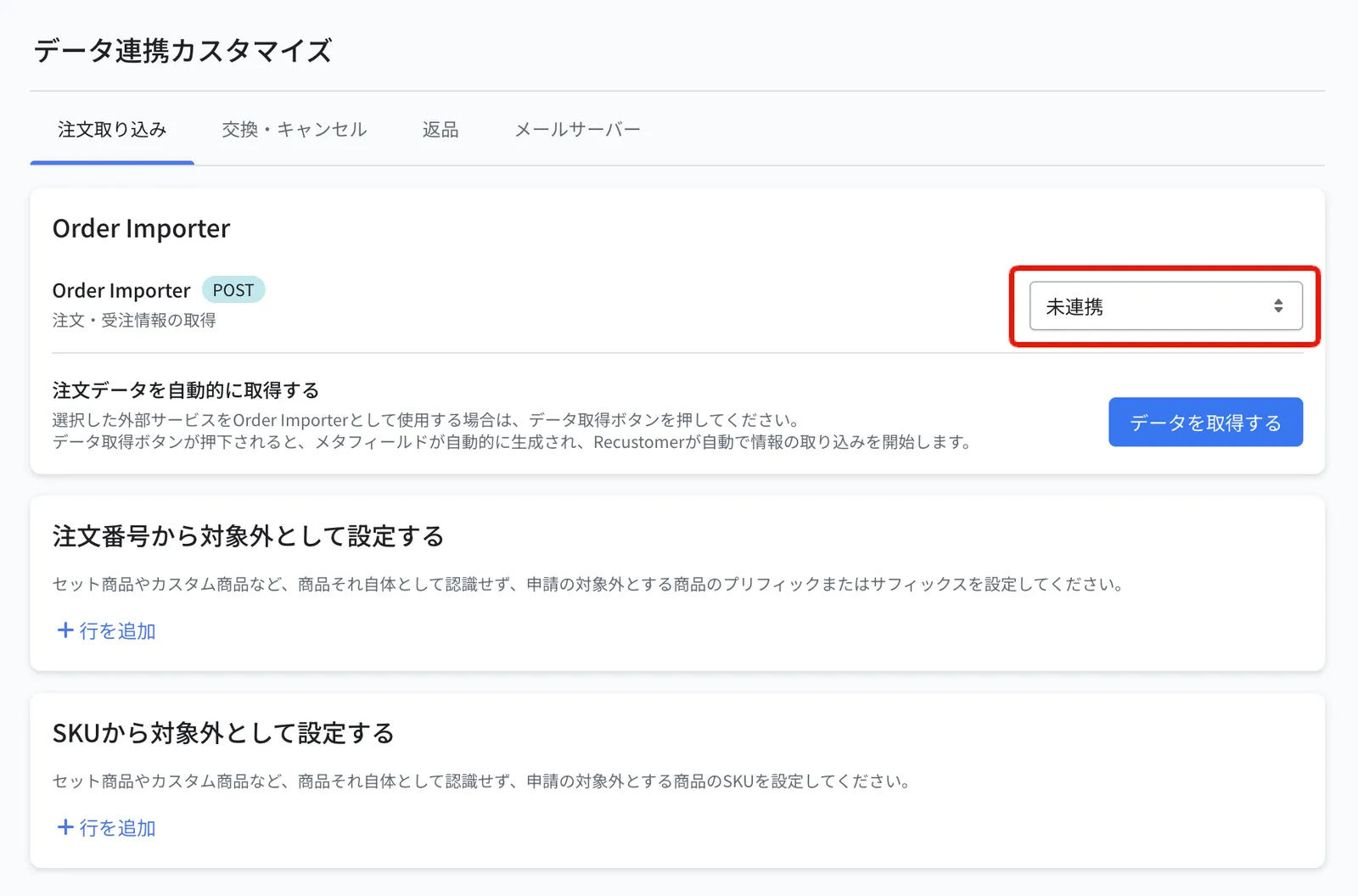
Click Save at the top right
Click Fetch data
2. Set the main / sub cancellation targets (when you use Cancellation)
※This step is required only when you use Cancellation. Skip it if you do not use Cancellation
Set which cart system or OMS an order is cancelled in once a cancellation is accepted. When both a cart system and an OMS are connected, Recustomer checks the order status in each system and cancels the order in the OMS first, then in the cart system.
Go to Settings > External service integrations > Data integration settings and open the Exchange / Cancellation tab
Set the cancellation main to "select your integration" and the cancellation sub to "select your integration"
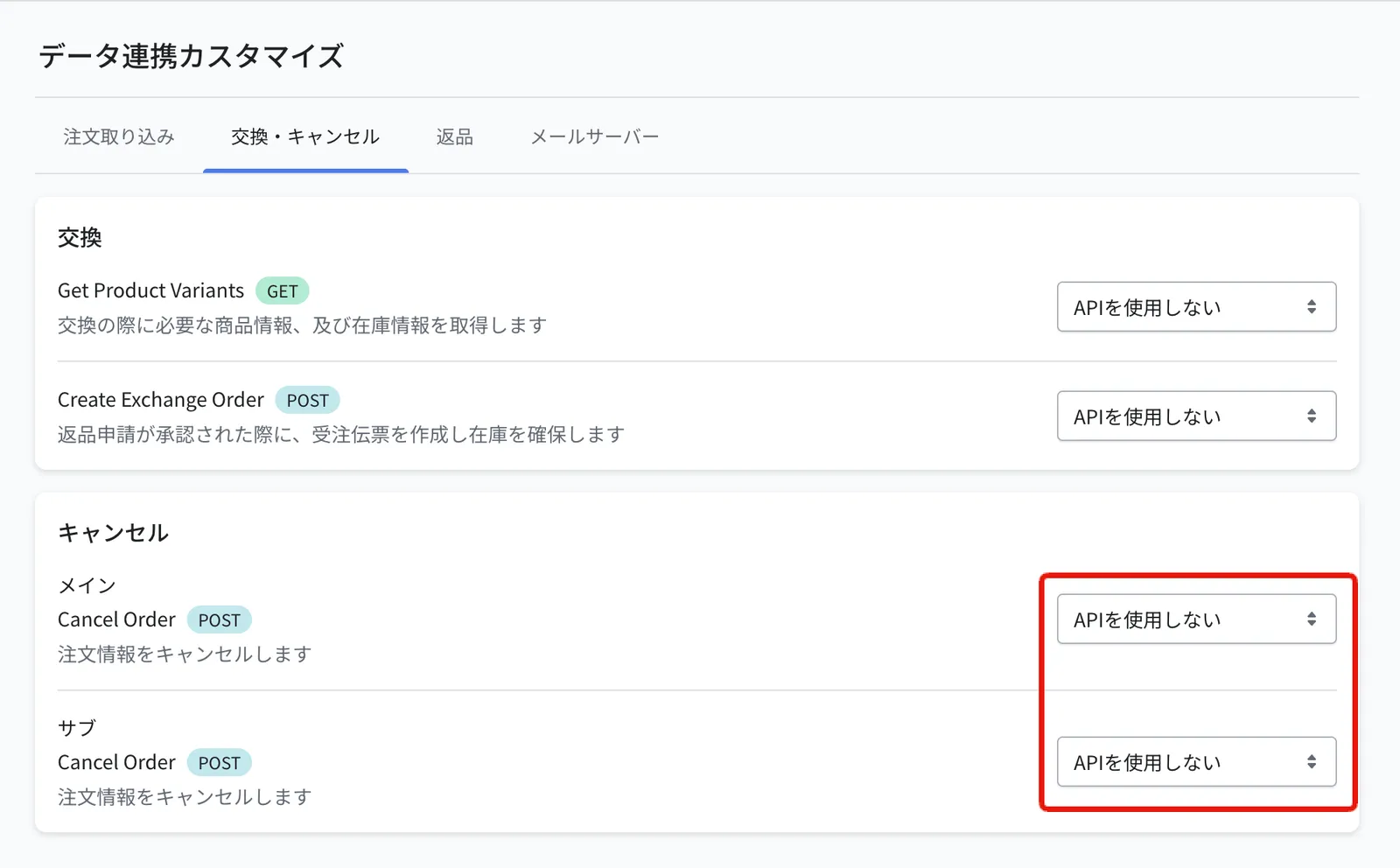
Click Save at the top right
3. Set the exchange lookup and slip targets (when you use Exchanges)
※This step is required only when you use Exchanges. Skip it if you do not use Exchanges
Go to Settings > External service integrations > Data integration settings and open the Exchange / Cancellation tab
In Get Product Variants (where stock is looked up), select "select your integration", and in Create Exchange Order (where the exchange slip is issued), select "select your integration"
※To issue exchange slips in your OMS, select "OMS" in Create Exchange Order
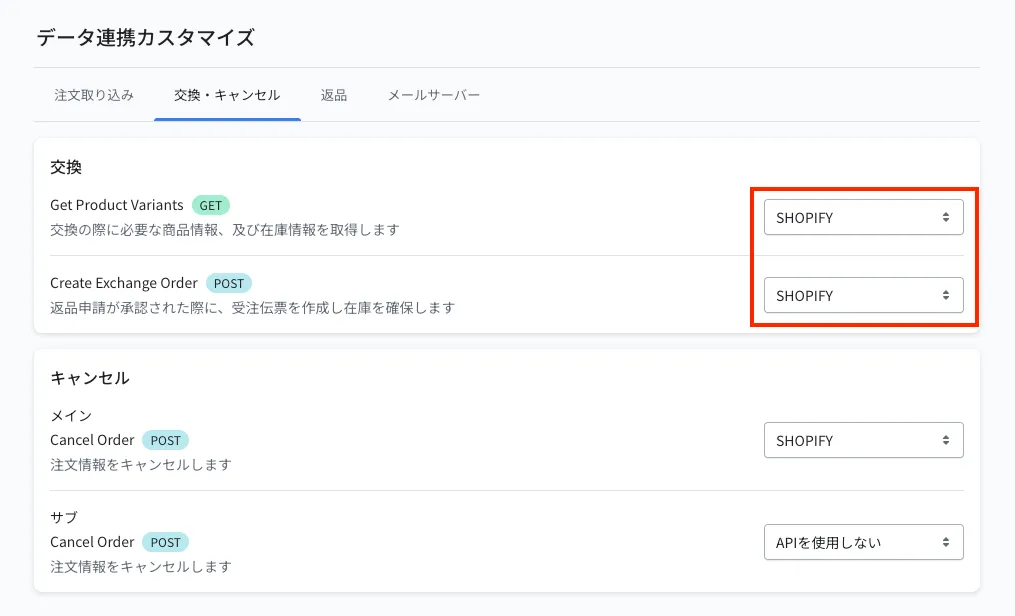
Click Save at the top right
4. Set up the mail server (if you handle Rakuten Ichiba orders)
※This step is required only if you handle Rakuten Ichiba orders
On the Mail server tab, register the mail server details of the Rakuten Anshin Mail Address Service. If you do not register them, notification emails will not reach Rakuten buyers. For the steps, see Rakuten mail server registration.