NextEngine integration
NextEngine charges an app usage fee
To connect, you need to purchase the NextEngine app EC サイト購入体験プラットフォーム Recustomer. See the app details page for pricing.
1. Create a bulk order registration pattern in NextEngine
In the NextEngine admin, go to Settings > Orders > Bulk order registration patterns
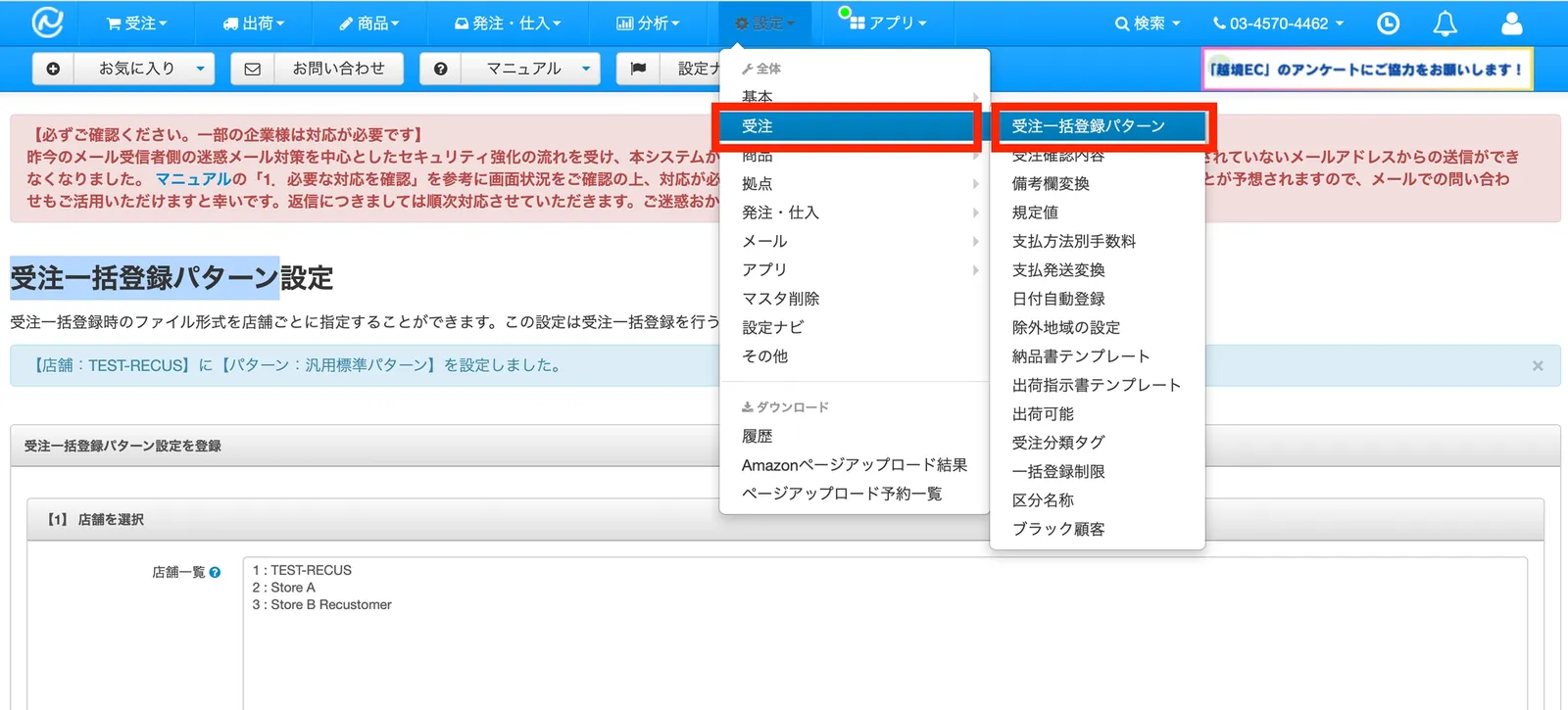
Select the shops whose orders you want to import into Recustomer (that is, the shops you want to accept cancellations for)
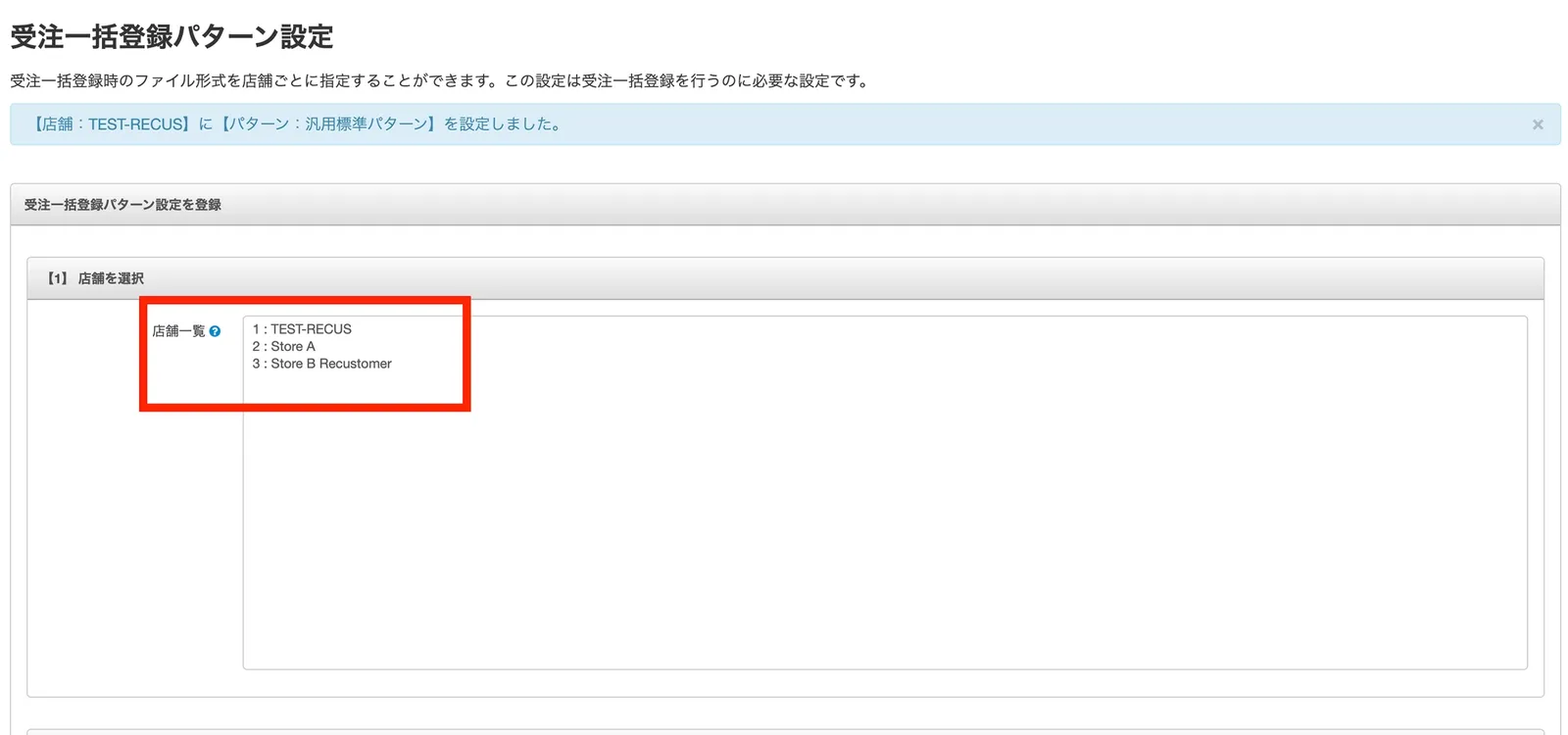
Select the file pattern 汎用標準パターン (general standard pattern)
Give the pattern a recognizable name

2. Authenticate in Recustomer
Purchase the app EC サイト購入体験プラットフォーム Recustomer from the following URL
In Recustomer, go to Settings > External service integrations > Integrations > NextEngine
Click Go to the NextEngine app store
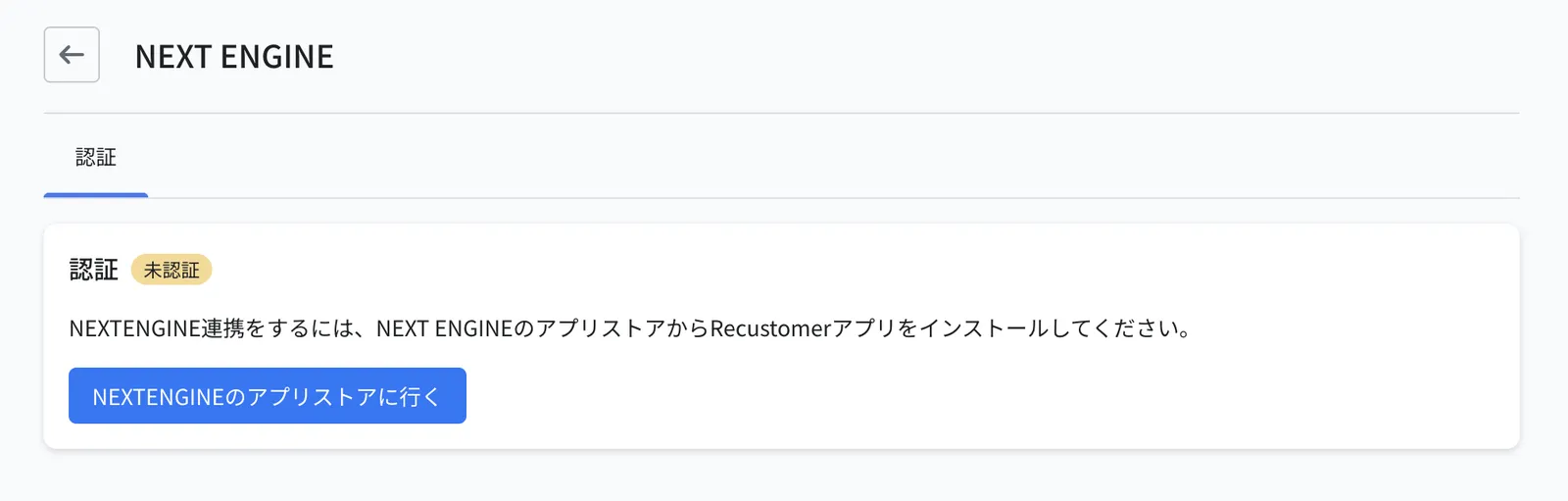
The NextEngine sign-in screen opens. Sign in.
Go back to Settings > External service integrations > Integrations in Recustomer. The setup is complete when the status shows Authenticated.
3. Configure the shops to connect
On the left side of NextEngine shops, select the shops whose orders you want to import into Recustomer (that is, the shops you want to accept cancellations for)
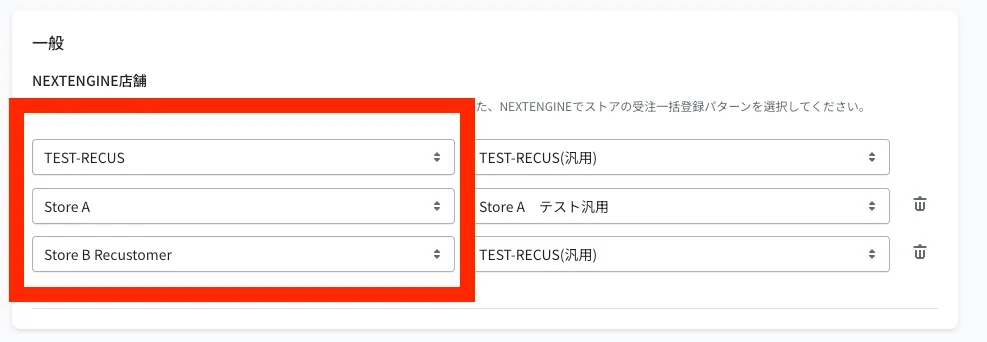
On the right side, select the bulk order registration pattern you created in step 4 of section 1
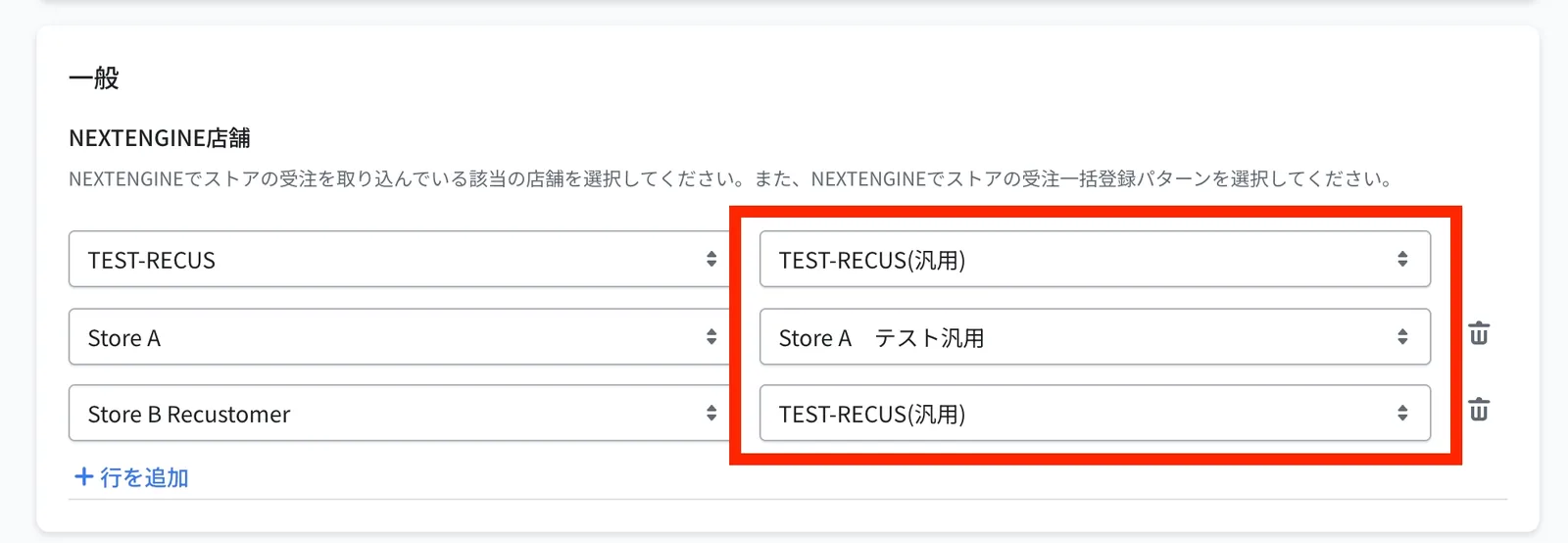
Important
The shop selected for bulk order registration must match the shop registered in Recustomer.
Click Save at the top right
4. If you also use Shopify, align the order number format
When you use Shopify as well, Recustomer matches orders on the assumption that the Shopify order number and the NextEngine order number are exactly identical, including the leading hash (#). If they differ, shoppers get an error and cannot find their order on the cancellation request page.
If you use an order number prefix or suffix in Shopify (such as #), configure the following in NextEngine.
Open the NextEngine app Shopify 用 自動連携アプリ (Shopify automatic integration app)
Click 店舗登録 (register shop) or 店舗変更 (change shop) for the target shop in the shop list
On the shop information screen, check プリフィックスとサフィックスを付与 (apply prefix and suffix) and save
Reference: https://manual.next-engine.net/app/shopify/43811/
5. Exchange settings (when you accept exchanges)
※This step is required only when you accept exchanges. Skip it if you do not accept exchanges
These settings let shoppers choose a replacement based on the stock in NextEngine, and issue an exchange slip that reserves the stock of the replacement. The exchange slip is issued at ¥0, so it reserves the stock without creating a charge. The slip is then shipped in the same way as a normal order.
An SKU (product code) is required on every product you accept exchanges for
Exchange slips are sent to NextEngine using the SKU as the key. Creating the slip fails for products without an SKU.
On the Exchange / Cancellation tab of Settings > External service integrations > Data integration settings, set Get Product Variants (where the stock is looked up) and Create Exchange Order (where the exchange slip is issued) to NextEngine and save (Data integration settings)
※Set the same system for the stock lookup (Get Product Variants) and the order import source (Order Importer). If they differ, the replacement items are not shown correctly
Go to the Settings > External service integrations > Integrations > NextEngine > Integration settings tab and configure it under Exchange
Item What to set Stock lookup Looks up the stock when a shopper chooses an exchange and only allows them to select items that are in stock. Items without stock are shown as "Out of stock" Create an order slip for the replacement item Creates an order slip through the API to reserve the stock of the replacement When the exchange slip is issued Choose "Create it automatically when the approval status becomes approved" or "Enter it manually on the exchange processing page" Order code of the exchange slip Set the prefix and suffix added to the order code of the exchange slip Shipping method Choose "Use the shipping method of the original order" or "Specify a shipping method" Payment method Choose "Use the payment method of the original order" or "Specify a payment method" ※For items without stock, the exchange option is greyed out on the shopper's request page and only a refund can be chosen