CROSSMALL integration
Before you start
You need to allow access from the following Recustomer IP addresses on the CROSSMALL side.
52.199.155.223
54.95.233.104
57.180.95.90
1. Get the authentication key and company code from CROSSMALL
Sign in to CROSSMALL
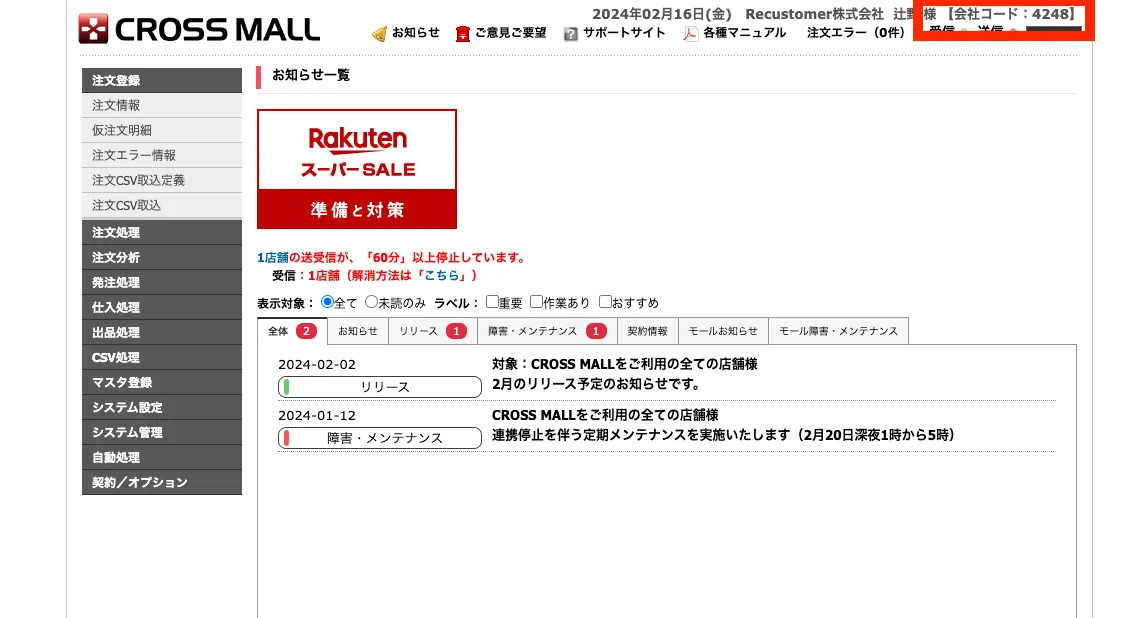
Copy the company code shown at the top right of the screen
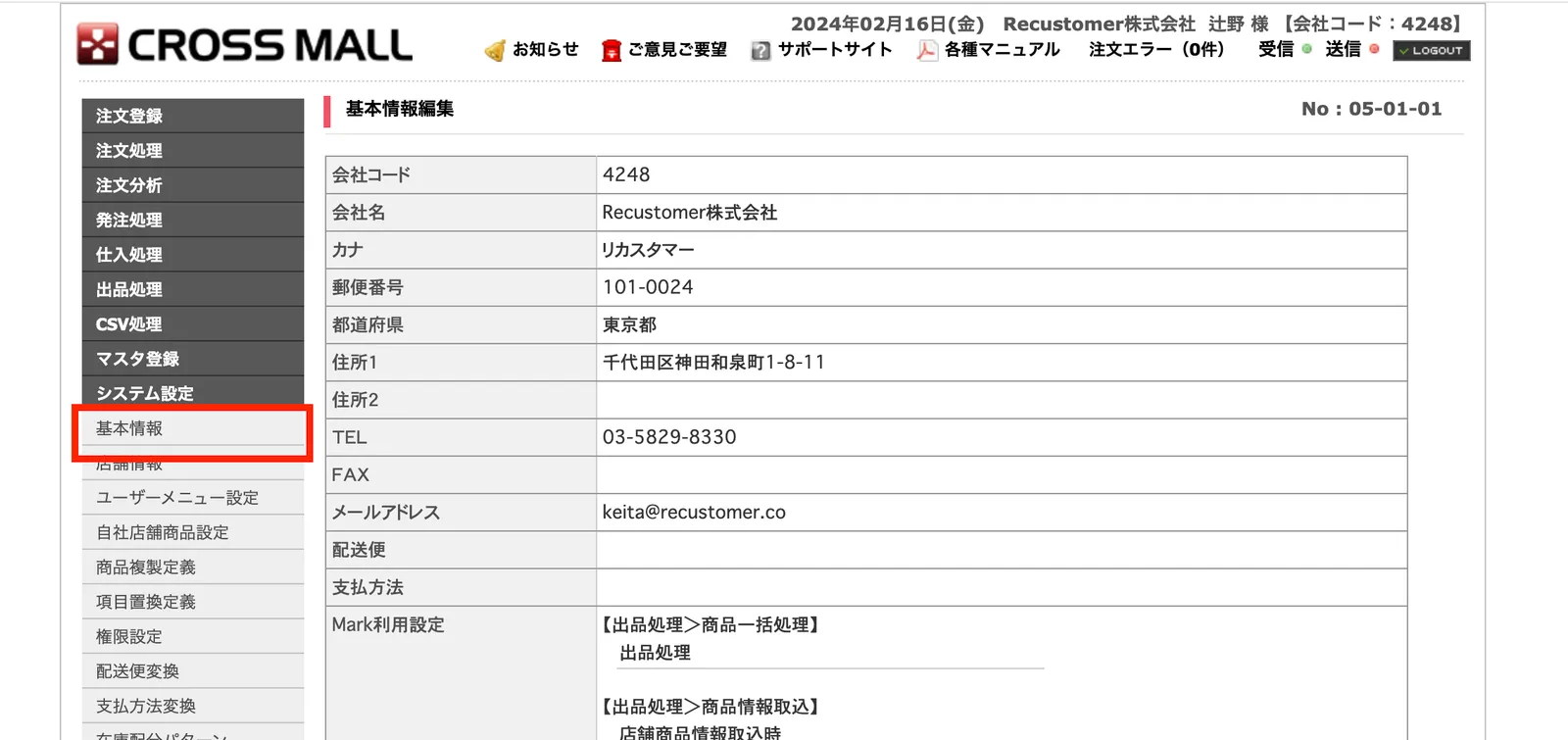
Open System settings > Basic information
Click Edit
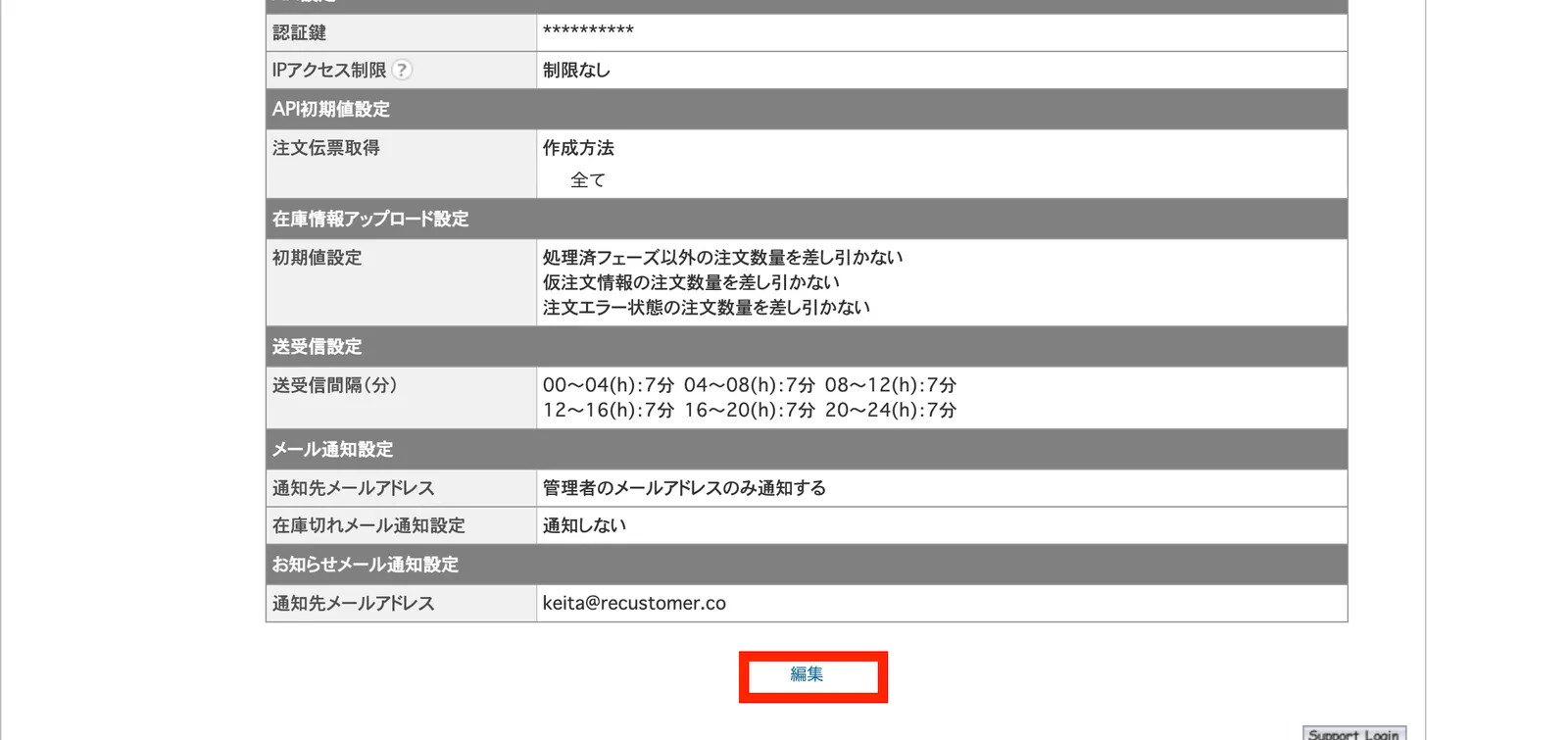
※The Edit button appears when you scroll to the bottom of the page.
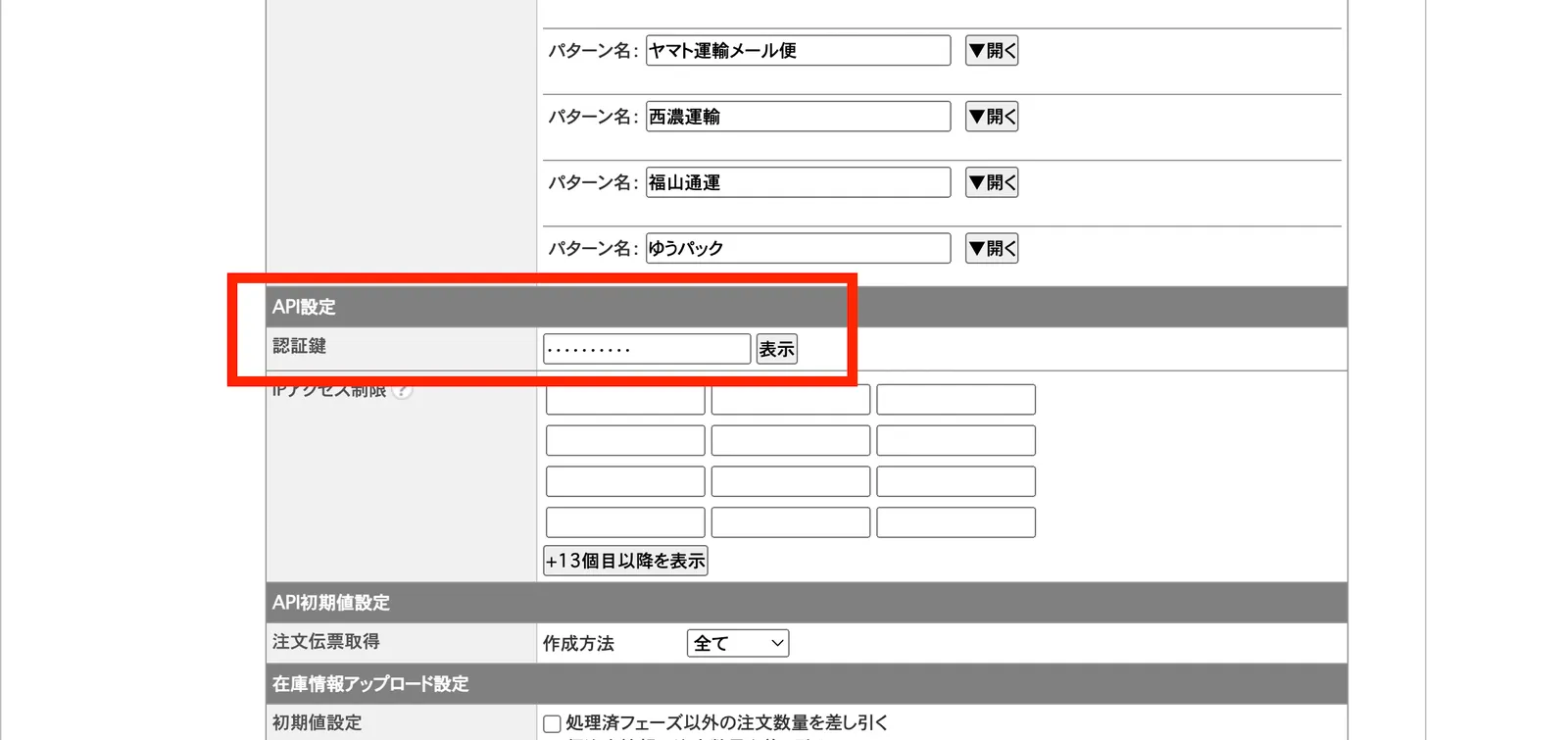
Copy the authentication key under API settings
2. Authenticate in Recustomer
In Recustomer, go to Settings > External service integrations > Integrations > CROSSMALL
Enter the authentication key and company code, then click Authenticate
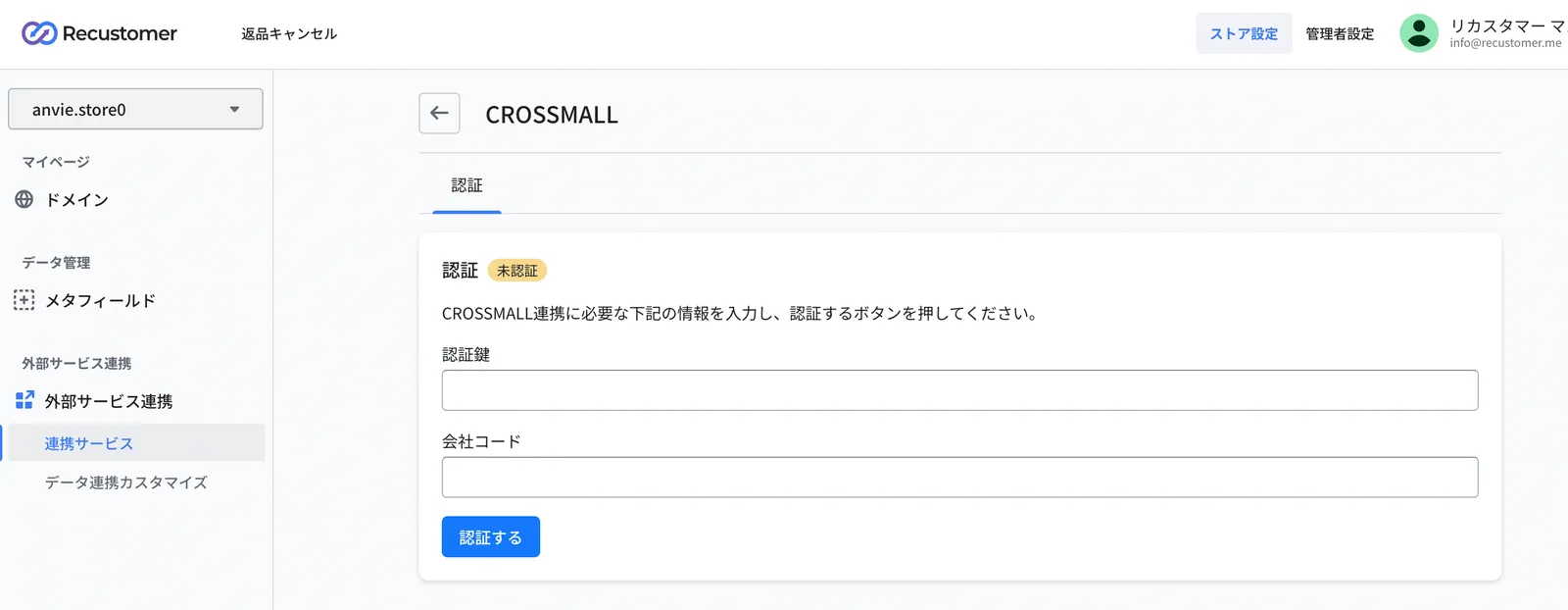
Field Value to enter Authentication key The authentication key you copied in step 5 of section 1 Company code The company code you copied in step 2 of section 1 The setup is complete when the status changes to Authenticated
3. General settings
Under General, set the information used to import orders
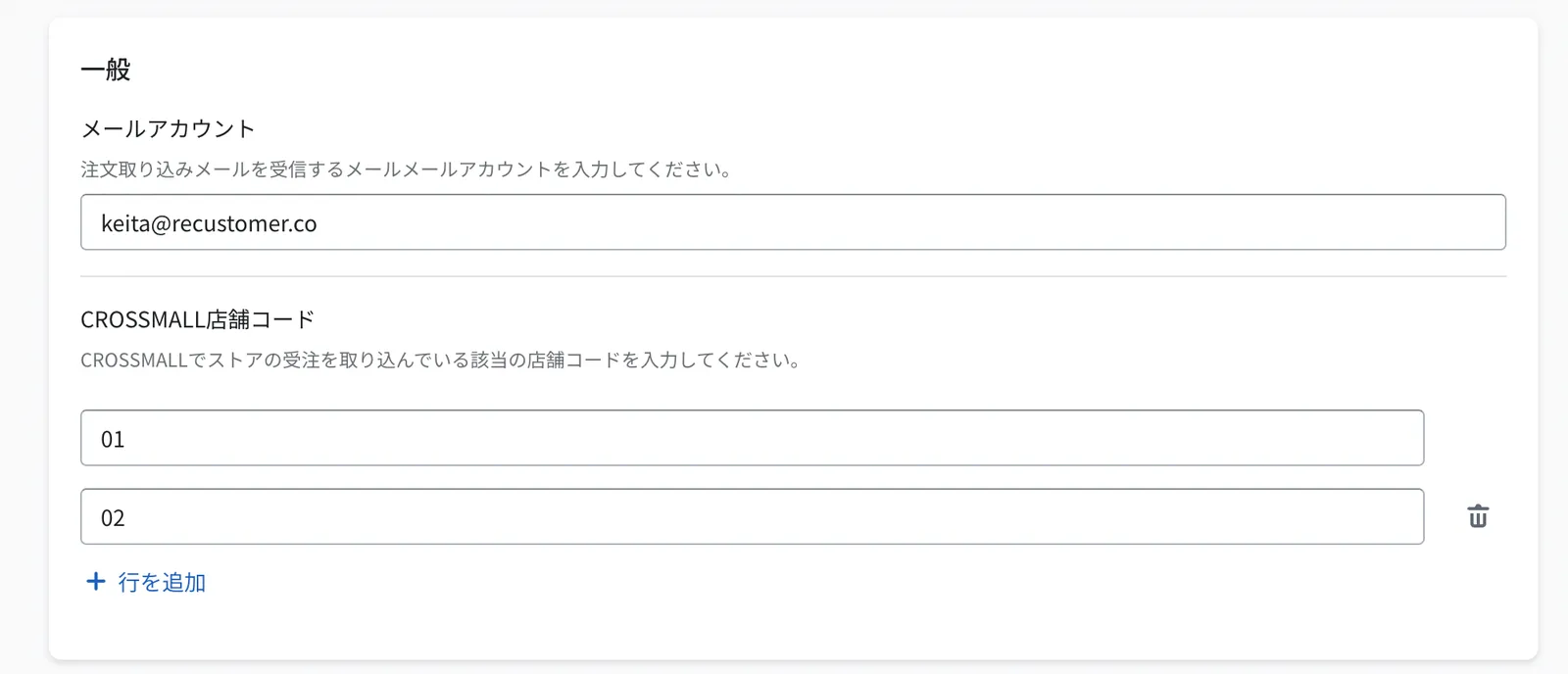
Field What to set Mail account Enter the mail account used when importing orders (one of those under "Master registration > Mail account") 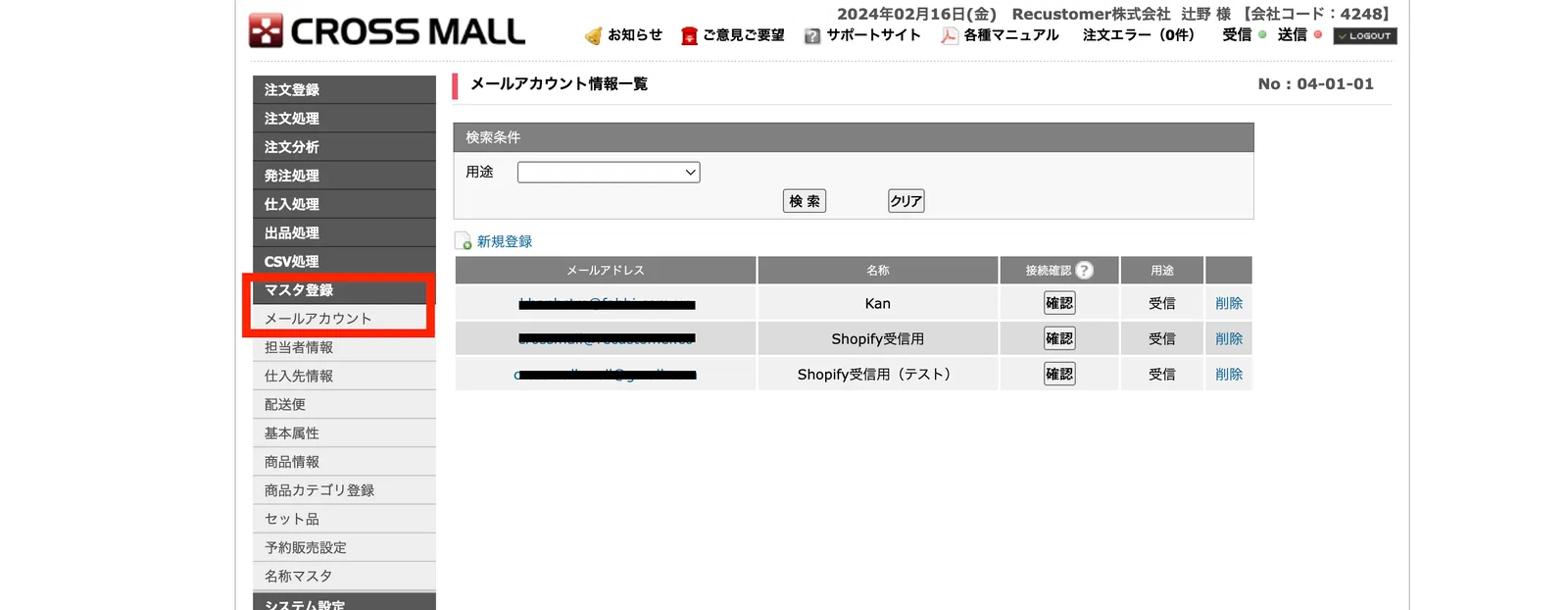
CROSSMALL shop code Register the shop code of each shop you want to connect to Recustomer 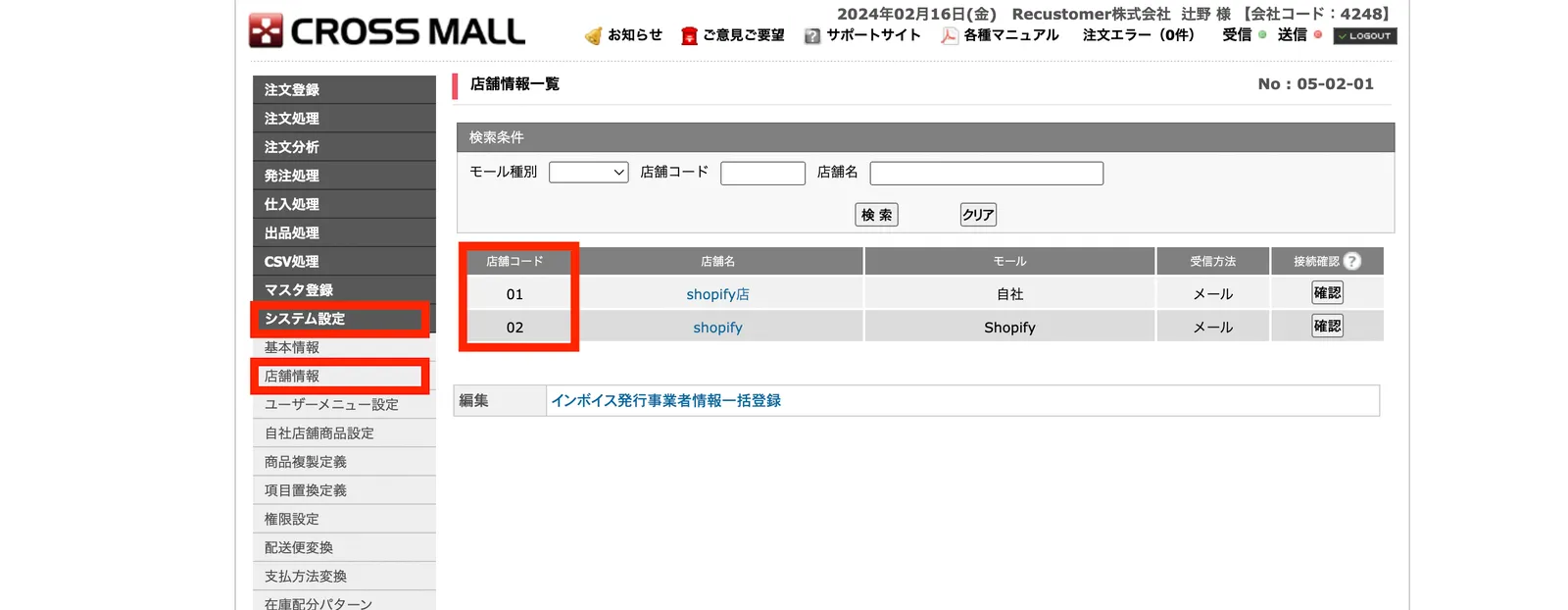
4. Order status mapping
Under Order status mapping, map Recustomer's order statuses to CROSSMALL's processing phases
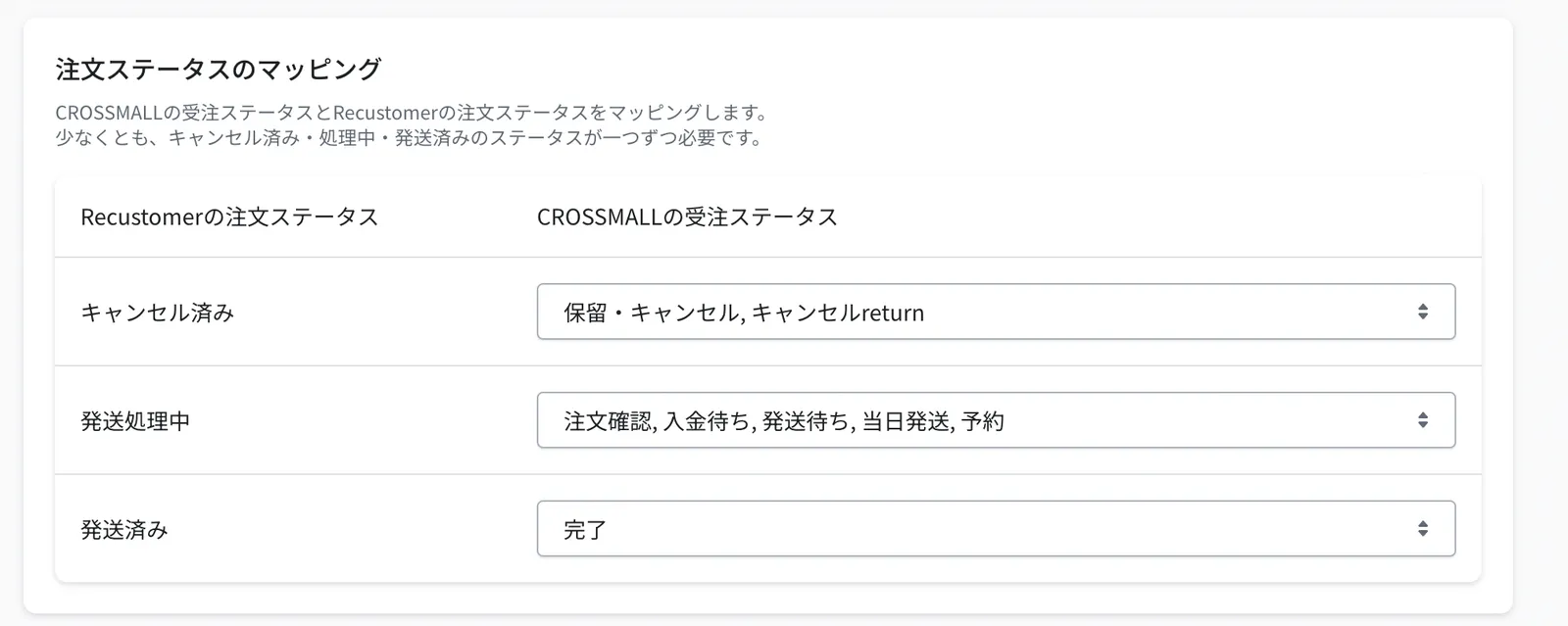
Important
Orders in a processing phase that is not registered here are not imported into Recustomer (they are not tracked, and shoppers will not find them on the cancellation request page either). Make sure every processing phase is registered under one of Cancelled, Preparing for shipment, or Shipped.
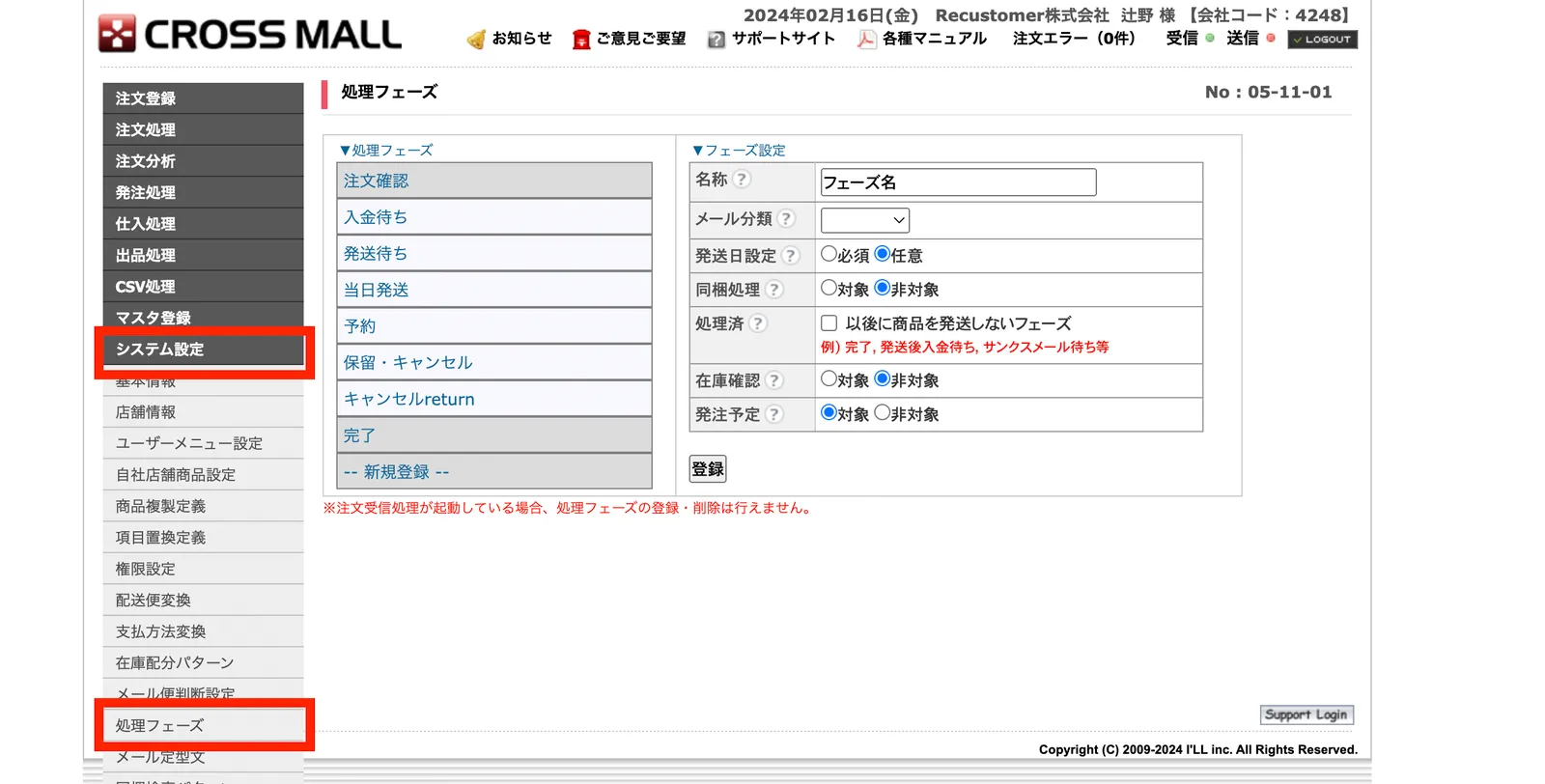
Field What to set Cancelled Check the processing phases that mean "cancelled" in CROSSMALL Preparing for shipment Check the processing phases that mean "not yet shipped" in CROSSMALL Shipped Check the processing phases that mean "already shipped" in CROSSMALL ▼How to check the processing phases in the CROSSMALL admin
5. Carrier mapping
Under Carrier mapping, map Recustomer's carriers to CROSSMALL's carriers
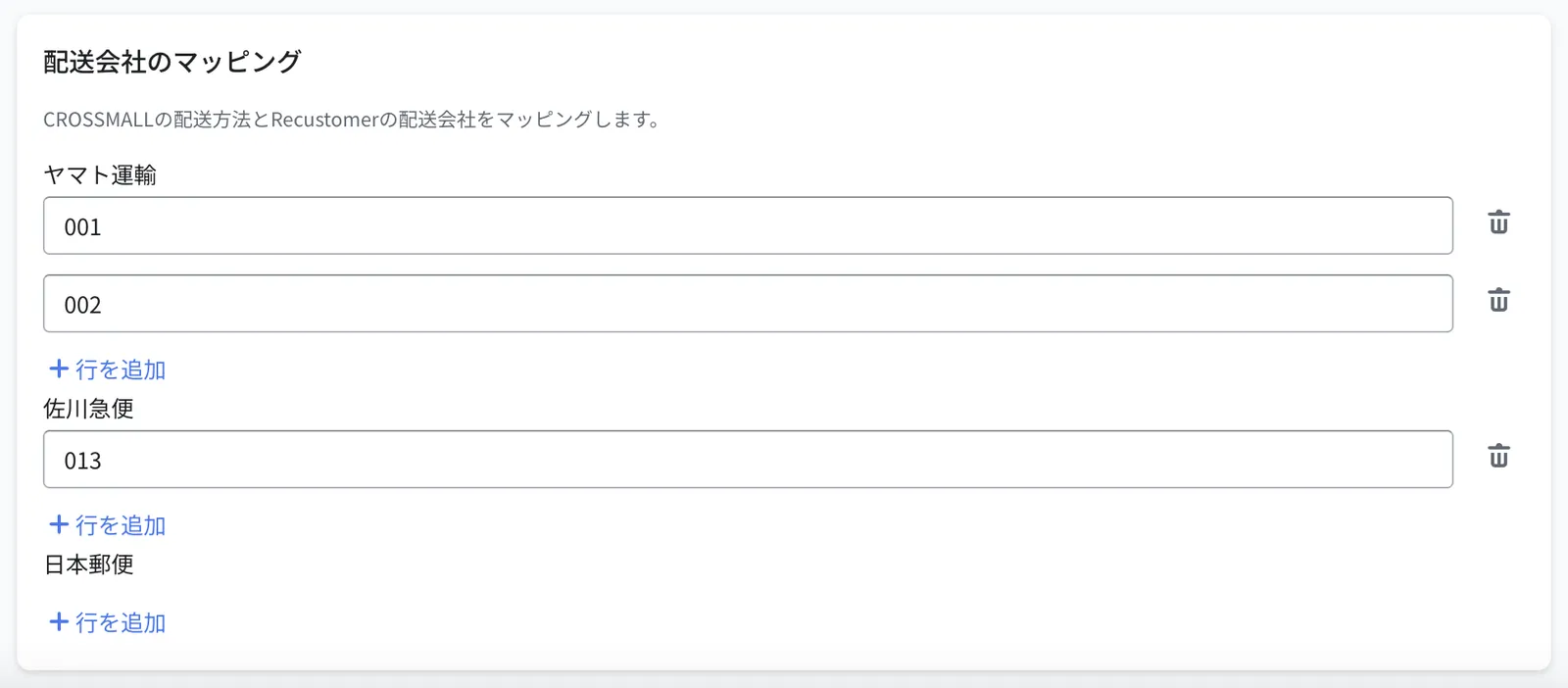
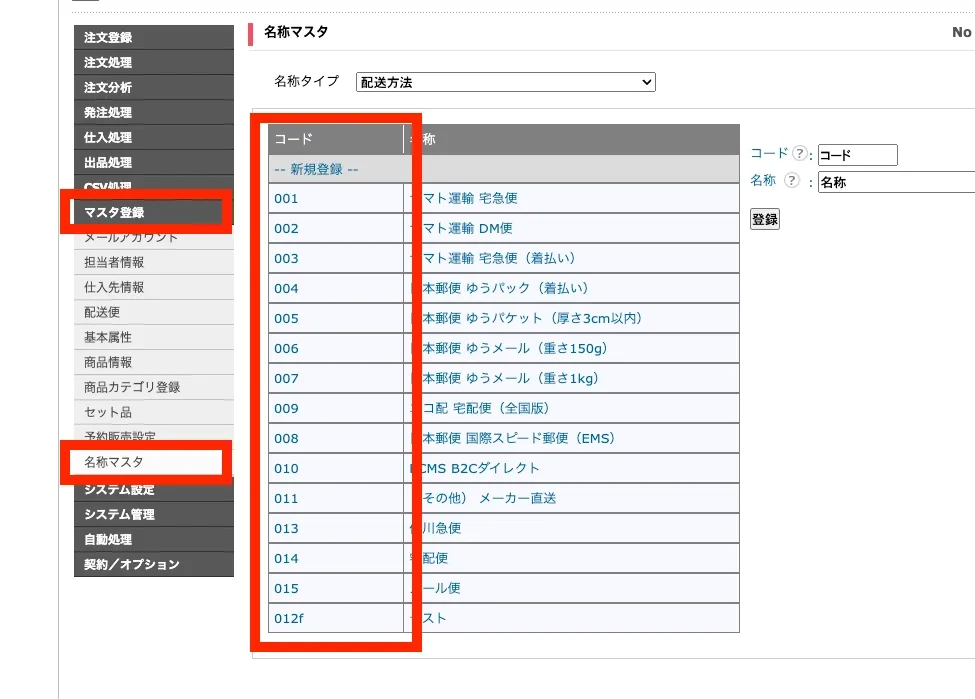
Field What to set Yamato Transport Register the shipping method codes that mean "Yamato Transport" in CROSSMALL Sagawa Express Register the shipping method codes that mean "Sagawa Express" in CROSSMALL Japan Post Register the shipping method codes that mean "Japan Post" in CROSSMALL ▼How to check the carrier codes in the CROSSMALL admin
6. Cancellation processing phase settings
※This step is required only if you also use Cancellation. Skip it if you use Tracking only.
Go to the Settings > External service integrations > Integrations > CROSSMALL > Integration settings tab and configure what happens on the CROSSMALL side when a cancellation occurs, under Cancellation processing phase settings
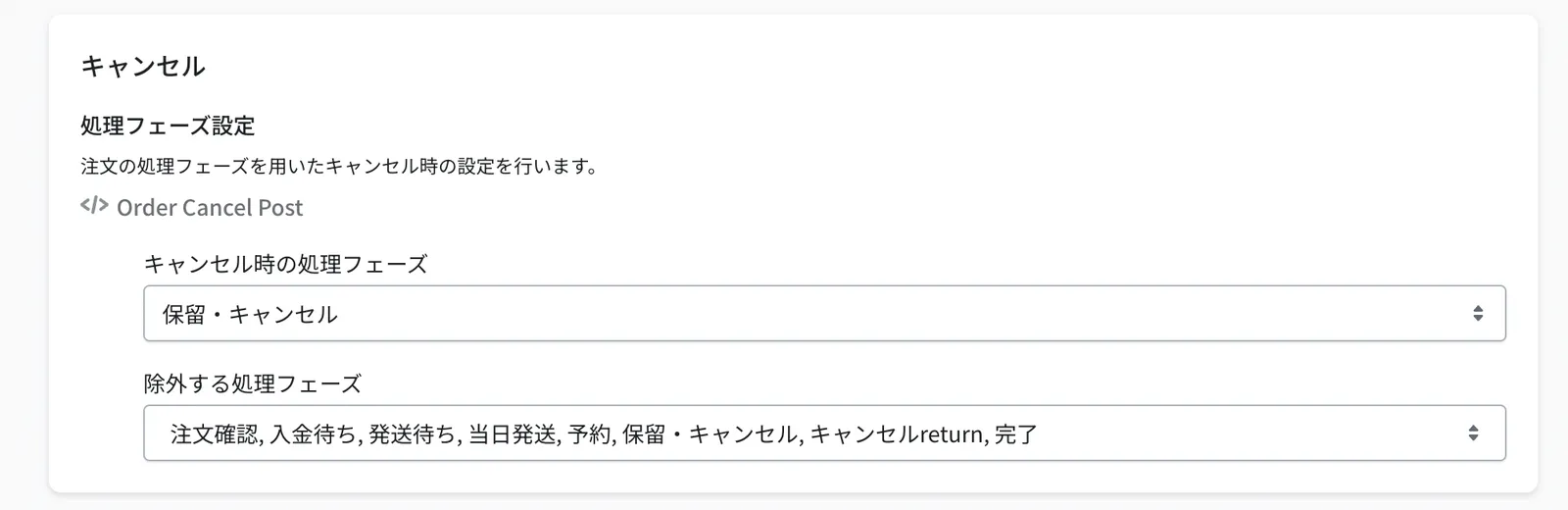
Field What to set Order status on cancellation The status applied to the CROSSMALL order after Recustomer cancels it automatically Excluded order statuses Order statuses you do not want to accept cancellations for. If a shopper requests a cancellation and the order has one of these statuses, the cancellation is rejected.