Operation test
Once the settings are complete, create a test order and check the whole flow from the Checkout+ display to accepting a return request.
Test steps
In Shopify, open the preview of the theme where Checkout+ Cart Watcher is enabled
Add a product to the cart and confirm that the Checkout+ card appears on the cart page
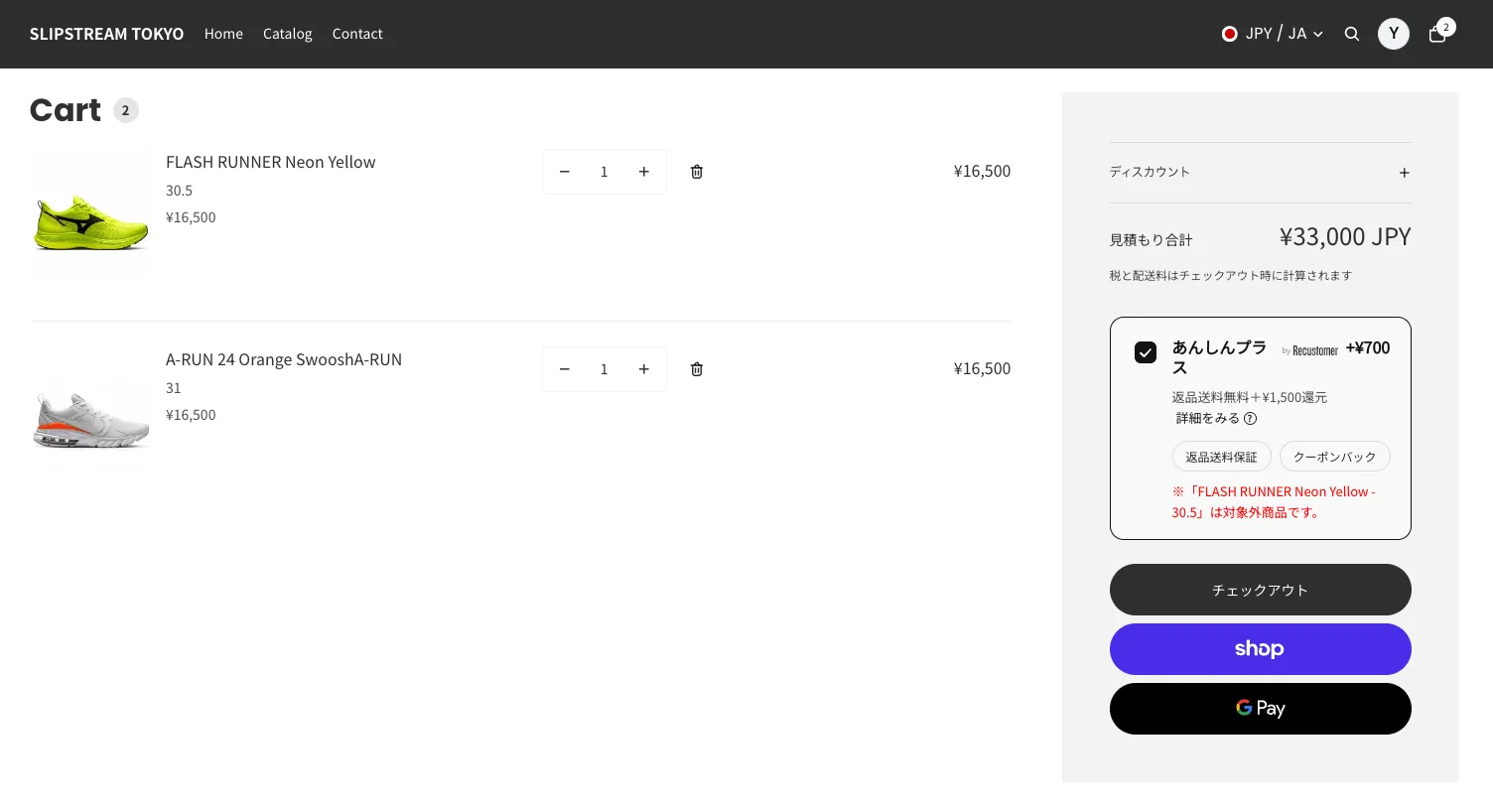
※If the cart contains an excluded product, also confirm that a notice stating the product is not eligible appears inside the card
※The card text (title and description) can be changed by following 2-3 Adding Checkout+ to the cart page
Click "Learn more" and confirm that the modal opens and shows the benefit descriptions
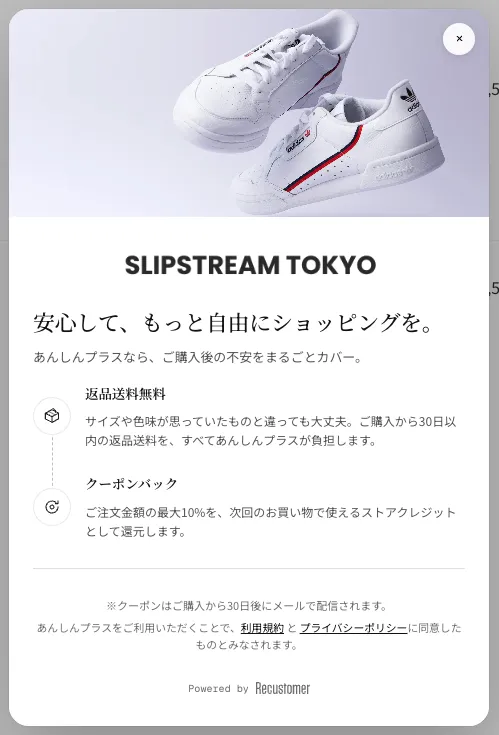
※The modal images and text can be changed in "Modal image settings" and "Modal content HTML" under 2-3 Adding Checkout+ to the cart page
Proceed to checkout with the Checkout+ checkbox on, and confirm that Checkout+ is included in the order total
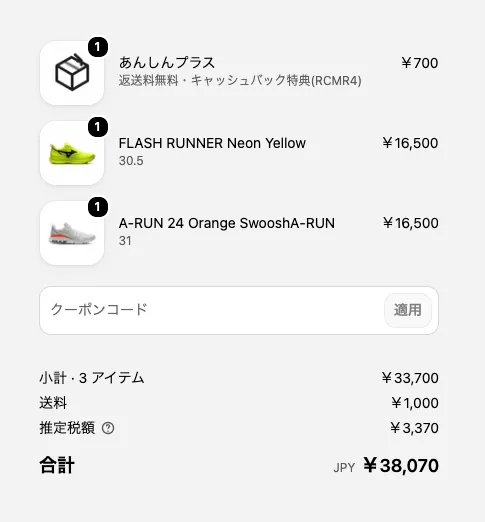
※If you are on Shopify Plus and have also installed it on the checkout page, confirm that the Checkout+ checkbox appears on the checkout page and that toggling it changes the total
Complete the test order with Checkout+ turned on
In the Shopify admin, mark the test order as fulfilled
Open the shopper-facing return request page in a browser, enter the order number and other details, and search for the test order created in step 5
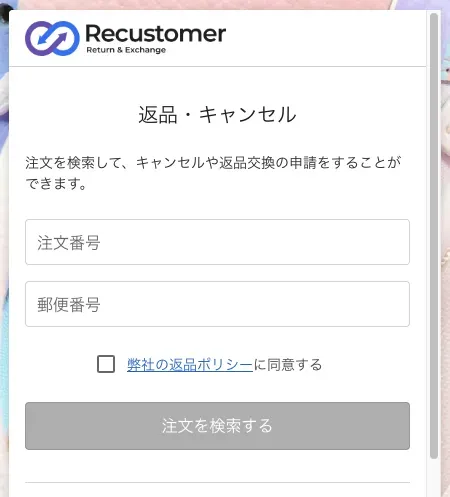
※The URL of the return request page can be found under "Settings > Shopper portal > Domain > Return cancel request page URL"
On the send back method screen, confirm that "Pickup via Sagawa Express (Free)" is displayed
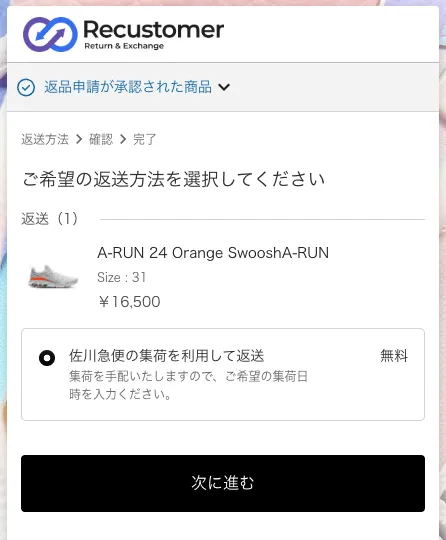
※Confirming the display is enough. You do not need to actually request a Sagawa Express pickup
※If only excluded items are requested, the regular send back methods are displayed
※Once the return request is submitted, the Checkout+ label appears in the list and detail pages under Returns in the Recustomer admin dashboard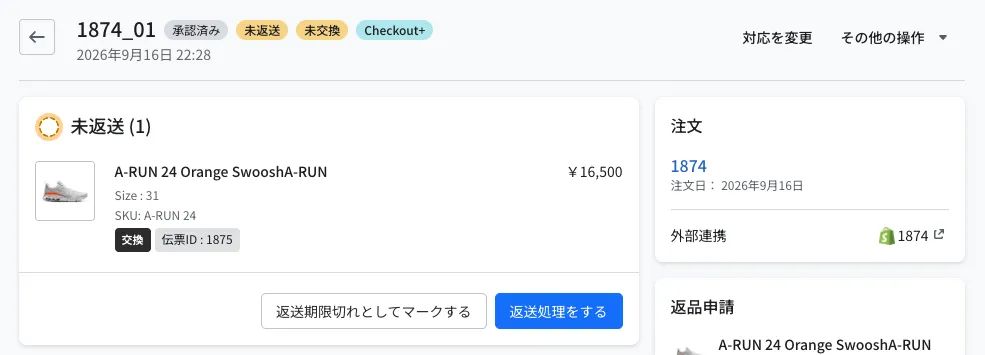
Testing cashback credit
Coupons are issued automatically by a daily process at 12:00 (JST), after a set period from the order (30 days by default) has passed with no return. If you want to confirm coupon issuance during the test period, create a test order with Checkout+, mark it as fulfilled, do not submit a return request, and send the order number to your account representative.