Adding Checkout+ to the cart page
Display the Checkout+ checkbox in your Shopify theme and adjust its text and appearance. Installation only requires enabling an app embed in the theme. You do not need to edit any theme code.
We recommend checking on a test theme first
We recommend installing and checking on a duplicated test theme, then applying it to your live theme in 4. Go live. App embed settings are stored per theme, so the same settings need to be applied on the live theme as well.
Setting labels are shown in Japanese
The setting labels in the Checkout+ Cart Watcher panel are displayed in Japanese in the Shopify theme editor, regardless of your admin language. This guide shows the Japanese label in parentheses after each English name.
1. Enable the app embed
In the Shopify admin, go to Online Store > Themes and click Customize on the target theme
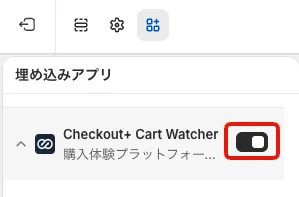
Open "App embeds" in the left sidebar, turn on the Checkout+ Cart Watcher toggle, and click Save
2. Check the display
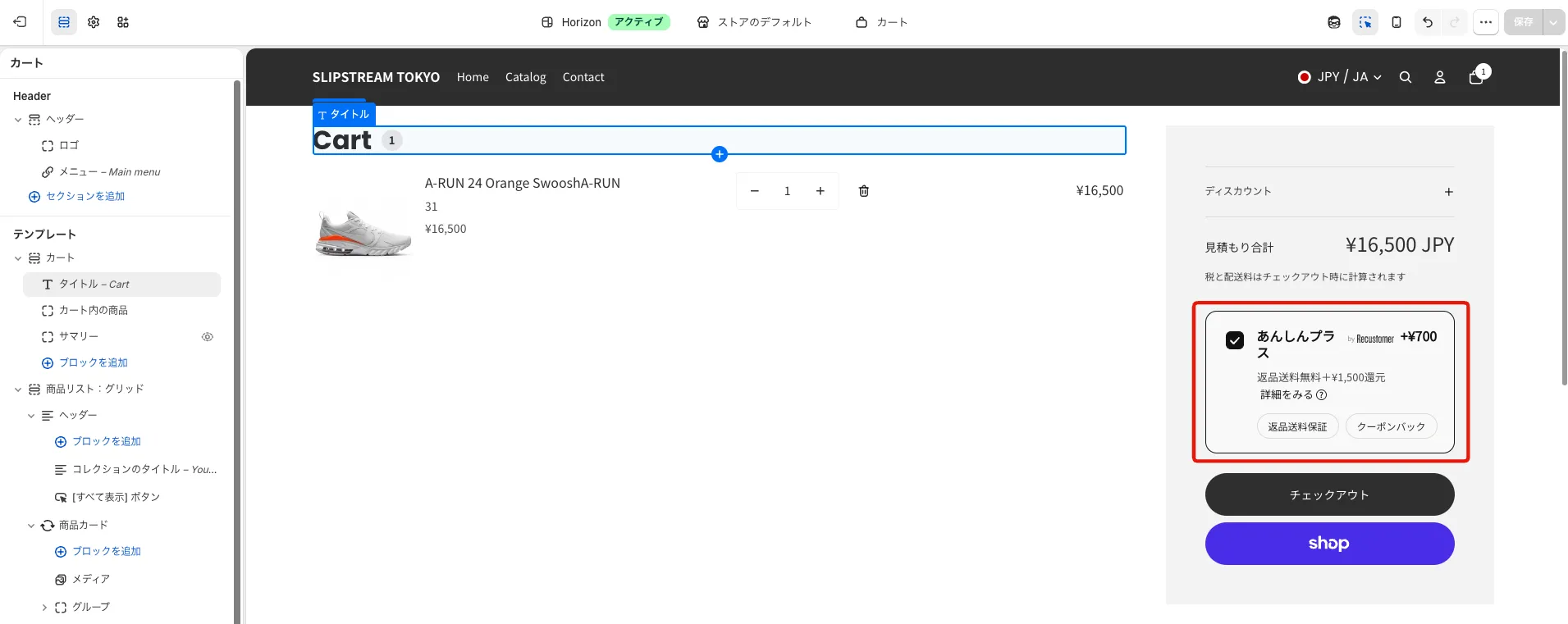
In the theme editor preview, add a product to the cart and confirm that the Checkout+ card appears on the cart page.
If the card does not appear
Depending on the theme structure, the card may not be displayed. In that case, configure the selectors in 4. Advanced settings and the card will appear. If this is difficult, contact your account representative with the preview URL of the theme.
3. Customize the display
From the Checkout+ Cart Watcher settings, adjust the text and appearance of the card and modal. Change the items you need and click Save.
Text settings
| Setting | Description |
|---|---|
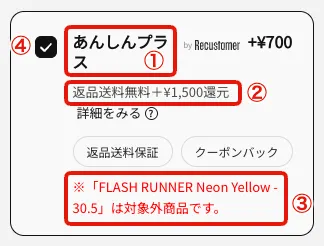
| ① Banner title (バナータイトル) | The title of the card. The default is "Checkout+" |
| ② Banner description (バナー説明文) | The description text inside the card. Insert {cashback} or {cashback_tax_include} to automatically display the cashback amount. Use {cashback} if your product prices are registered excluding tax, and {cashback_tax_include} if they are registered including tax |
| ③ Alert text (アラートテキスト) | The notice shown inside the card when the cart contains an excluded product. {excludedItem} is replaced with the product name. The default is 「※{excludedItem}は対象外商品です。」. To hide it, add .rcmr-checkout-plus .rcmr-checkout-plus__exclusion-notice { display: none; } to the custom CSS |
| ④ Checkbox default state (チェックボックスデフォルト状態) | Whether the checkbox is on or off when the card is first displayed |
Modal image settings
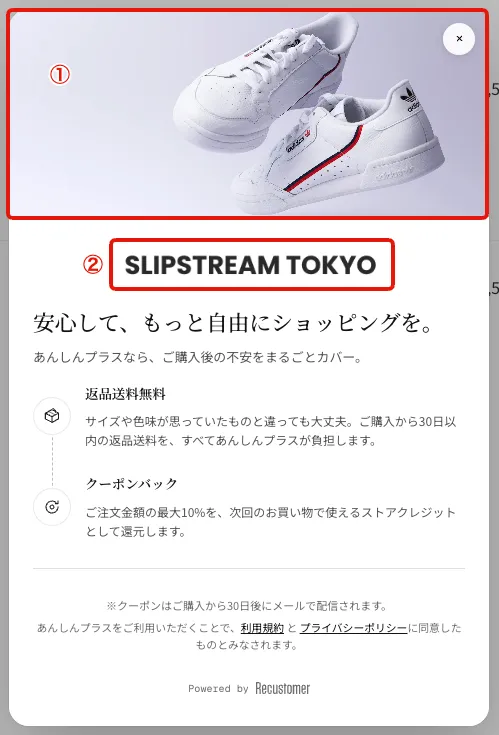
Set the images displayed in the modal opened from "Learn more". If a field is left blank, that area is not displayed.
| Setting | Description |
|---|---|
| ① Modal hero image URL (モーダル ヒーロー画像 URL) | URL of the image displayed at the top of the modal. Recommended size is 960 × 416 px (2x Retina of the 480 × 208 px display size, PNG or JPEG) |
| ② Modal logo image URL (モーダル ロゴ画像 URL) | URL of the store logo displayed in the center of the modal. Recommended height is 100 px or more. It is displayed at a maximum height of 50 px and a maximum width of 60% of the modal, scaled down automatically while keeping the aspect ratio. A PNG with a transparent background is recommended |
Modal content HTML
You can freely edit the title and benefits area of the modal in HTML. If left blank, the title and benefits area are hidden.
To restore the original HTML
To go back to the original content after editing, use "Reset to default" on "Modal content HTML" (モーダル コンテンツ HTML) in the theme editor. The default may change with app updates, so use "Reset to default" rather than pasting the HTML below.
The default HTML has the following structure (SVG icons and text omitted; the actual default can be viewed in the theme editor).
<div class="rcmr-checkout-plus-modal__title-section">
  <h2 class="rcmr-checkout-plus-modal__title">Title</h2>
  <p class="rcmr-checkout-plus-modal__subtitle">Subtitle</p>
</div>
<div class="rcmr-checkout-plus-modal__benefits">
  <div class="rcmr-checkout-plus-modal__benefits-connector" aria-hidden="true"></div>
  <div class="rcmr-checkout-plus-modal__benefit-item">
    <div class="rcmr-checkout-plus-modal__icon"><!-- SVG icon --></div>
    <div class="rcmr-checkout-plus-modal__item-content">
      <div class="rcmr-checkout-plus-modal__item-title">Benefit title</div>
      <div class="rcmr-checkout-plus-modal__item-description">Benefit description</div>
    </div>
  </div>
  <!-- Repeat benefit-item for each benefit -->
</div>
<hr class="rcmr-checkout-plus-modal__divider">
<div class="rcmr-checkout-plus-modal__disclaimer">
  <p class="rcmr-checkout-plus-modal__disclaimer-note">Note</p>
  <p class="rcmr-checkout-plus-modal__disclaimer-terms">Agreement to the terms of service and privacy policy</p>
</div>
When editing, keep the class names that start with rcmr-checkout-plus-modal__ (such as rcmr-checkout-plus-modal__title) and the existing design will be applied automatically. See Custom CSS for the full list of class names.
4. Advanced settings (selectors, custom CSS, behavior flags)
These settings are for fine-tuning the display position and appearance. All of them are in the "Advanced" (上級者向け) section of the Checkout+ Cart Watcher settings.
If the card displays correctly, you do not need to configure these.
Selector settings
Specify the insertion point of the banner and the elements used to detect cart rows and remove buttons with CSS selectors. If the card did not appear in 2. Check the display, filling in all of these items correctly will make it appear.
| Setting | Description |
|---|---|
| Checkbox block anchor selector (チェックボックスブロック アンカー セレクタ) | Selector for the reference element where the banner is inserted. The banner is inserted immediately before the specified element. If blank, it is inserted automatically just before the checkout button |
| Checkout button selector (custom) (チェックアウトボタン セレクタ(カスタム)) | Enter this only if you need to specify a theme-specific checkout button |
| Cart row selector (custom) (カート行 セレクタ(カスタム)) | Selector for identifying the line item row of the Checkout+ product in the cart. Multiple selectors can be separated by commas |
| Cart remove button selector (custom) (カート削除ボタン セレクタ(カスタム)) | Selector for identifying the remove button inside a cart row. Multiple selectors can be separated by commas |
※If identifying the selectors is difficult, contact your account representative with the preview URL of the theme
Custom CSS
You can adjust the appearance of the banner and modal with CSS. If your theme's CSS interferes and breaks the layout, override it using the stable classes below (class names that do not change between versions). The custom CSS is loaded last inside <head>, so at the same specificity it takes precedence over the theme's CSS.
Banner (checkbox card)
| Class name | Role |
|---|---|
rcmr-checkout-plus | Container for the whole banner |
rcmr-checkout-plus__card | The whole clickable card |
rcmr-checkout-plus__checkbox | The checkbox itself |
rcmr-checkout-plus__header | Header row with the title and fee side by side |
rcmr-checkout-plus__title | Title group (title text + logo) |
rcmr-checkout-plus__title-text | Title text |
rcmr-checkout-plus__byline | "by Recustomer" area |
rcmr-checkout-plus__fee | Checkout+ fee display |
rcmr-checkout-plus__description | Description text |
rcmr-checkout-plus__badges | Container for the badges |
rcmr-checkout-plus__badge | Individual badge (free return shipping, coupon cashback) |
rcmr-checkout-plus__exclusion-notice | Excluded-item notice (red text) |
rcmr-checkout-plus__exclusion-item | Excluded product name inside the notice |
rcmr-checkout-plus__details-link | "Learn more" link text |
rcmr-checkout-plus__details-icon | "?" icon |
Modal
| Class name | Role |
|---|---|
rcmr-checkout-plus-modal | The whole modal |
rcmr-checkout-plus-modal__body | Modal content area |
rcmr-checkout-plus-modal__content | Container for the logo, custom HTML, and footer |
rcmr-checkout-plus-modal__hero | Hero image container |
rcmr-checkout-plus-modal__hero-image | Hero image (img element) |
rcmr-checkout-plus-modal__merchant-logo | Store logo image |
rcmr-checkout-plus-modal__title-section | Wrapper for the whole title section |
rcmr-checkout-plus-modal__title | Title text |
rcmr-checkout-plus-modal__subtitle | Subtitle text |
rcmr-checkout-plus-modal__benefits | Wrapper for the whole benefits list |
rcmr-checkout-plus-modal__benefits-connector | Dotted line connecting the benefit icons vertically |
rcmr-checkout-plus-modal__benefit-item | Wrapper for one benefit |
rcmr-checkout-plus-modal__icon | Benefit icon container |
rcmr-checkout-plus-modal__item-content | Wrapper for the benefit title + description |
rcmr-checkout-plus-modal__item-title | Benefit title |
rcmr-checkout-plus-modal__item-description | Benefit description text |
rcmr-checkout-plus-modal__divider | Divider line |
rcmr-checkout-plus-modal__disclaimer | The whole disclaimer area |
rcmr-checkout-plus-modal__disclaimer-note | Note text (e.g. coupon delivery date) |
rcmr-checkout-plus-modal__disclaimer-terms | Terms of service and privacy policy text |
rcmr-checkout-plus-modal__link | Terms links |
rcmr-checkout-plus-modal__close | Close button in the top right |
rcmr-checkout-plus-modal__footer | "Powered by Recustomer" footer |
Do not target hashed class names
The column elements directly under the card (checkbox column and content column) have no stable classes. Hashed class names such as
_content_xxxxxchange with every build, so do not target them in CSS.
Behavior flags
Behaviors such as the checkbox can be specified together in JSON in the "Behavior flags (advanced)" (挙動フラグ(上級者向け)) field. If blank, all defaults apply. Invalid values or broken JSON are ignored and the default behavior continues.
| Flag key | Values | Description |
|---|---|---|
checkboxStatePersistence | "session" / "none" | Whether the checkbox on/off state carries over between page navigations. "session" (default) carries it over within the same tab. "none" does not, and every page starts from the "Checkbox default state" value |
Example: reset the checkbox to off every time a page is opened
{"checkboxStatePersistence":"none"}