Request notifications
Each user can receive an email notification when a return request is created. This is a per-user setting, so each user who wants notifications must turn it on.
1. Turn on request notifications
From your account name in the upper-right corner of the admin dashboard, go to Account settings > Notifications
Select Return request received
※To also receive notifications for cancellation requests, select Cancellation request received as well
Click Save
2. Sample notification emails
The content of the email depends on how the request was processed.
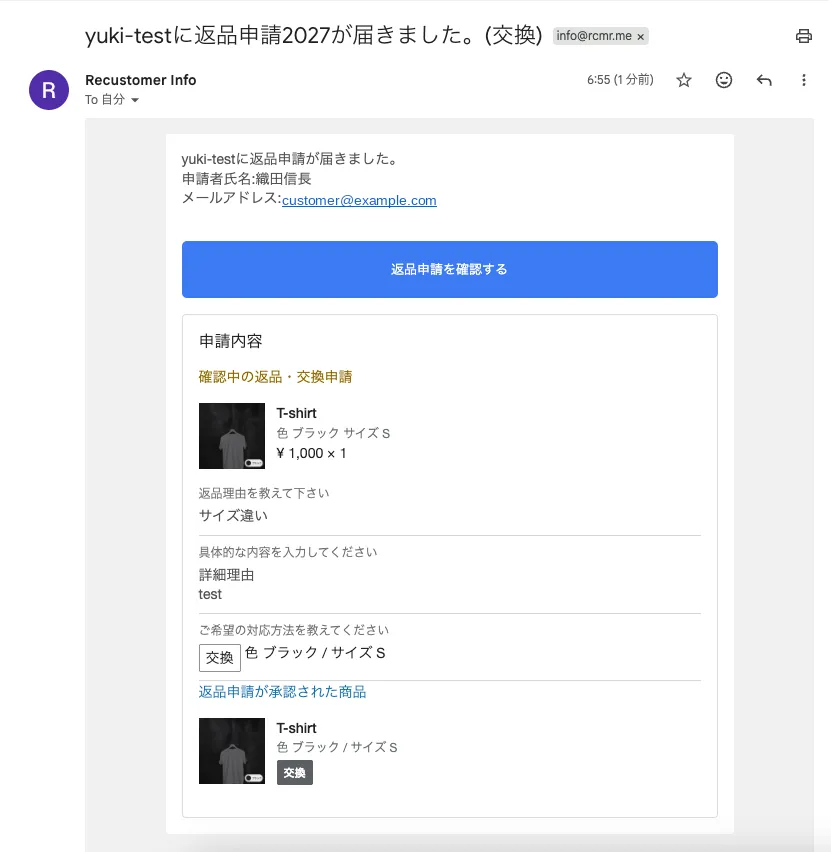
・Approved automatically
The approved items are shown under 返品申請が承認された商品 (Items whose return request was approved).
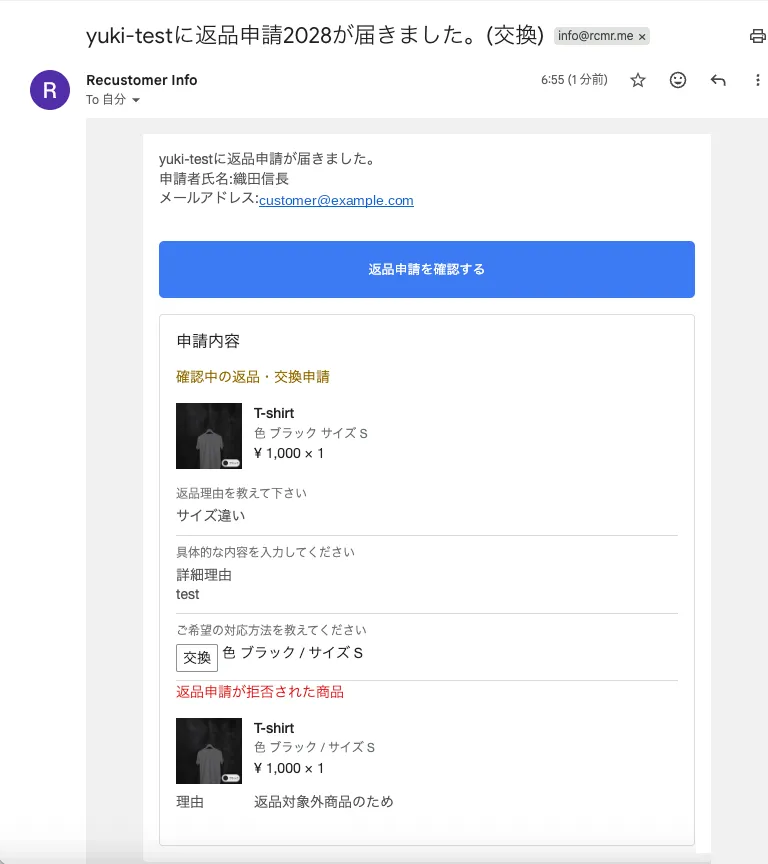
・Rejected automatically
The rejected items and the reason are shown under 返品申請が拒否された商品 (Items whose return request was rejected).
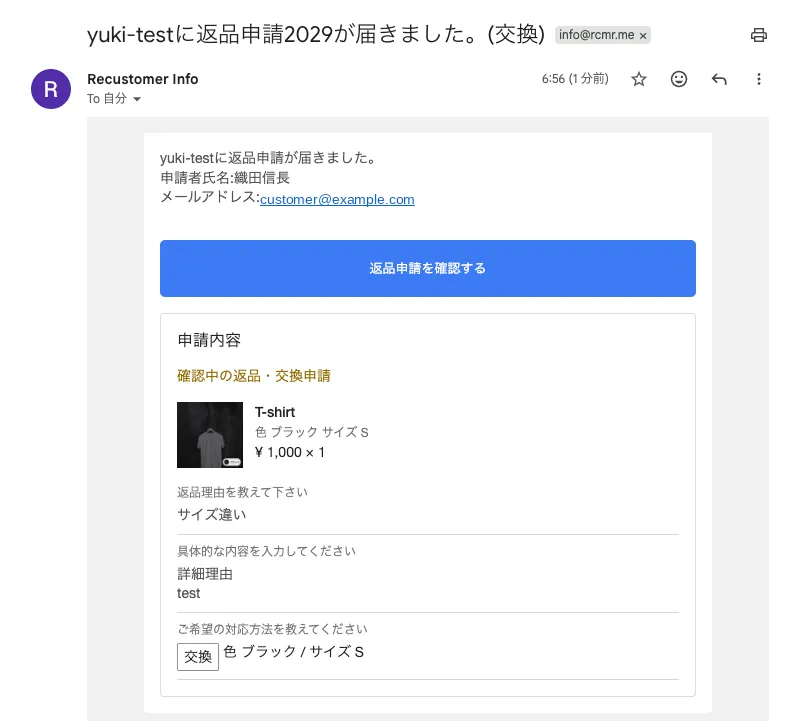
・Manual approval
Only the request details are shown. Review the request in the admin dashboard and approve or reject it.