Cancellation approval settings
Set whether a cancellation request is handled as "Cancellation approved" or "Cancellation rejected".
There is no manual approval for cancellations. Requests are approved or rejected on the spot according to the conditions you set. You can use the same setting for every request, or change it by condition. When you add a "dynamic cancellation approval" with conditions such as products, order tags or cancellation reasons, it is used only for requests that match the conditions, and the "default cancellation approval" is used for requests that do not.
1. Default cancellation approval
This setting is used for requests that do not match any dynamic cancellation approval. It is set to "Cancellation approved" initially.
- Go to Settings > Cancellation > Cancellation policy > Cancellation approval
- Choose Edit from the actions of the default cancellation approval
- Choose the approval method and save
| Approval method | Description |
|---|---|
| Cancellation approved | The request is approved immediately and the cancellation is sent to the integrated system. For payments that support automatic refunds, the refund is also processed |
| Cancellation rejected | The shopper is told that the order cannot be cancelled. When you choose Cancellation rejected, a field for the rejection reason appears, and the reason you enter is shown on the shopper's screen and in the notification email |
※An approved cancellation is sent to the integrated system immediately and cannot be undone
2. How to create a dynamic cancellation approval
To reject cancellations only for certain products or orders, or for certain cancellation reasons, add a rule with Create dynamic cancellation approval.
Click Create dynamic cancellation approval on the cancellation approval list
Set the following
- ① Status: either "Draft" or "Published". Only published rules are applied. You can save a rule as a draft while you are still working on it
- ② Dynamic cancellation approval name: give the rule a name that describes it
- ③ Conditions: choose the condition item, the operator and the value. Combine several conditions with Add AND condition and Add OR condition. See Condition items for the items you can use
- ④ Approval: choose "Cancellation approved" or "Cancellation rejected". For "Cancellation rejected", also enter the rejection reason
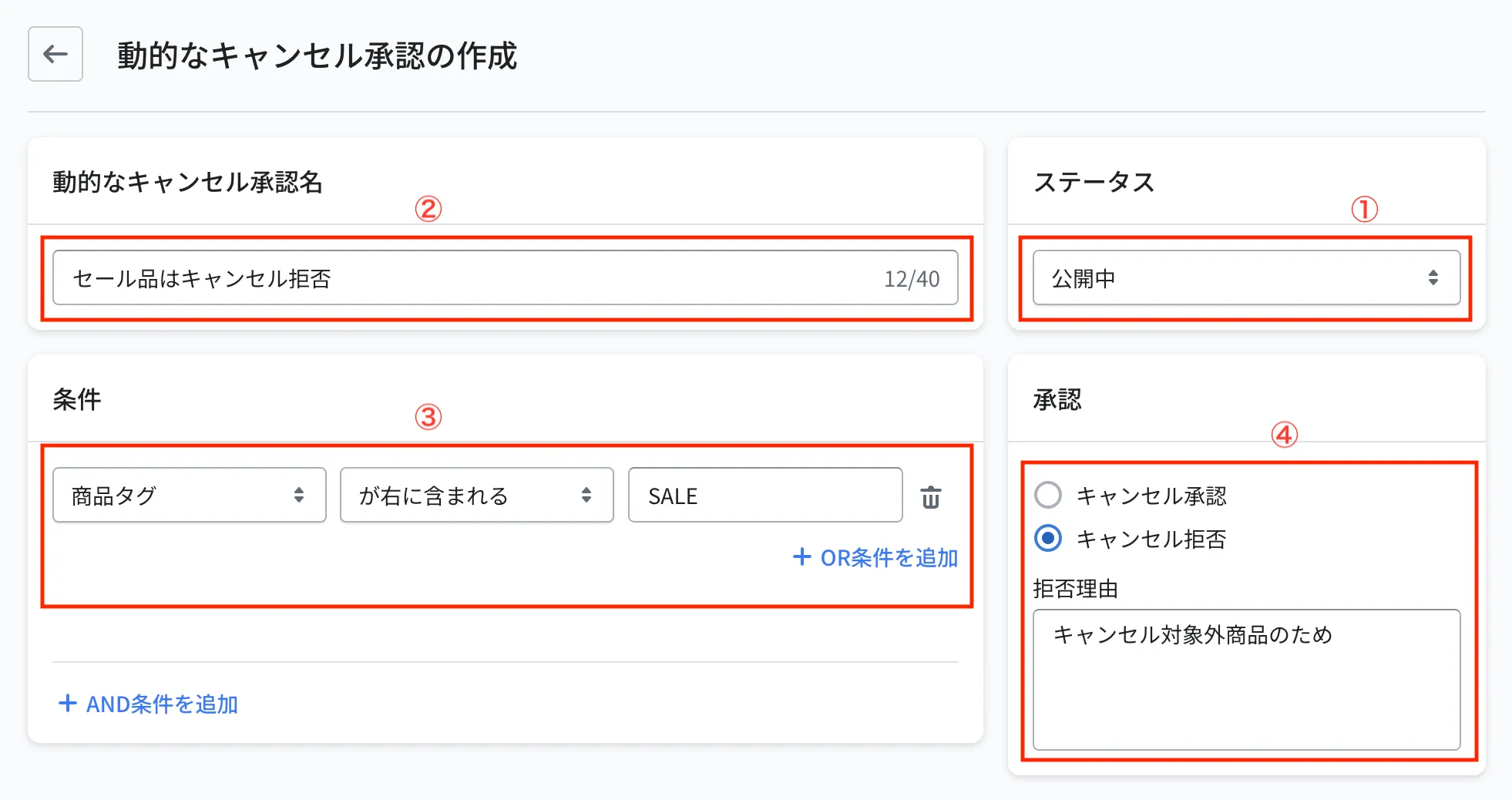
Save, then drag and drop the rules in the list to set their priority. Rules are evaluated from the top, and the first one that matches is applied
When you use a product condition (such as product tags or SKU), the rule applies to the whole cancellation if at least one of the cancellable items in the order matches.
Examples
| What you want to do | Condition | Approval method |
|---|---|---|
| Cancel normal requests as they are | (default setting) | Cancellation approved |
| Do not accept cancellations of sale items | Product tag is "SALE", or Difference between list price and selling price is "True" | Cancellation rejected (reason: sale items cannot be cancelled) |
| Do not accept orders that are already being prepared for shipment | Order tag is "WMS linked" | Cancellation rejected (reason: the order is already being prepared for shipment) |
| Do not accept shoppers who cancel often | Customer tag is "Frequent cancellations" | Cancellation rejected |
What the shopper sees for each approval method
| Approval method | What the shopper sees |
|---|---|
| Cancellation approved | The cancellation request ID, the refund method and the cancelled items are shown. Once the cancellation is complete, the shopper receives the "Cancelled" email |
| Cancellation rejected | The rejection reason is shown together with a message that the order could not be cancelled. The shopper also receives the "Cancellation rejected" email |
※You can change the heading and description of the rejection screen in Settings > Shopper portal > Customise > Language editor, and the email text in Notification email settings. You can insert the rejection reason into the email with the variable cancel_reject_text
Condition items
You can use almost the same items as the condition items for returns. For cancellations, you can also use the cancellation reason (the options registered in Settings > Cancellation > Cancellation reasons) as a condition.
Items that exist only for returns, such as "Number of items in the request", "Delivery date", "Resolution method" and "Interview question answers", cannot be used.